
Lab 2: AI-Powered Calendar Optimization and Executive Meeting Coordination
Overview
In this lab, you use Copilot Cowork as an AI-powered executive assistant. It manages your calendar and coordinates your meetings across Outlook Calendar, Outlook mail, Microsoft Teams and OneDrive. Instead of protecting focus time, finding meeting slots or checking for clashes yourself, you give Cowork instructions in plain language and let it do the work.
You will apply executive-style standing rules across a full week, schedule new meetings and generate a one-page prep brief for an executive meeting. Finally, you will run a discovery pass that finds conflicts with your upcoming time away and resolves them through an approved handoff.
Throughout the lab, keep an eye on two things:
- The Workspace panel on the right, which tracks the steps of Cowork's plan and the plugins it uses.
- The approval cards in the conversation. Cowork waits for you to approve each card before it changes your calendar or mailbox. This human-in-the-loop design matters most for bulk changes.
Note
Prerequisite: Complete Lab 1 first. This lab uses the emails, calendar events, OneDrive folders and Teams team you created there.
Disclaimer: Cowork is AI-powered, so your output may differ from the screenshots. Dates, times, event titles, task names and the number of items found will vary. Follow the workflow and check the expected outcome.
Objectives
- Task 1: Executive calendar management
- Task 2: Intelligent meeting scheduling
- Task 3: Conflict detection and resolution
Task 1: Executive calendar management
In this task, you set standing rules for Cowork to apply across next week: protect focus time, decline meetings that have no agenda, and keep Friday afternoon free. Cowork proposes every change as one batch for your review before it adds anything to your calendar.
- In Copilot, select Home (1) in the left pane. Enter the following prompt in the task box (2), make sure Cowork (3) is selected, then select Send (4).
Act as my executive assistant. Apply these standing rules to next week: block two 90-minute focus blocks before noon; decline meetings with no agenda after asking the organizer for one; keep Friday afternoons free; and summarize every change you make for my approval before applying it.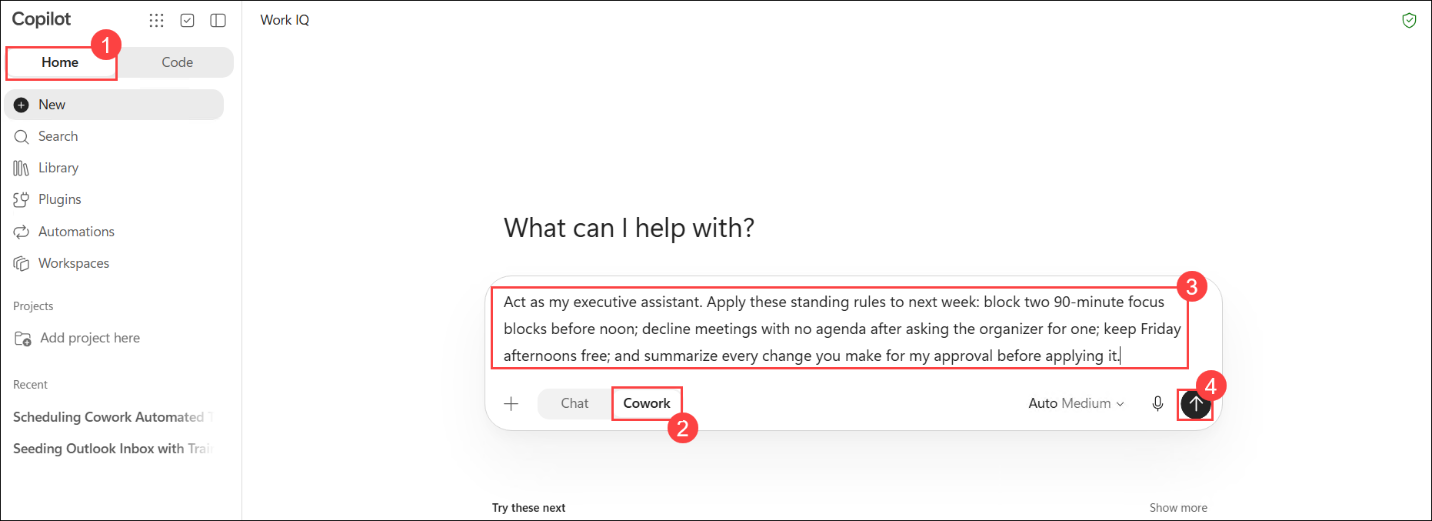
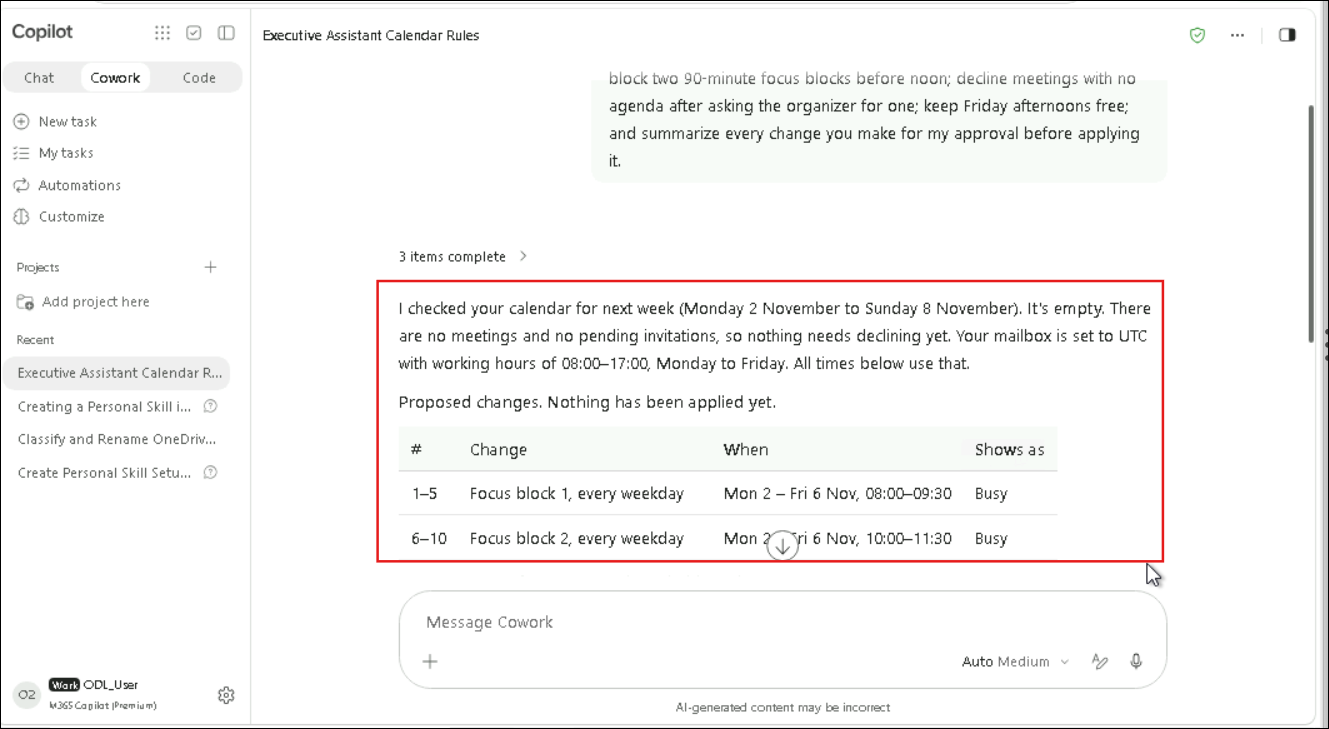
- Review the proposed changes. Cowork checks next week's calendar, confirms your mailbox time zone and working hours, and lists each proposed change in a numbered table with its date, time and Shows as status. Notice that Cowork states that nothing has been applied yet.
Note
Note: Cowork may behave a little differently. It may first ask a few clarifying questions: answer them (or pick the recommended option) and click Next or Send. It may also show the Create calendar event? approval cards straight away: if so, skip step 3 and continue with step 4.
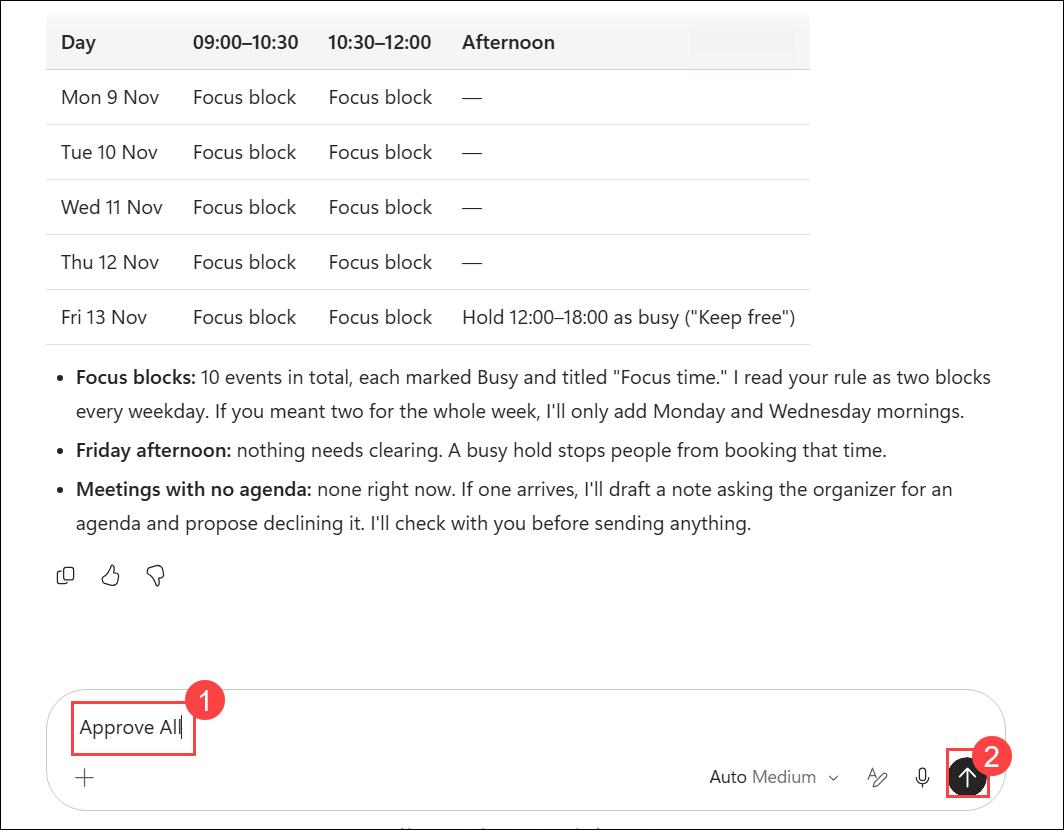
- Scroll down to review the rest of the proposal, including the Friday afternoon Keep free hold and Cowork's notes on how it read your rules. Then type Approve all (1) in the Message Cowork box and click Send (2).
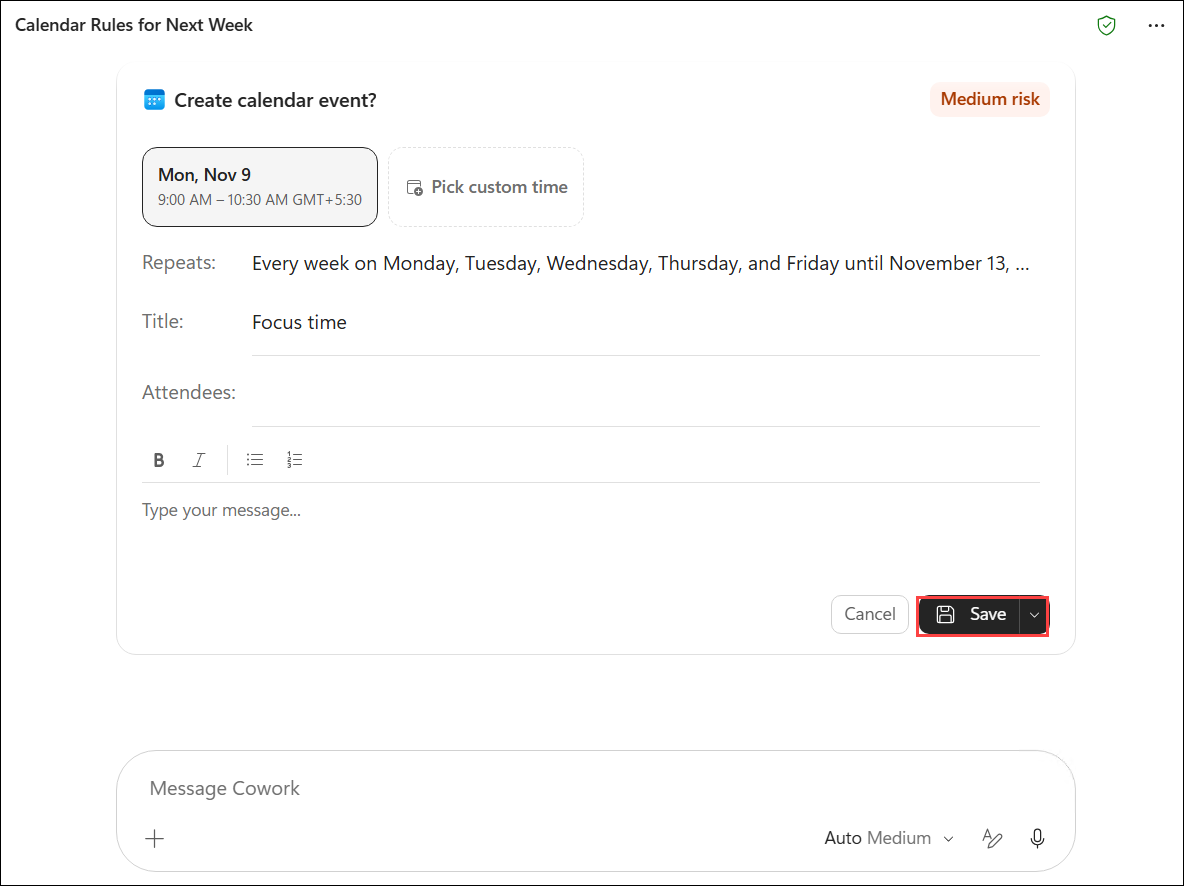
- Cowork shows a Create calendar event? card (marked Medium risk) for each item: the two focus-block series that repeat Monday to Friday, and the Friday afternoon hold. On each card, check the date, time, repeat pattern and title, then click Save. Repeat until you have saved every card.
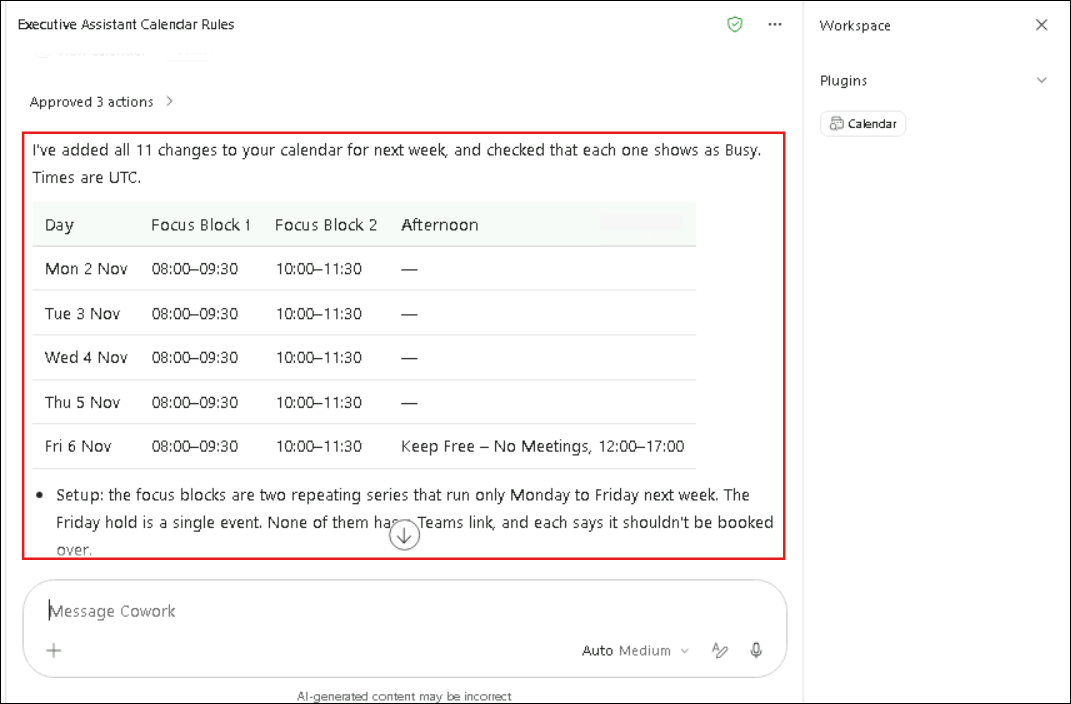
- Review the confirmation summary. Cowork shows the number of approved actions and a day-by-day table for next week: both focus blocks on every weekday and the Keep free hold on Friday afternoon, all shown as Busy.
Task 2: Intelligent meeting scheduling
In this task, you ask Cowork to add two meetings to next week's calendar and confirm their final times. You then have it prepare you for the Steering Committee Review (created in Lab 1) by building a one-page prep brief in Word from your calendar, email and OneDrive, and saving it to OneDrive.
Schedule new meetings
- Stay in the same Cowork conversation you used in Task 1. Cowork names it for you, for example Executive Assistant Calendar Rules or Calendar Rules for Next Week. Enter the following prompt in the Message Cowork box (1) and click Send (2):
Add these 2 meetings to my Outlook calendar, covering next Monday and Thursday. I am the only attendee/organizer on both — do not invite anyone else, use only my own email if an attendee field is required. Add a Teams meeting link to each.

- Monday: "Client Status Call – Northwind Account" — 10:00–10:30 AM
- Thursday: "Budget Review – Phase 3 Sign-off" — 2:00–2:30 PM

Confirm each one's final date/time in a summary table.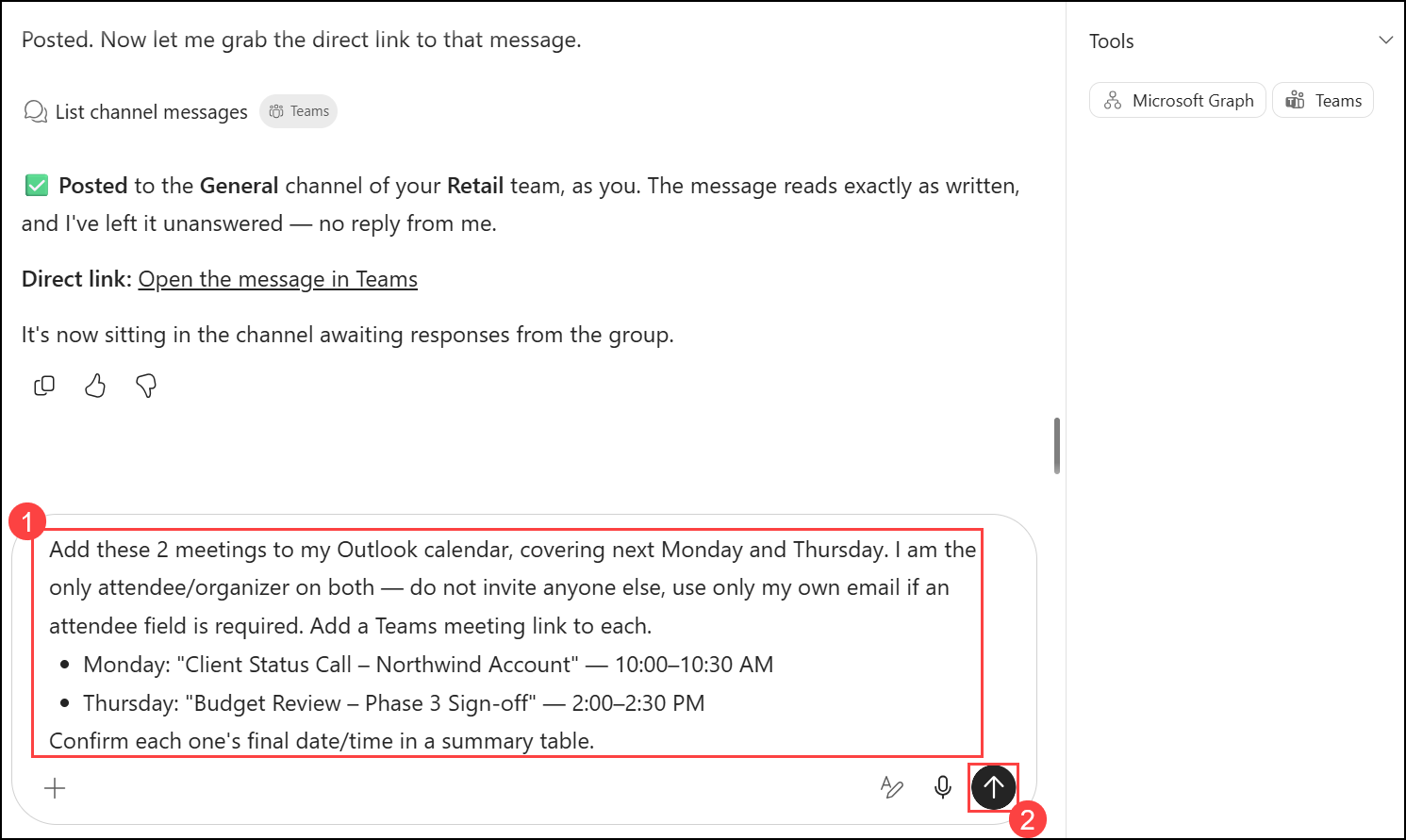
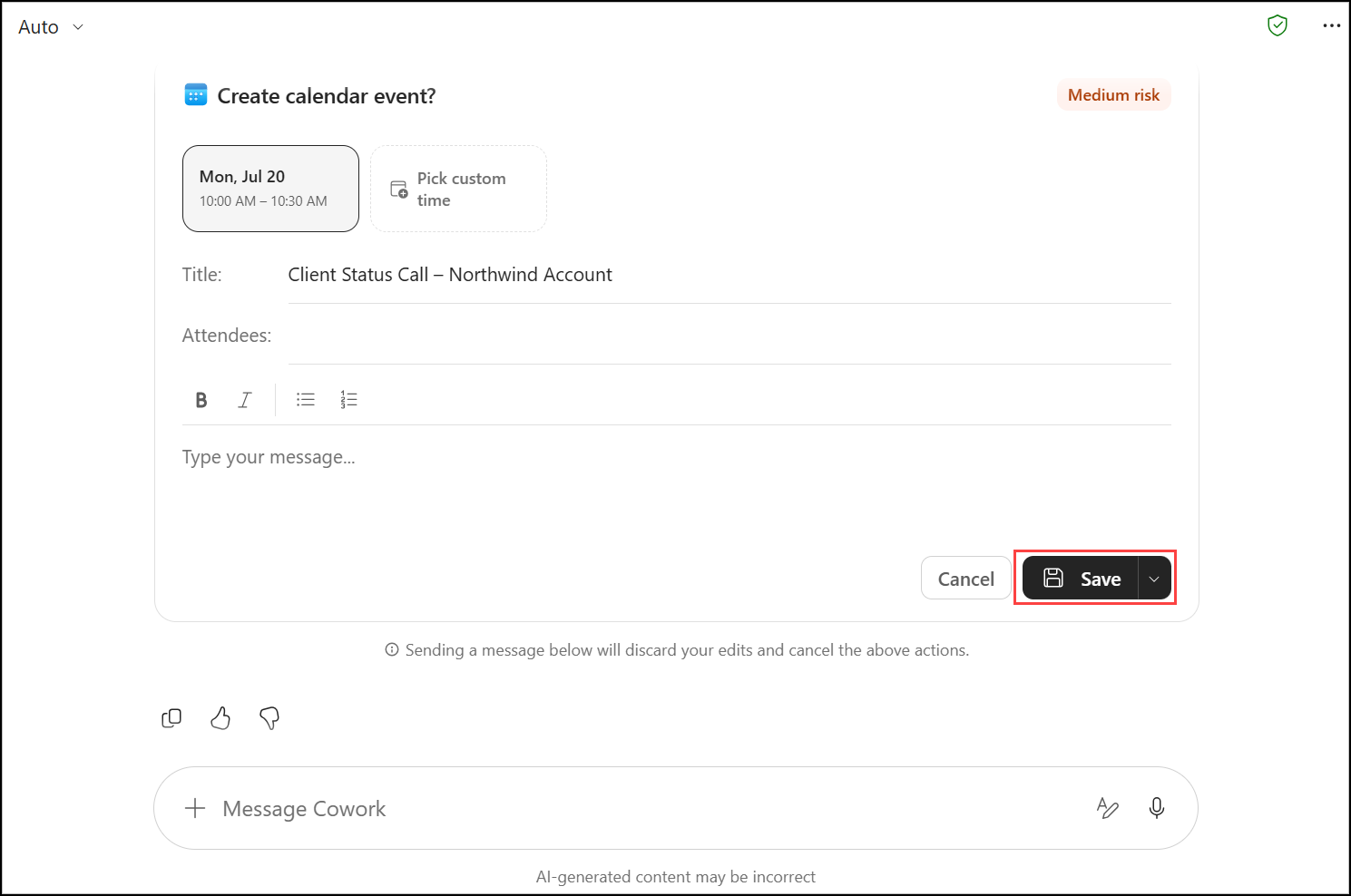
- Cowork shows a Create calendar event? card for each meeting. Check the date, time and title on both cards and click Save on each one.
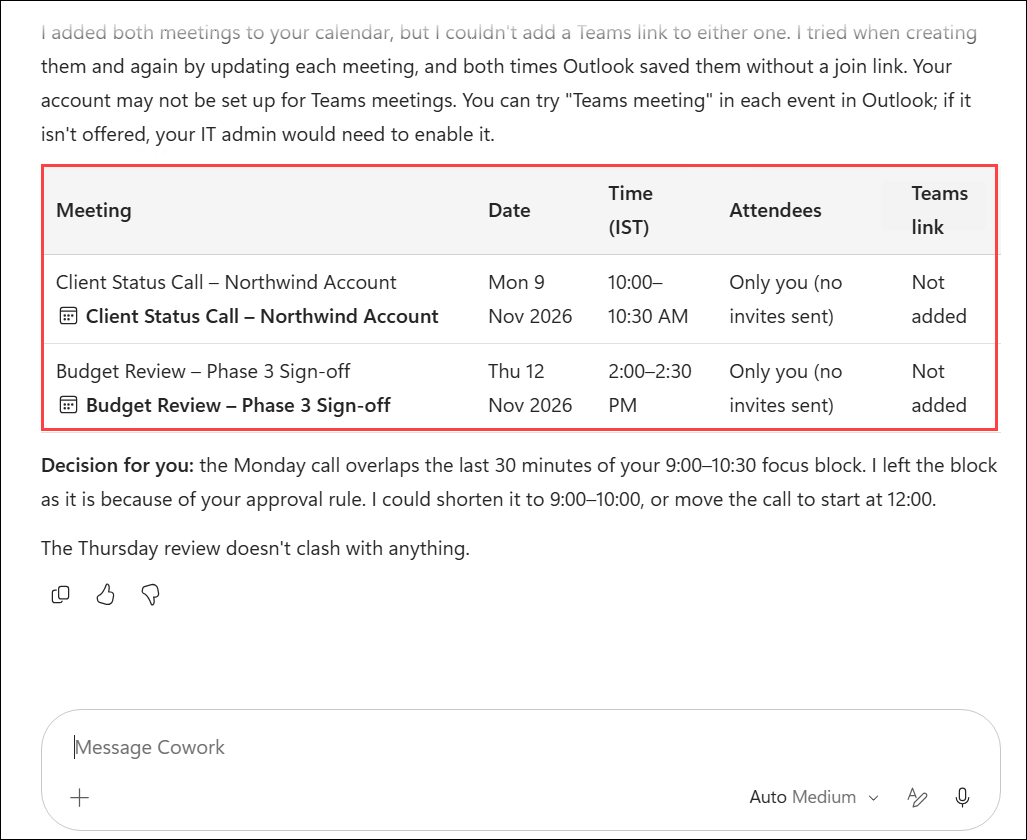
- Review the summary table. Cowork confirms both meetings with you as the only attendee: Client Status Call – Northwind Account on Monday, 10:00–10:30 AM, and Budget Review – Phase 3 Sign-off on Thursday, 2:00–2:30 PM.
Note
Known issue: As in Lab 1, some lab tenants can't create Teams meeting links. Cowork then marks the link as Not added and explains why. This is an environment limitation, not an error on your part.
Note
Note: Because you scheduled these meetings in the same conversation, Cowork checks them against the focus blocks from Task 1. It flags that the Monday call overlaps a focus block and offers to shorten the block or move the call. Cowork only proposes this change and won't move anything unless you approve it, so you can continue without replying.
Generate an executive meeting prep brief
- In the left pane, select Home (1) and then New (2). Make sure Cowork (3) is selected, enter the following prompt (4) and select Send (5):
Prepare me for my Steering Committee Review meeting for Project Orion.

Gather from these three sources only:
- My calendar: that meeting's details and attendees
- My email: Project Orion messages from the last 7 days
- My OneDrive "Project Orion Files" folder

Produce a one-page prep brief as a Word document containing: attendee list with my last interaction with each, the stated agenda and purpose, related email threads and files, open action items, and the decisions needed. Save it to my OneDrive "Lab Files" folder.

Keep your final confirmation to one line.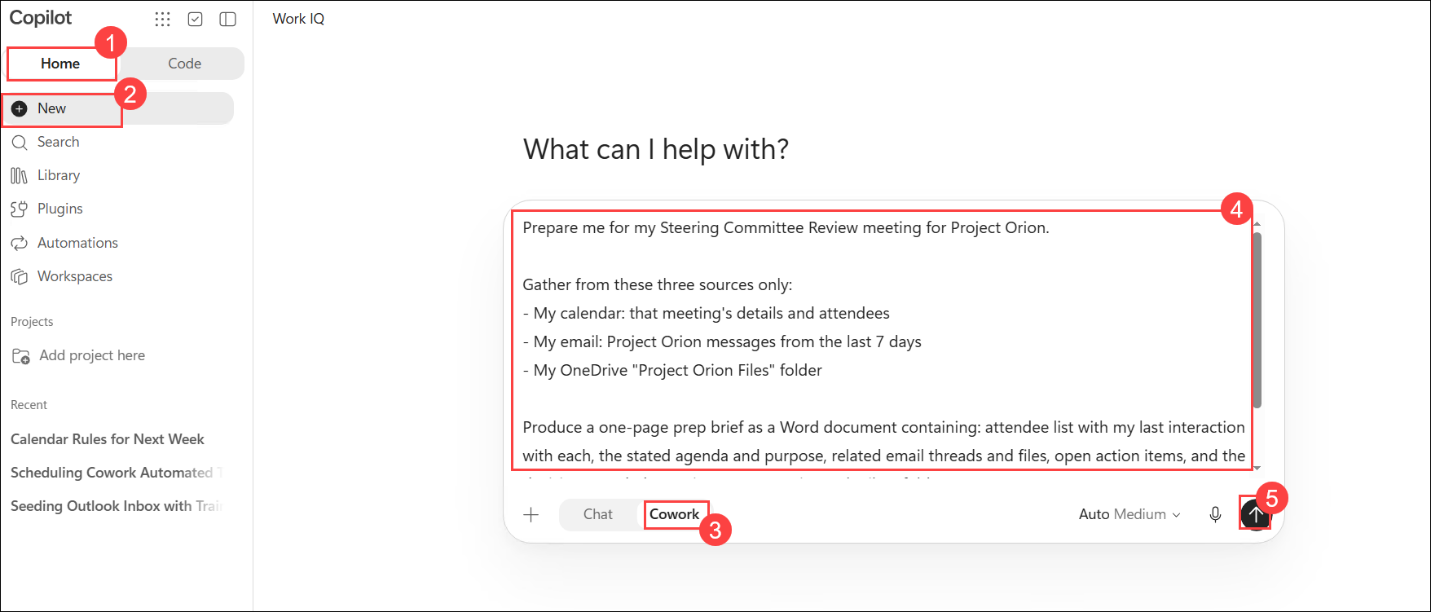
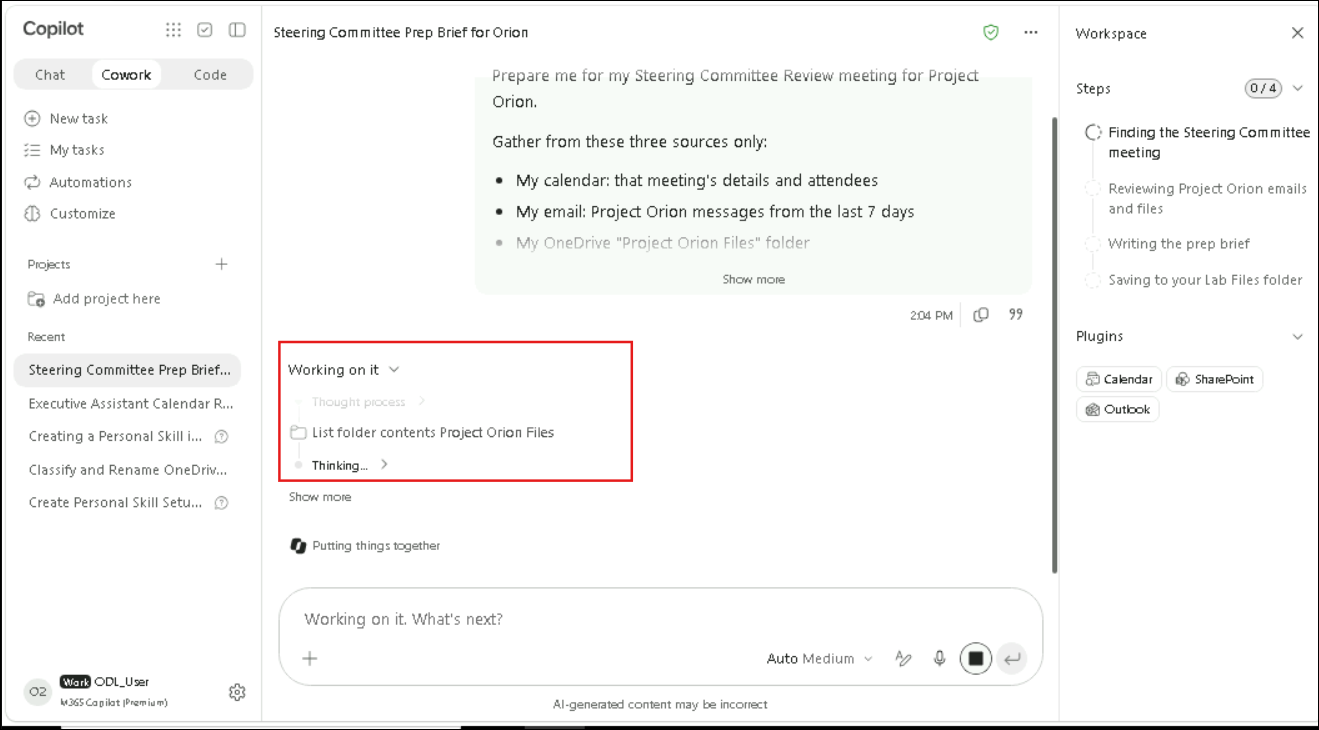
- Watch Cowork work. It names the task (for example, Steering Committee Prep Brief for Orion), and the Working on it section shows each action as it runs, such as listing the contents of the Project Orion Files folder. In the Workspace panel, Steps tracks the plan (find the meeting, review Project Orion emails and files, write the brief, save it to Lab Files) and Plugins shows the sources in use, such as Calendar, SharePoint and Outlook.
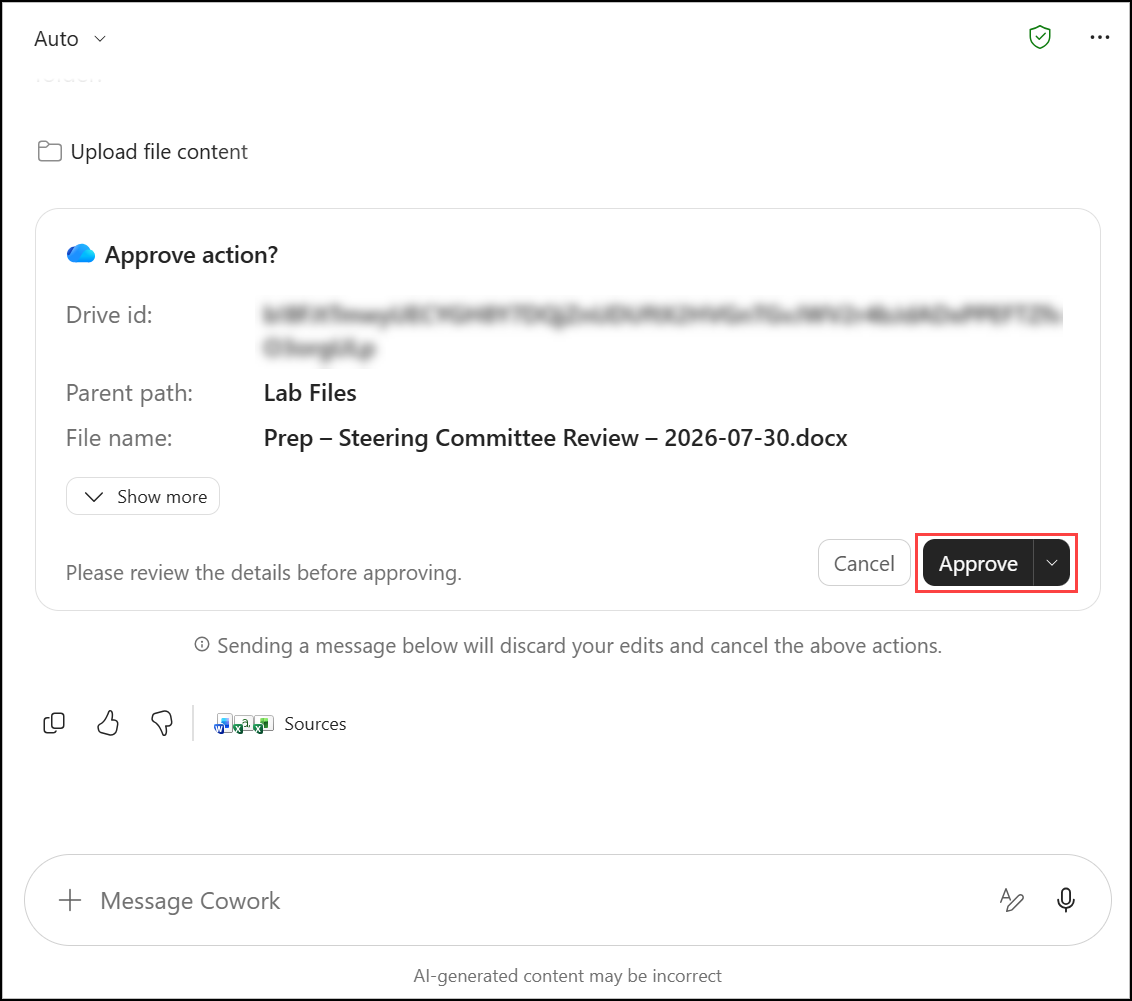
- When Cowork is ready to save the brief, it shows an Approve action? card. Confirm that the Parent path is Lab Files, review the File name and click Approve.
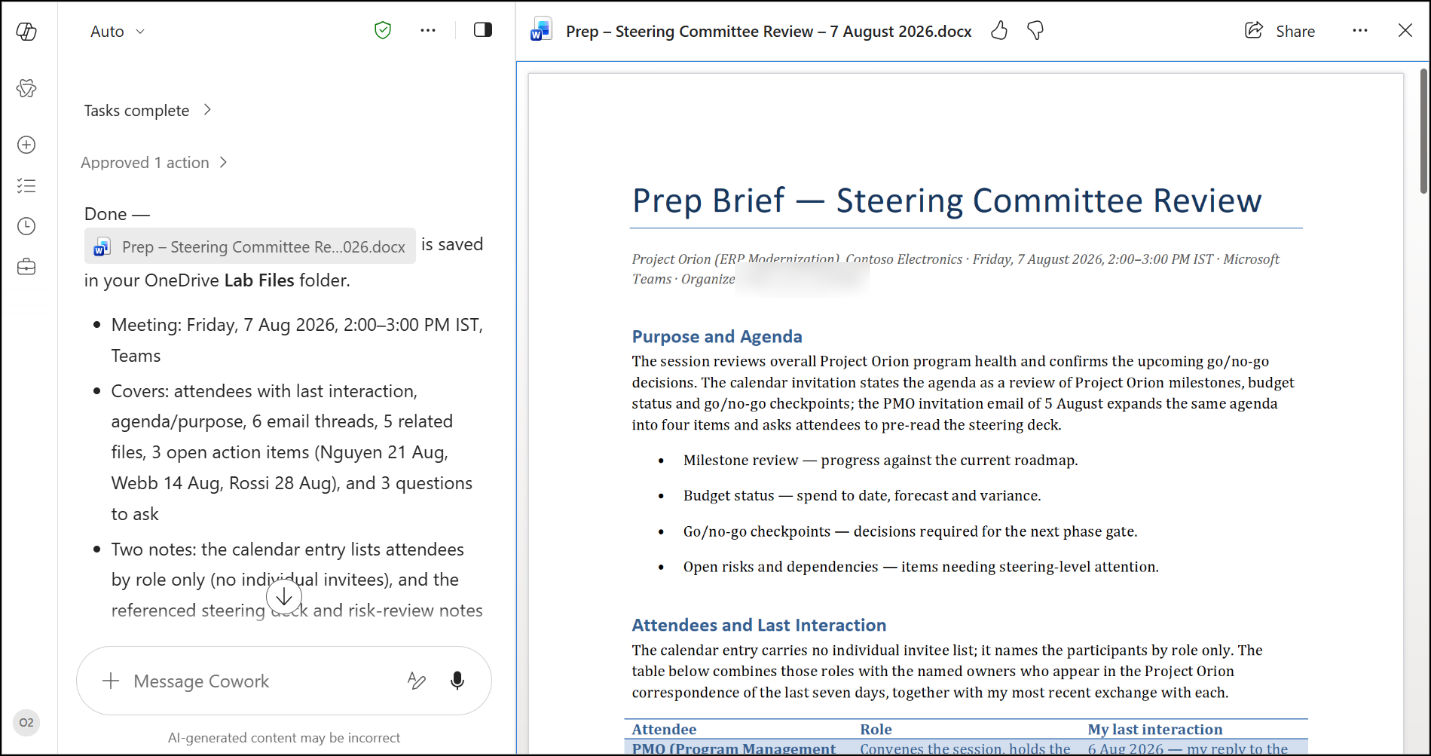
- Review Cowork's confirmation that the brief is saved in your OneDrive Lab Files folder, then click the Word document card to open it.
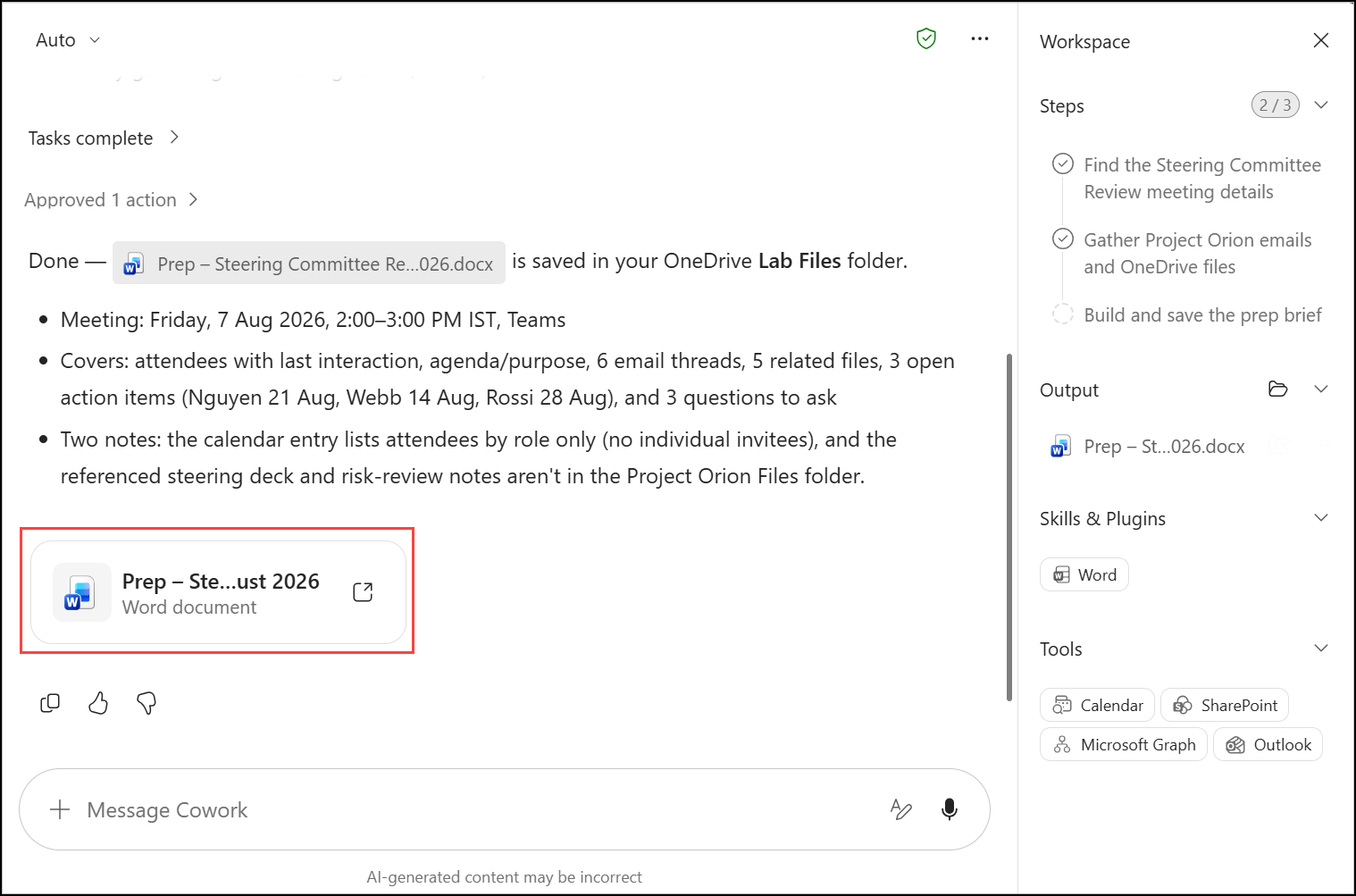
- Review the prep brief. Check that it includes the meeting purpose and agenda, the attendee list with your last interaction with each attendee, the related email threads and files, the open action items and the decisions needed.
Task 3: Conflict detection and resolution
In this task, you prepare for a vacation next Monday through Friday, the same week you just filled with focus blocks and meetings. You ask Cowork to scan your email, calendar, To Do tasks and Teams, find the meetings and commitments that clash with your time away, and propose an action for each item. After you approve the plan, Cowork carries out the handoff.
- In the left pane, select New (1). Enter the following prompt (2), make sure Cowork (3) is selected, then select Send (4):
I'm on vacation next Monday through Friday and returning to work the Monday after. Before I leave, scan the following and flag anything at risk while I'm away:

- Email: unanswered threads and unsent drafts that need action before I leave
- Calendar: meetings during my vacation week that conflict with my time away
- To Do tasks: anything due during my time away or right after I return
- Teams: unanswered questions directed at me

Sort findings into 🔴 Must Handle, 🟡 Needs Delegation, and 🟢 Can Wait, with a proposed action for each item.

Take no action yet - just show me the plan.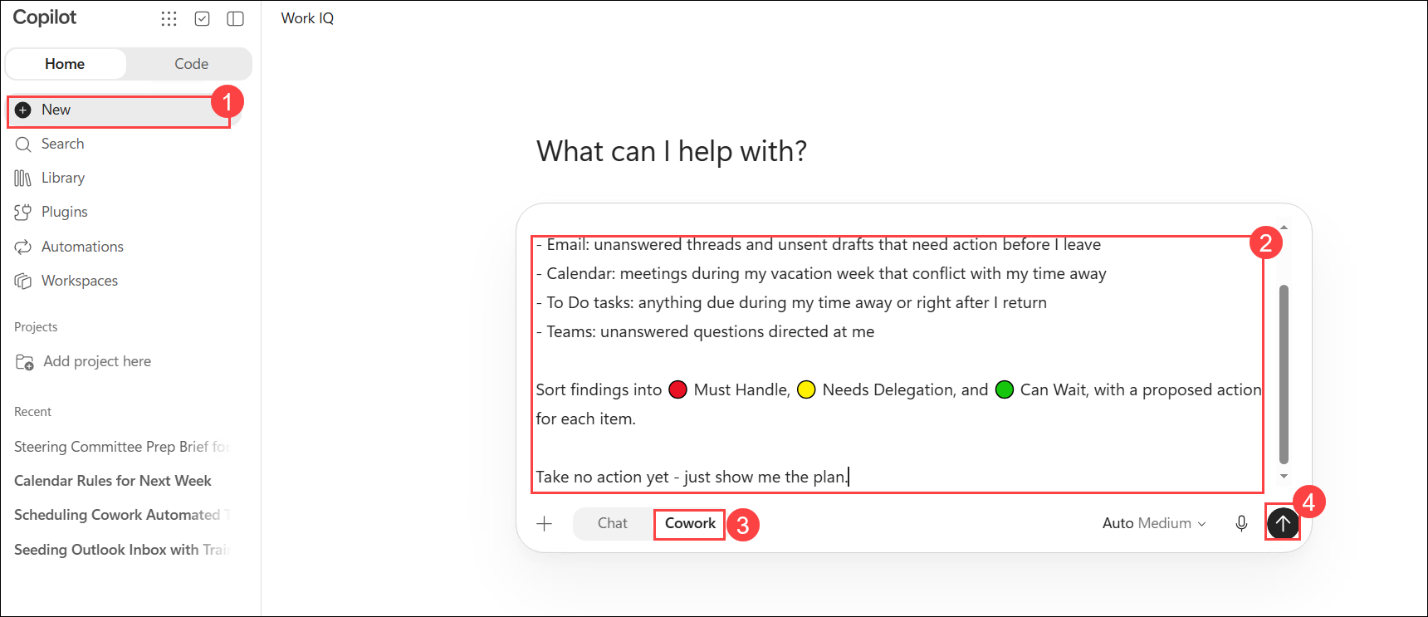
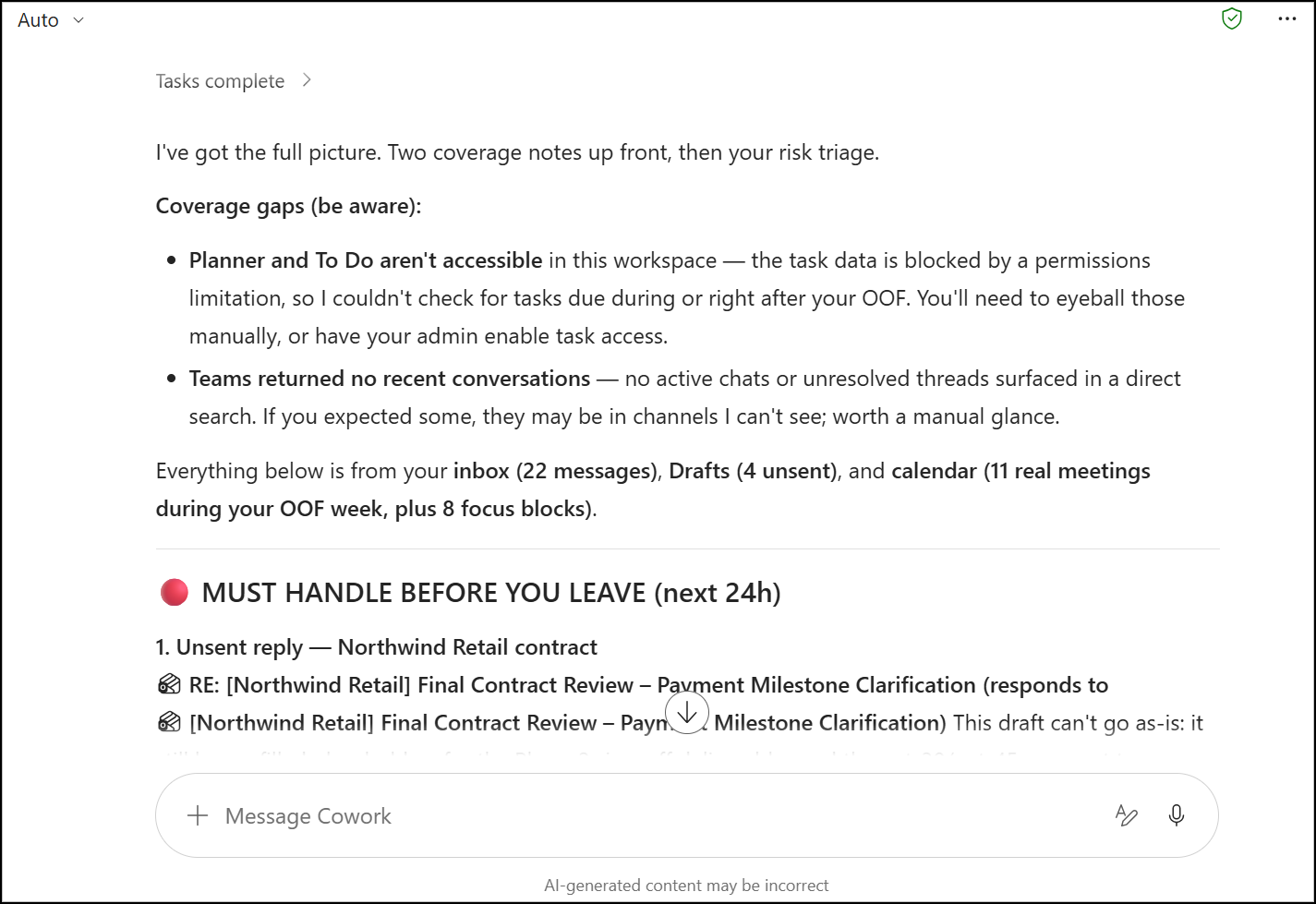
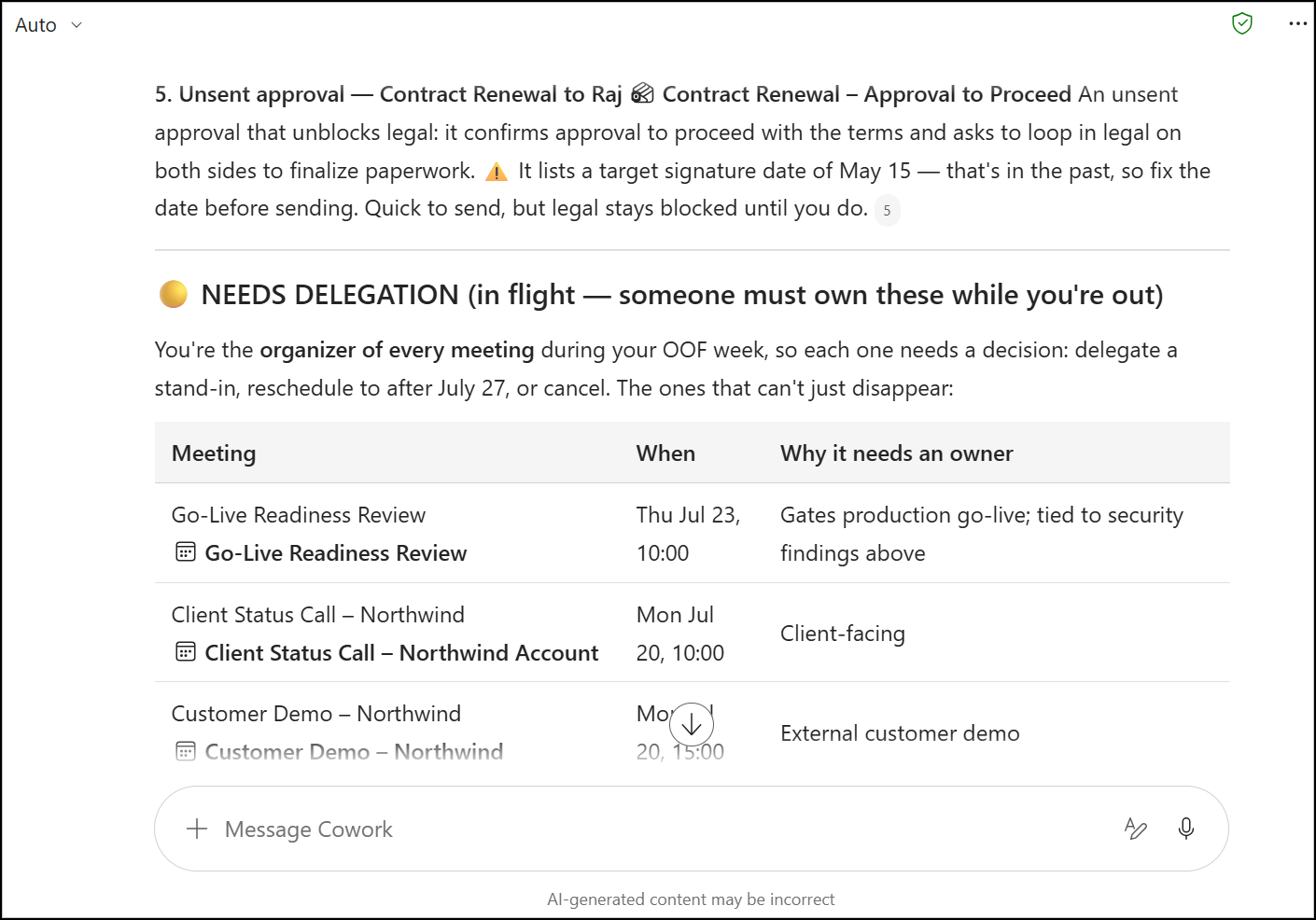
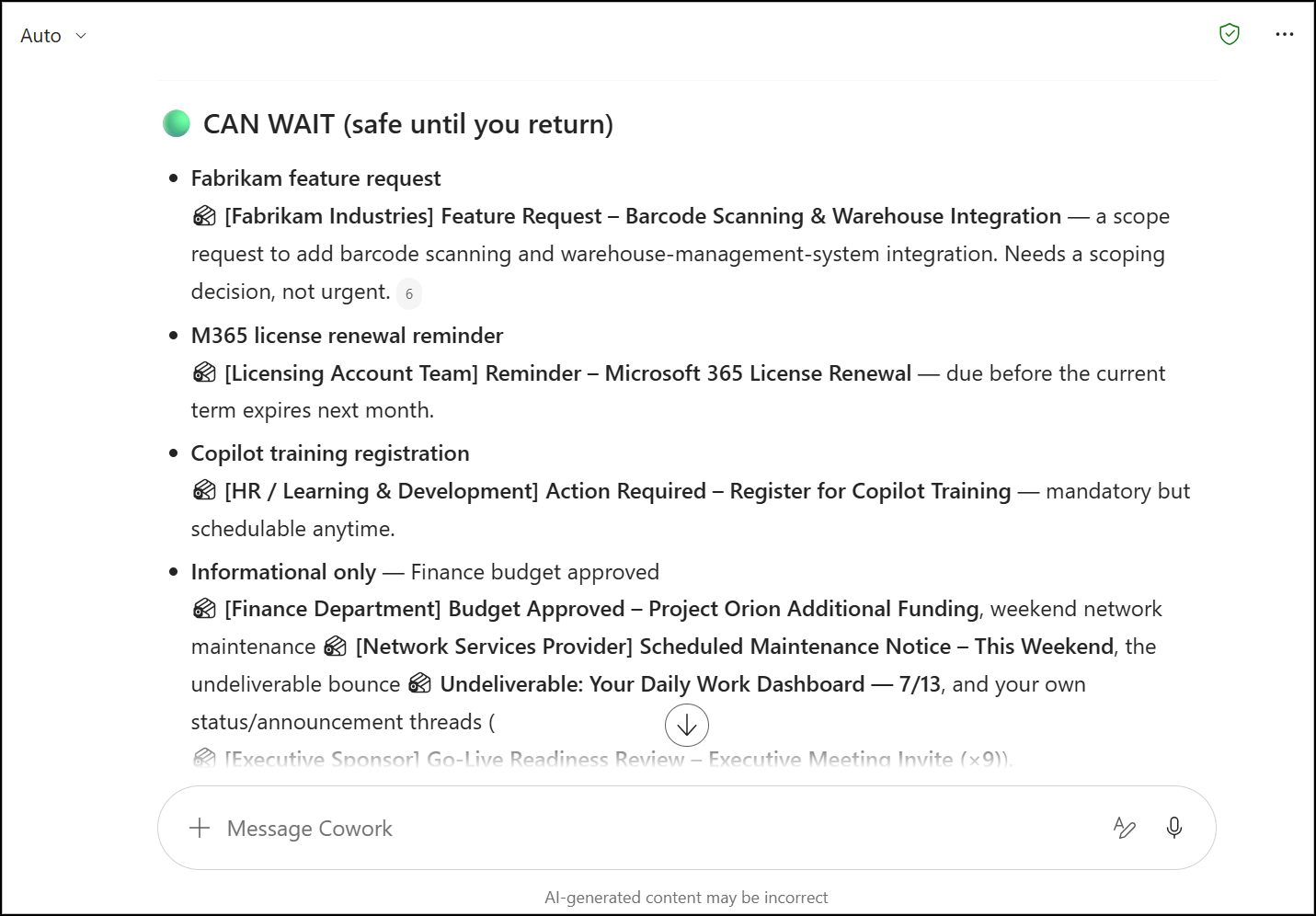
- Wait for Cowork to finish scanning, then review its response. Cowork first lists any coverage gaps, such as sources it couldn't access, so you know what to check yourself. It then sorts its findings into Must Handle, Needs Delegation and Can Wait, with a proposed action for each item. Scroll through all three sections.
Note
Note: In some lab tenants Cowork reports that Planner and To Do aren't accessible. That's expected; it tells you to check those tasks manually. The number of findings also depends on how much data is in your mailbox and calendar, so you may see fewer items than in the screenshots.
- In the Message Cowork box, enter the following follow-up prompt (1) and click Send (2):
That looks right. Go ahead and handle everything. Show me anything before it goes out, and get my approval before sending or posting anything.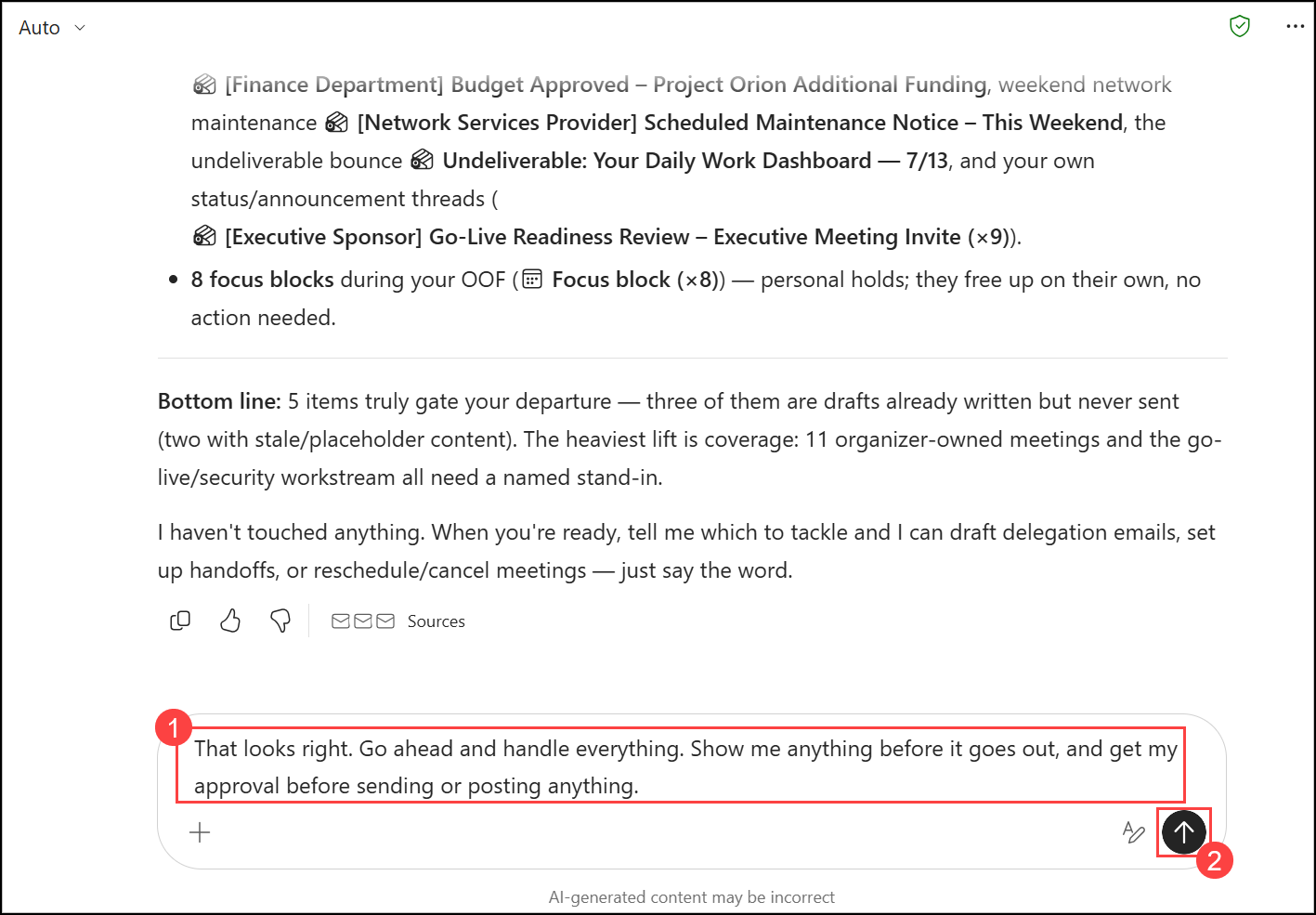
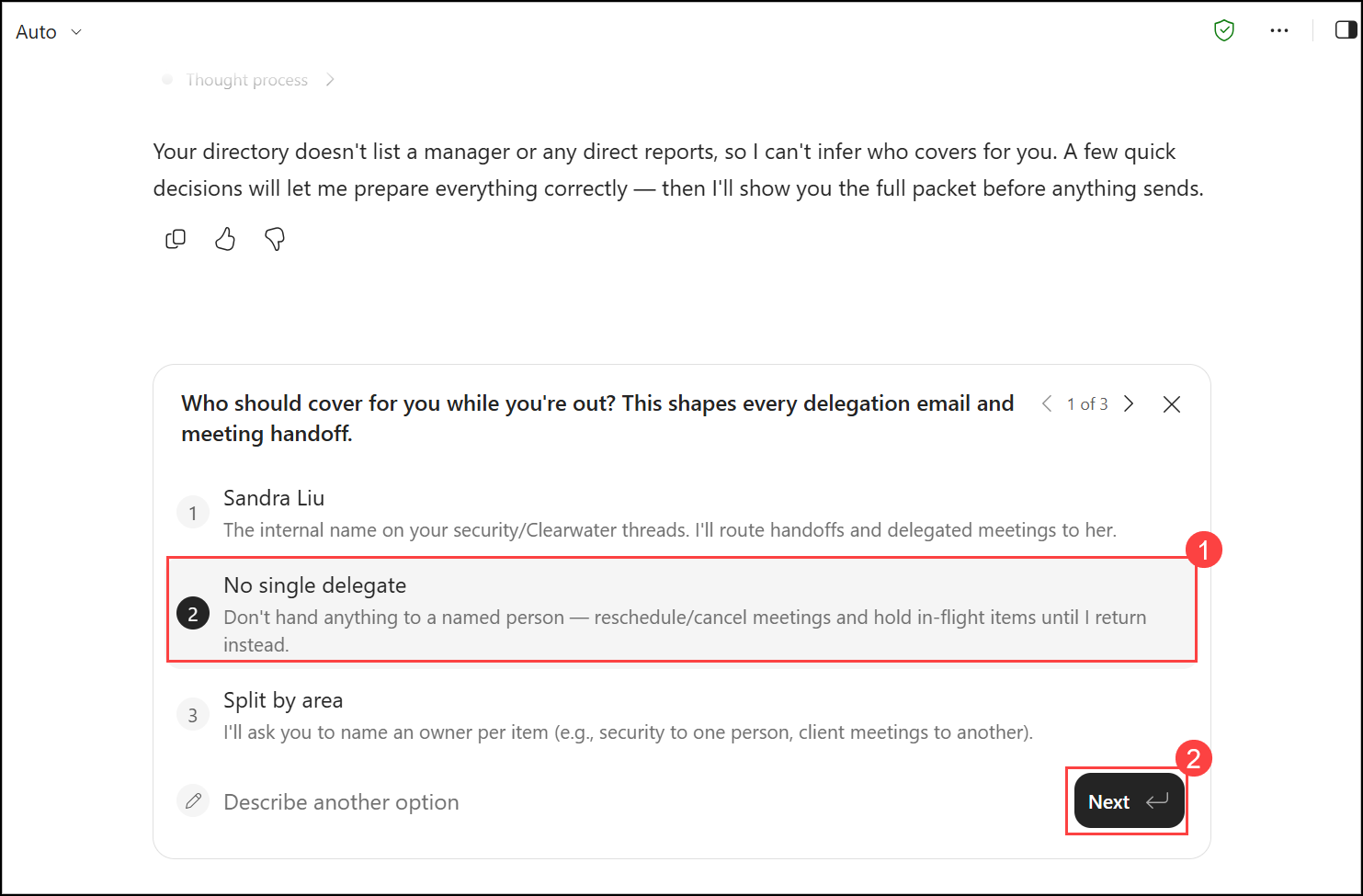
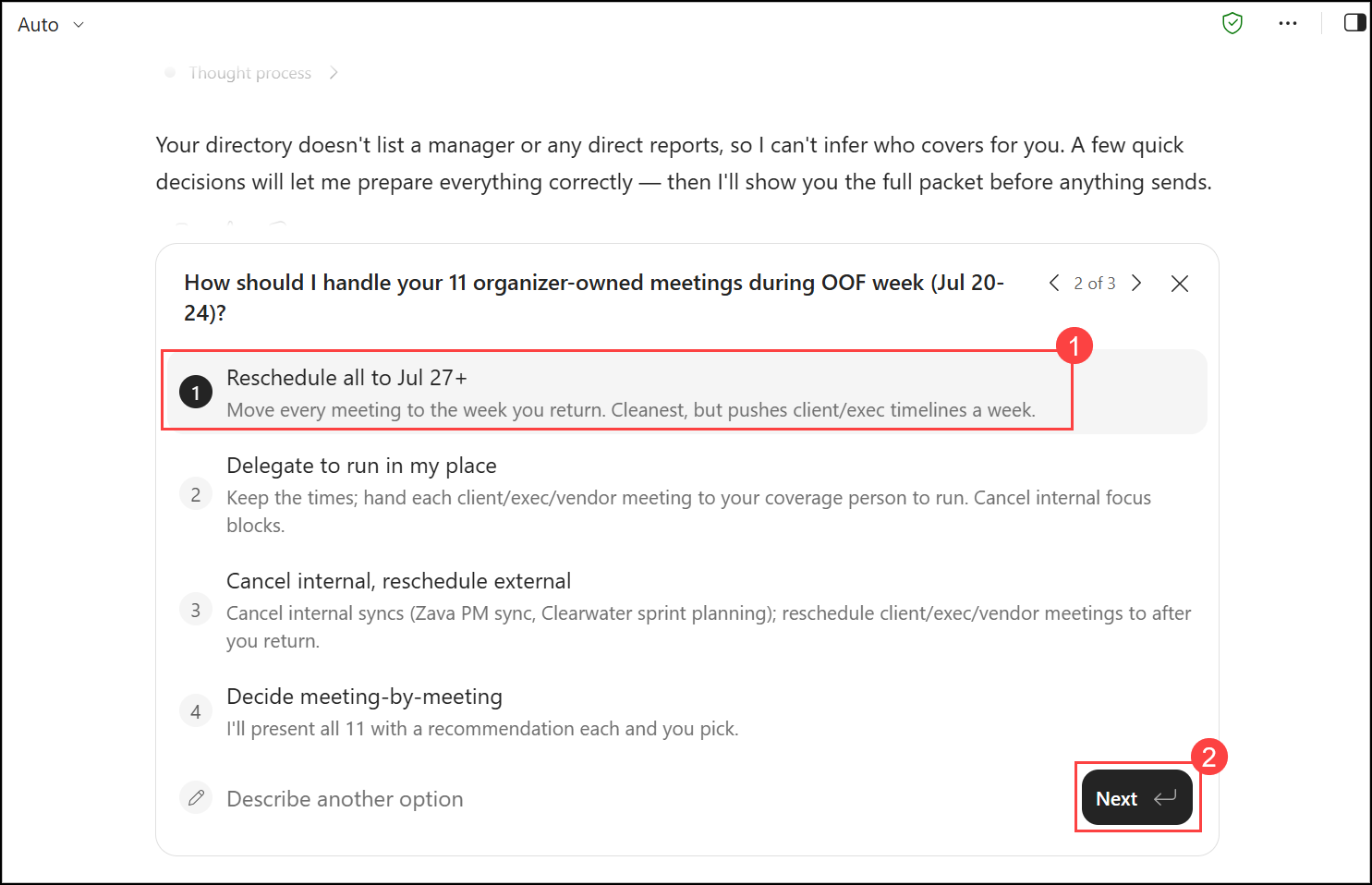
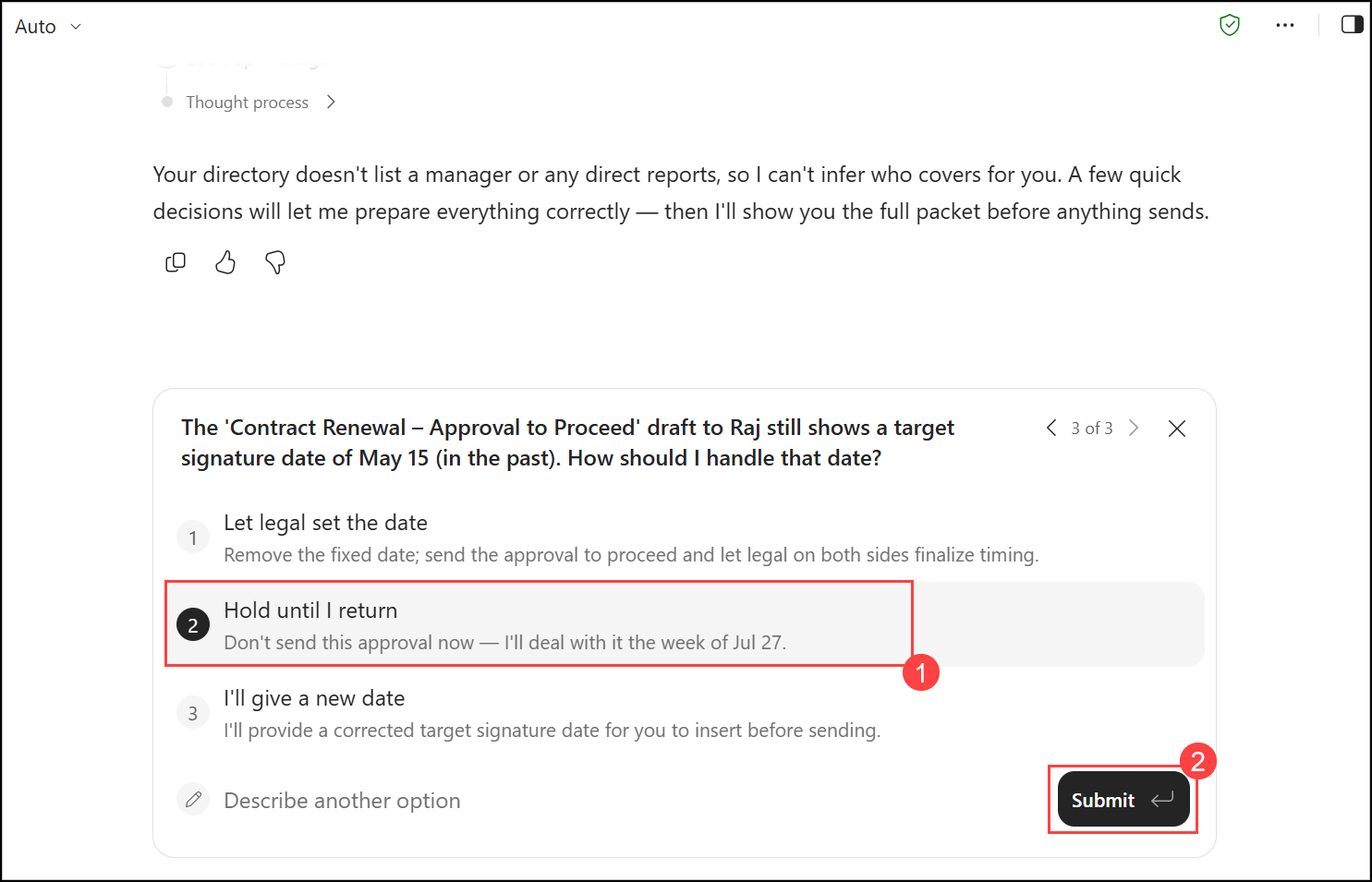
- Cowork asks a few questions to plan the handoff, such as who should cover for you, how to handle the meetings you organize during your time away, and what to do with unsent drafts. For each question, select the option that suits you (1) and click Next (2). On the last question, click Submit.
Note
Note: The number and type of questions may differ from the screenshots. If Cowork shows approval cards directly after your answers, skip steps 5 and 6 and continue with step 7.
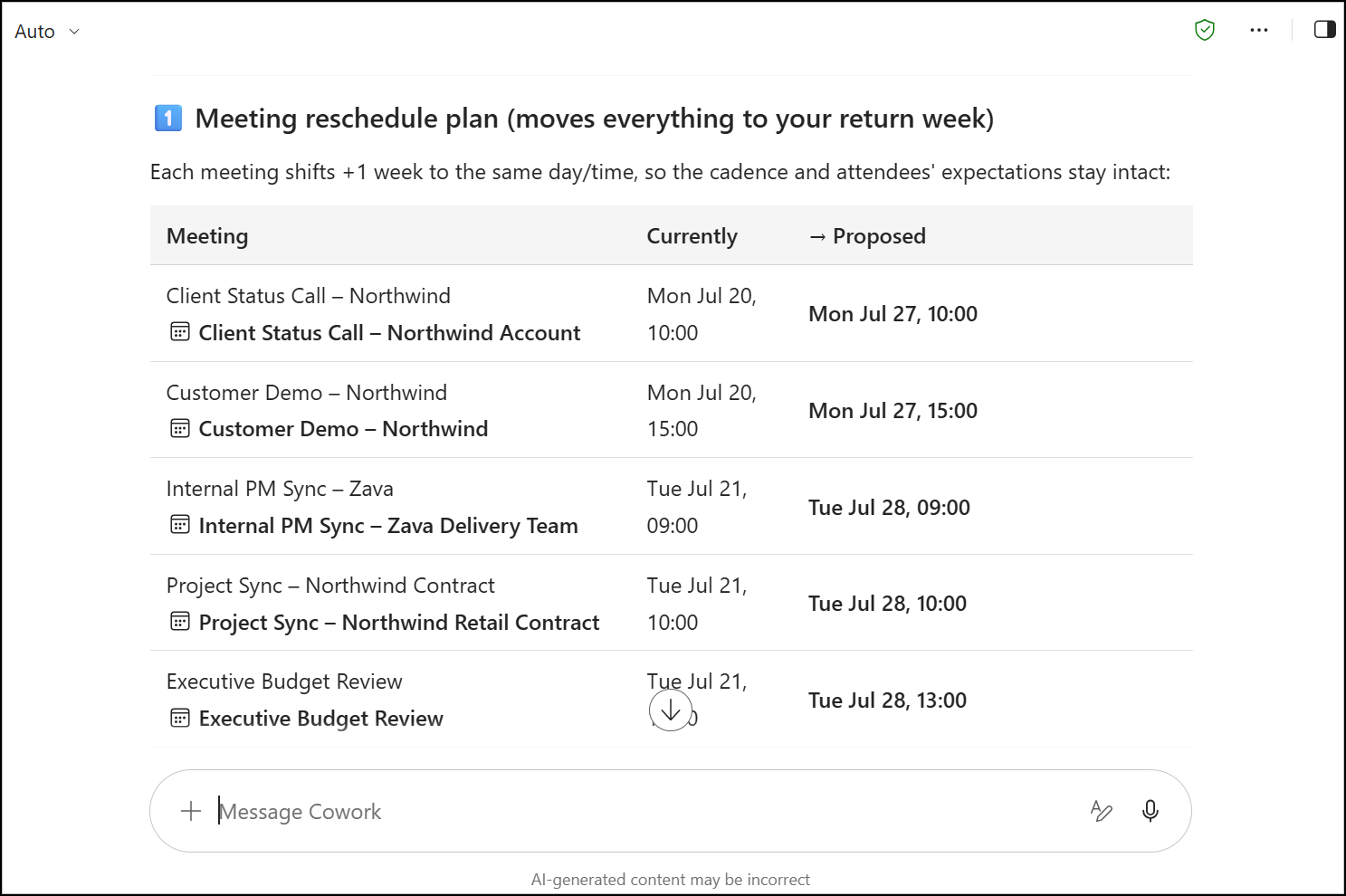
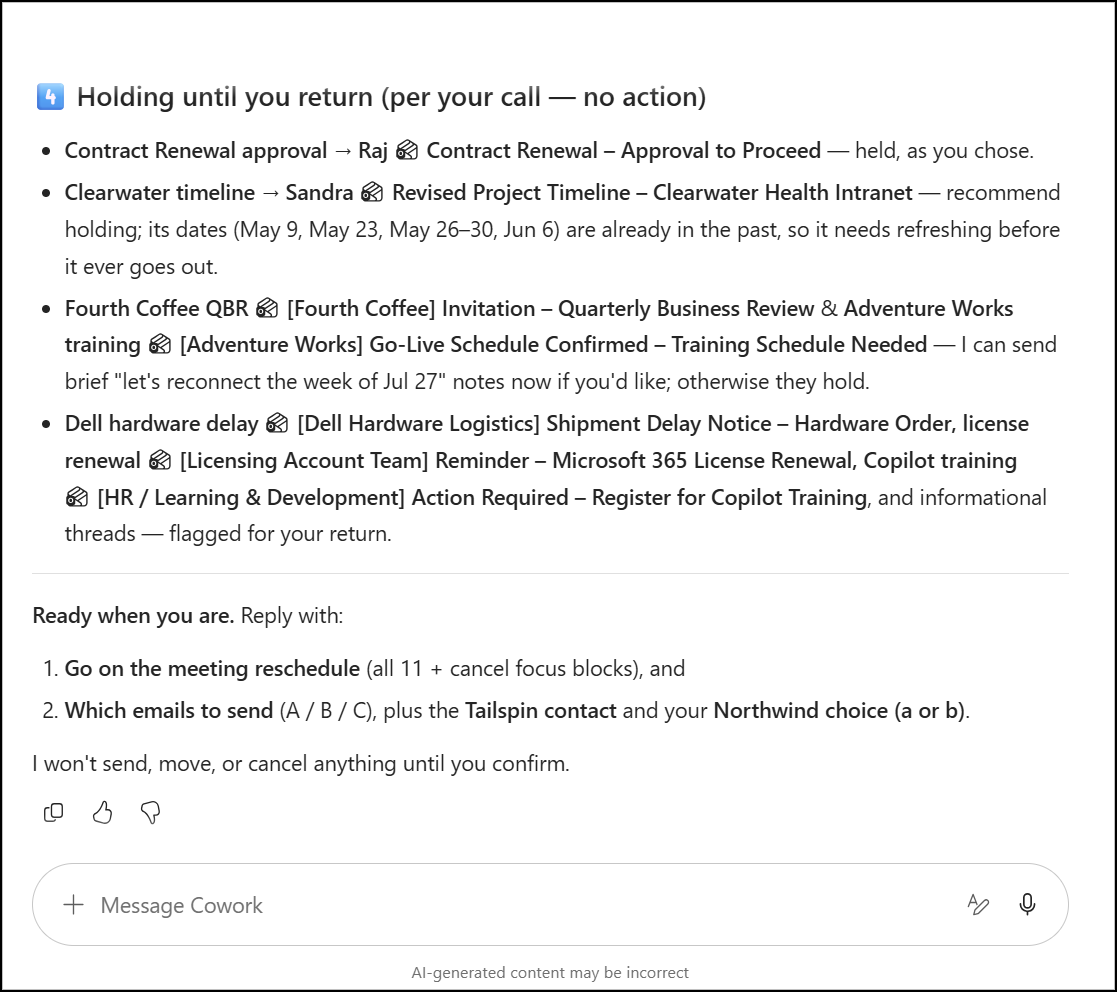
- Review the plan Cowork builds from your answers, such as a meeting reschedule plan that moves each meeting to your return week and a list of items held until you return. Notice that Cowork has not sent, moved or cancelled anything yet.
- Enter the following follow-up prompt (1) and click Send (2):
Confirm the proposed actions and execute them.
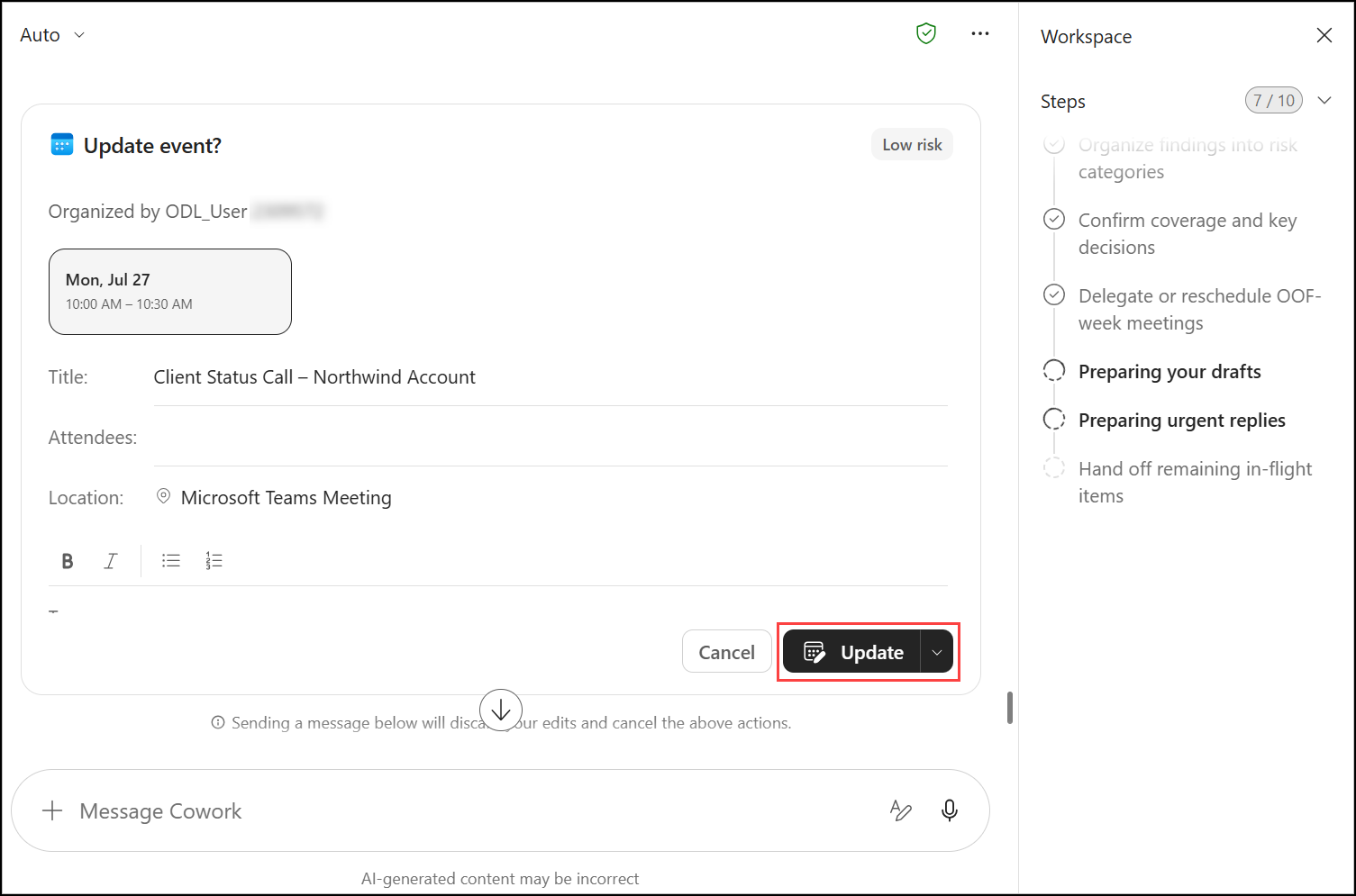
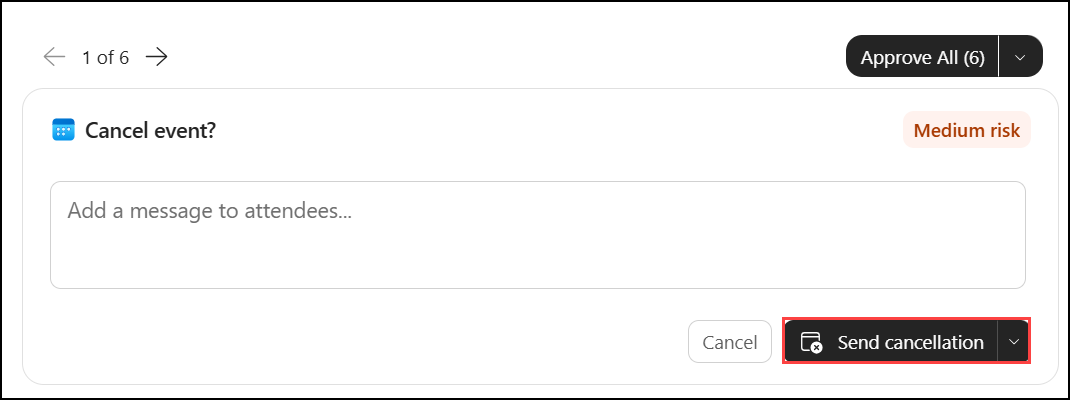
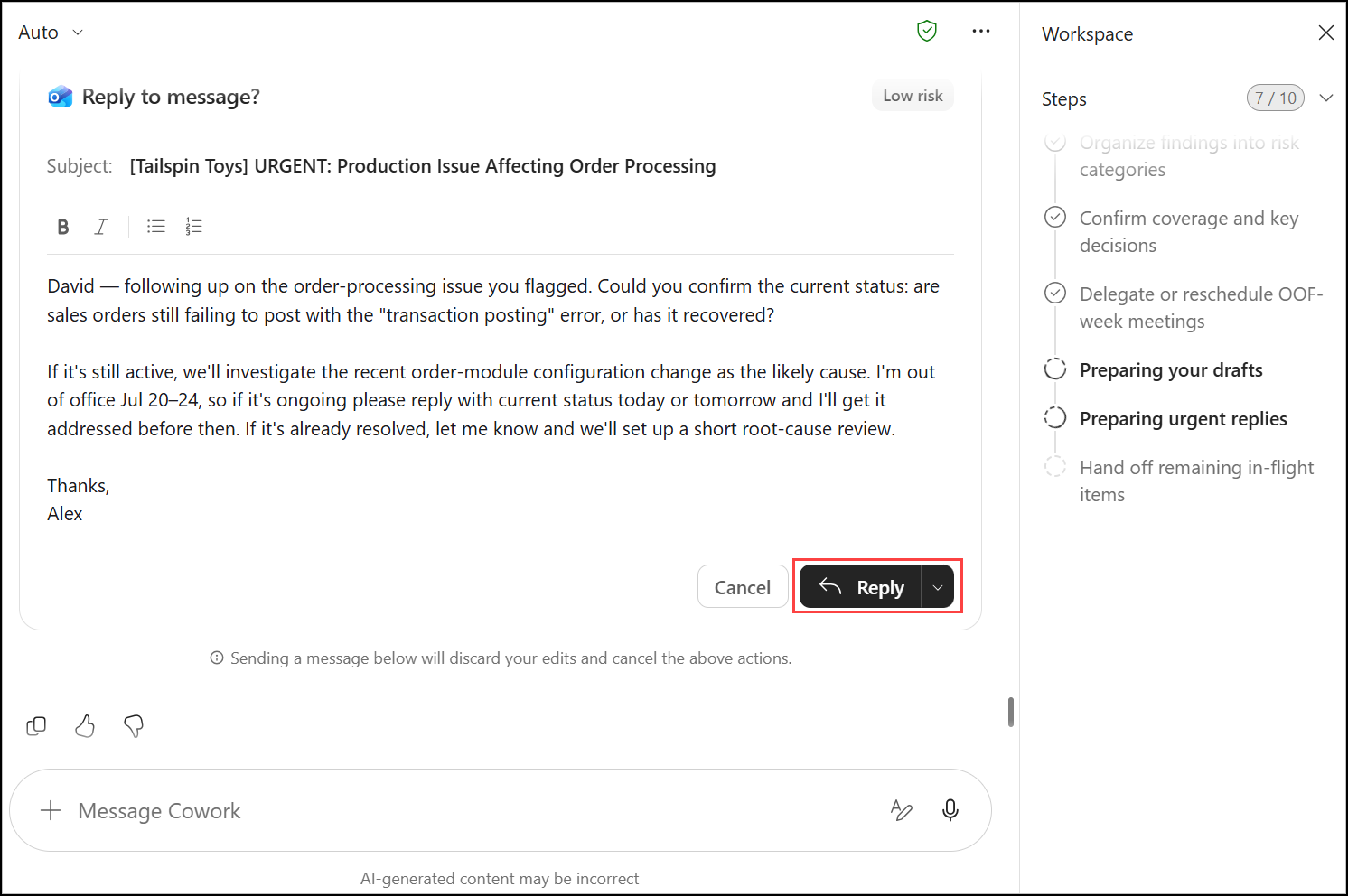
- Cowork shows an approval card for each action. Review each card and approve it: click Update for meeting changes, Send cancellation for meetings to cancel and Reply for email replies. When several cards are queued, use the arrows at the top of the card to move between them. You can also use Approve All once you've reviewed them.
Tip
Tip: Read every draft before you approve it. Cowork may sign an email with a placeholder name or include details you want to change. You can edit the text directly in the card before clicking Reply.
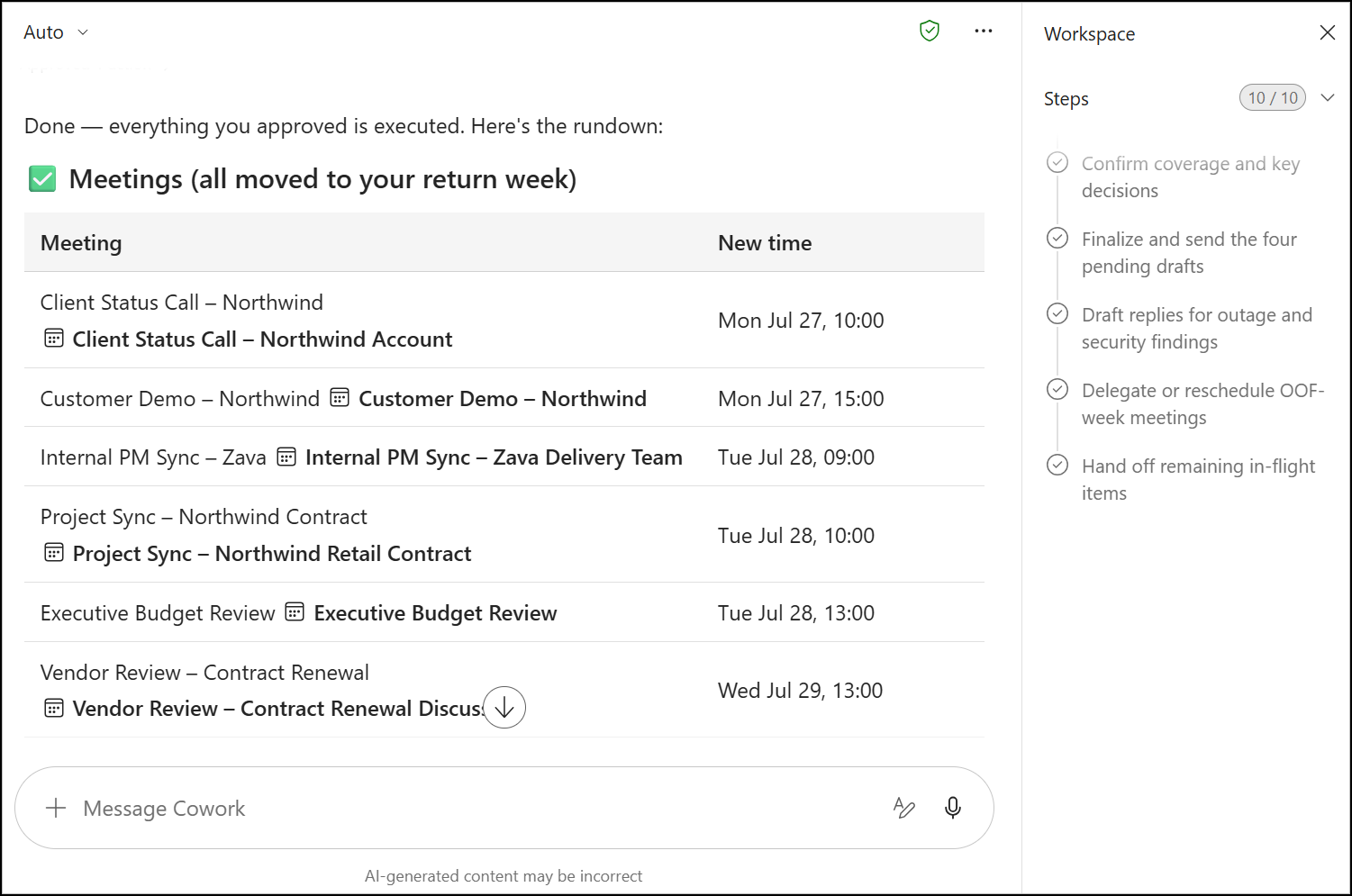
- Review Cowork's completion summary. It confirms that every approved action was carried out, including the new time for each rescheduled meeting.
Review
In this lab, you:
- Applied executive-style standing rules across a full week and reviewed every proposed change before it was applied
- Scheduled new meetings with Cowork and confirmed their final dates and times in a summary table
- Built an AI-generated executive meeting prep brief in Word, combining calendar, email and OneDrive data
- Ran a discovery pass across email, calendar, tasks and Teams to find conflicts with your time away, then approved Cowork's resolution and handoff actions