
Lab 5: Building a Personal Work Dashboard with Copilot Cowork (Read-only)
Overview
Knowledge workers spend a lot of time switching between Outlook, Teams, Calendar and OneDrive to work out what matters today. Copilot Cowork can automate that: it pulls data from Microsoft Graph, builds a personalized output and runs it on a schedule so it stays fresh.
In this lab, you see how Cowork builds a personal HTML work dashboard that brings your meetings, emails, chats, files and projects into one interactive page. You will see how it gathers the data, how the dashboard is scheduled to refresh automatically, how it is customized and locked in as a standard format, and how the scheduled task is managed.
Important
Read-only lab: To manage Copilot credit consumption, this whole lab is a guided walkthrough. Read each step and its screenshot (your trainer may demonstrate them live), but don't run them in your own environment.
Trainer note: The scheduled refresh in Task 3 runs 12 times every weekday and consumes credits on every run. If you demo it live, pause or delete the task at the end of the session.
Disclaimer: Cowork is AI-powered, so the dashboard content, layout details and timings differ between runs.
Objectives
- Task 1: Sign in and open Copilot Cowork
- Task 2: Build the dashboard with Cowork
- Task 3: Schedule the hourly refresh
- Task 4: Explore and customize the dashboard
- Task 5: Manage the scheduled task
Task 1: Sign in and open Copilot Cowork
In this task, you sign in to Microsoft 365 Copilot and open Cowork.
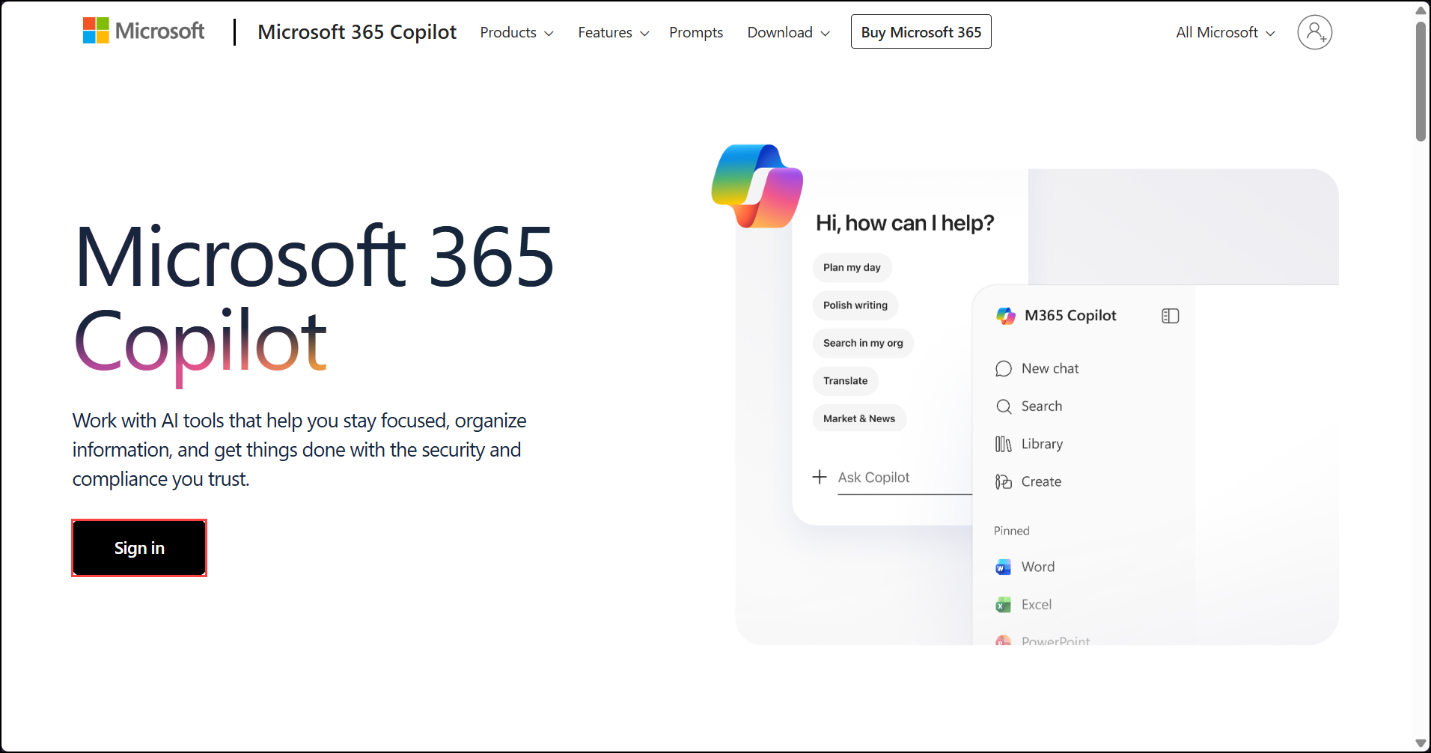
- Open your browser and go to
https://m365.cloud.microsoft, then click Sign in.
- Enter your lab username and click Next, then complete sign-in with your Temporary Access Pass.
- Username:
<your lab username> - Temporary Access Pass:
<your Temporary Access Pass>
- Username:
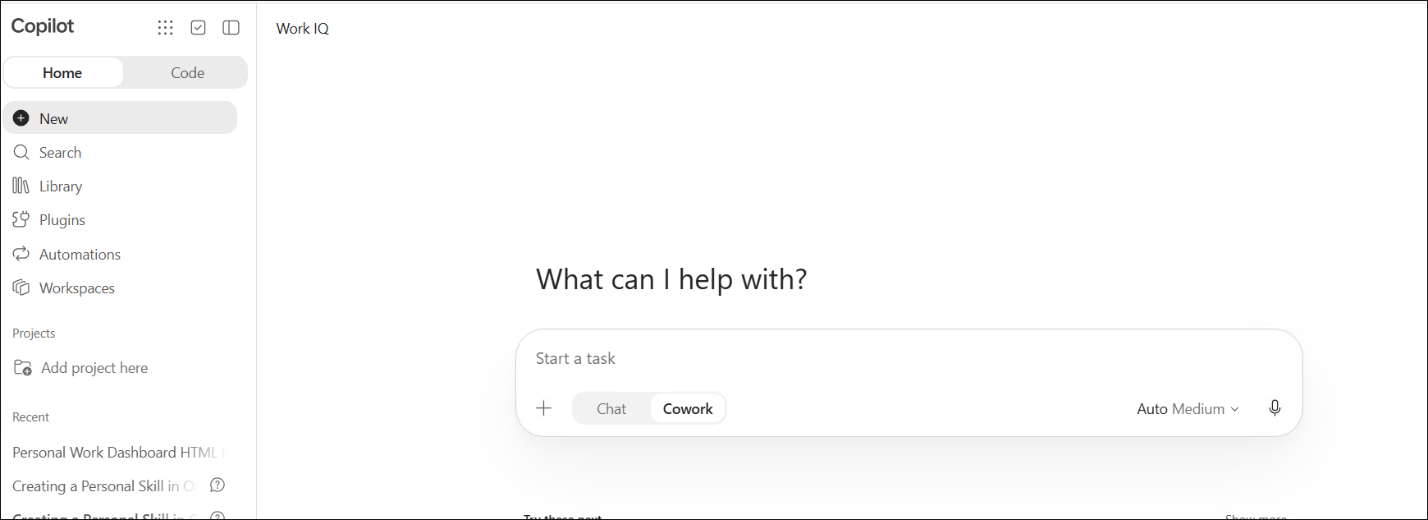
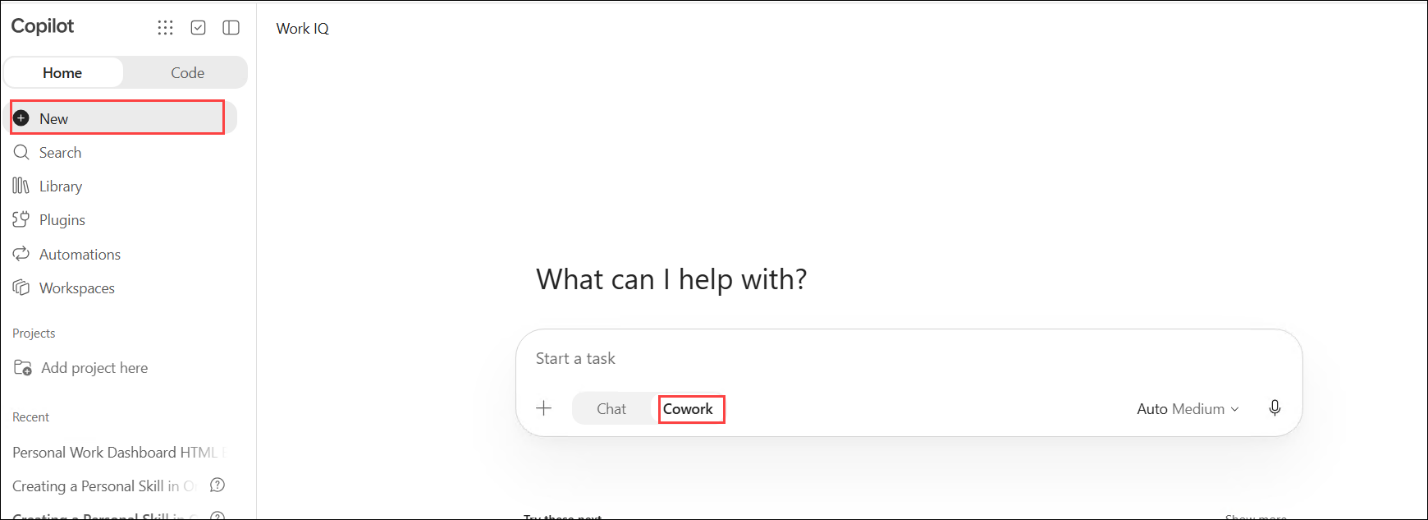
- Select New in the left pane and make sure Cowork is selected in the task box.
Task 2: Build the dashboard with Cowork
In this task, Cowork generates a personalized HTML dashboard from your Outlook, Teams, Calendar, OneDrive and Microsoft Search data.
- Enter the following prompt in the task box (1) and select Send (2):
Build me a personal work dashboard as a single HTML file at output/dashboard.html.

Gather fresh data in parallel from across my Microsoft Graph:
1. Calendar - today's remaining events and the next 7 days, including response status, organizer, and online-meeting status
2. Inbox - unread, flagged, and high-importance messages from the last few days
3. Teams - unread chats with last-message previews
4. OneDrive - recently modified folders in my personal drive
5. Search M365 for any action-required emails (access renewals, expense reminders, training notices)

Infer my top 5-8 active projects by clustering recurring meetings, email threads, and customer names. Surface a "Next" action for each.

Render a single-page HTML dashboard with this layout:
- Header: greeting with today's date, last-refresh timestamp (Pacific time), "Click any item to open it" hint
- KPI strip (6 tiles): overdue actions, unread emails, meetings tomorrow, Teams unread, active projects, OOF this week. Color the urgent ones red, warnings amber, healthy ones green.
- Urgent banner (red-bordered): items that need attention today
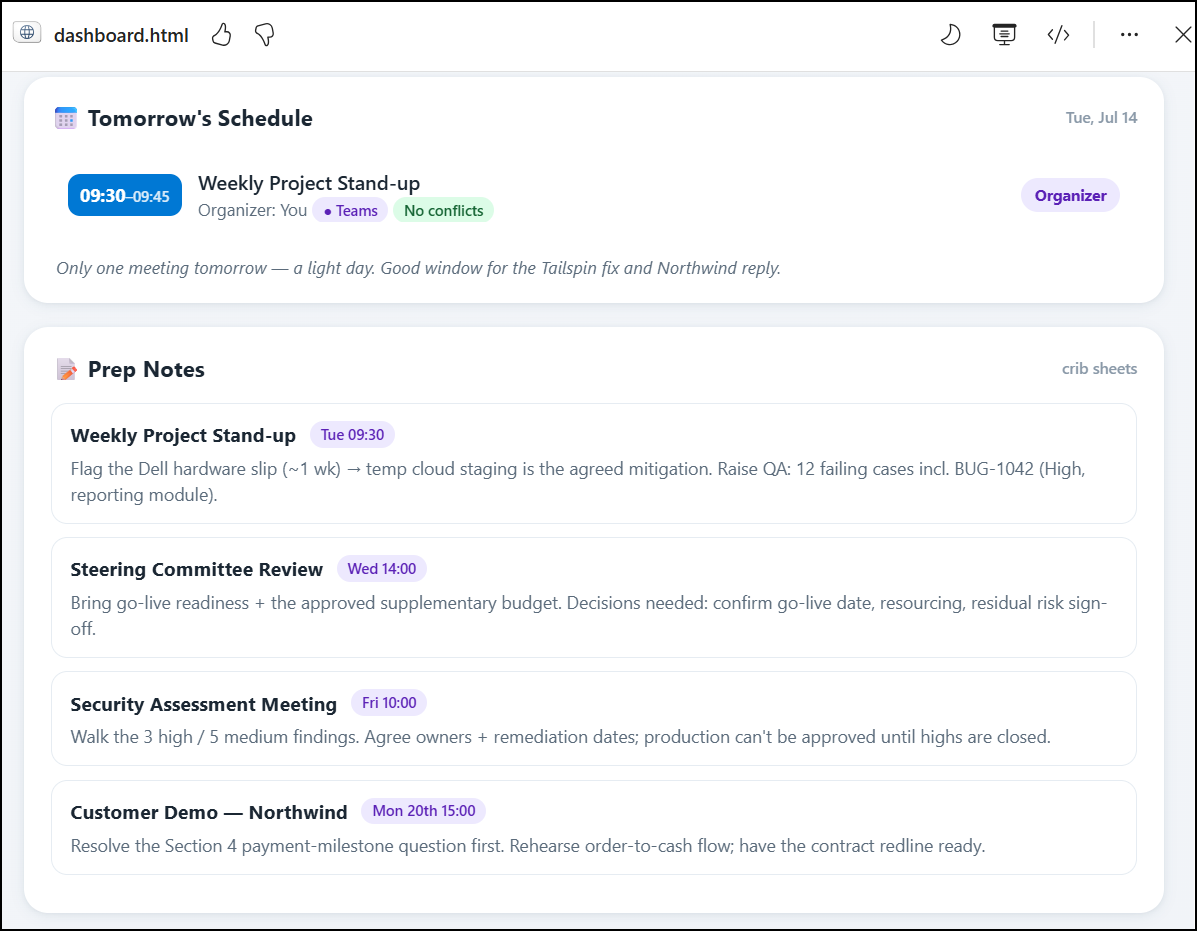
- Tomorrow's Schedule card: every event with time chip, title, response badge, organizer, conflict markers
- Prep Notes card: short crib sheets for meetings that need prep
- Top Projects card: inferred projects with a "Next" line each
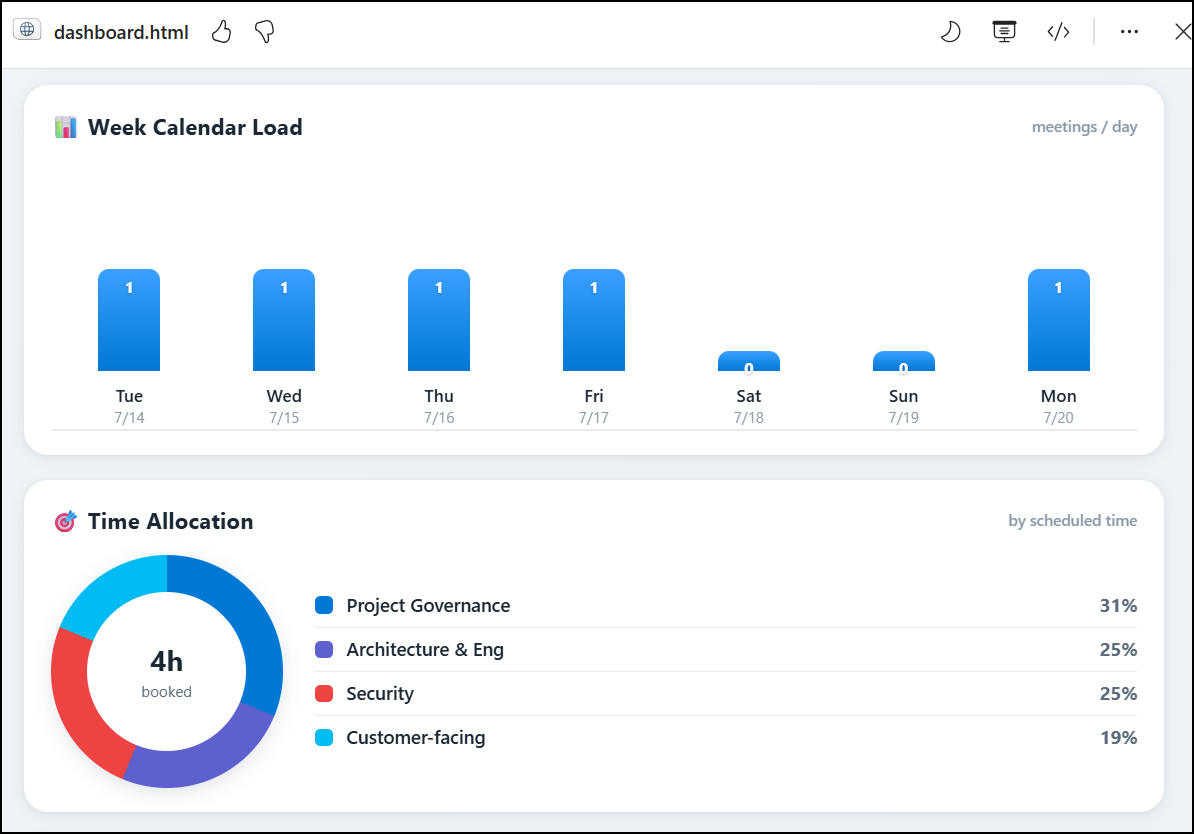
- Week Calendar Load: pure CSS bar chart of meeting counts per day for the upcoming week (flex-aligned <div> bars with linear-gradient fills and inline style="height: NN%")
- Time Allocation: pure CSS doughnut chart splitting the week by category (<div> with conic-gradient background and a ::after hole, paired with a static legend)
- Emails Needing a Reply card: the few messages that actually want a response - filter out newsletters, alerts, external pitches
- Long-Term Action Items card: overdue tasks, weekly deadlines, upcoming milestones
- Training & Learning card: upcoming training sessions
- OOF Radar card: teammates out this week & next, with a heads-up if any organize a meeting I'm attending
- People to Follow Up With card: name + one-line context
- Unread Teams Chats card: top chats with one-line previews
- Recent Files in Flight card: most recently modified OneDrive folders
- Footer: refresh schedule note

Visual style: soft blue gradient background (#f5f7fa to #e8edf3), rounded white cards with subtle shadow, 'Segoe UI' font, Microsoft accent #0078d4, color-coded badges (green #dcfce7/166534 = accepted, amber #fef3c7/92400e = tentative, red #fee2e2/991b1b = no response or overdue, purple #ede9fe/5b21b6 = organizer). Use a 2-column grid for the main sections, 3-column for the smaller cards, collapsing to single column under 1024px.

PORTABILITY REQUIREMENT - the file must render correctly with zero external network requests and zero JavaScript executing. No <script src="..."> to any CDN. No Chart.js, D3, or other charting libraries. No external fonts (use the system 'Segoe UI' stack). All charts must be built from HTML + CSS only: bar chart = flex-aligned gradient <div> bars; doughnut = conic-gradient background with a ::after pseudo-element hole. All KPI tiles must render their final value directly in the HTML - never start at 0 and rely on JS to fill in the number. Any animation or interactivity (slide-up entry, pulse dot, dark mode toggle) is allowed but must be additive: CSS-driven where possible, and any inline script must gracefully no-op if blocked (e.g. wrap localStorage access in try/catch). The dashboard will be opened in sandboxed previews, email-attachment viewers, and locked-down browsers where scripts and CDNs frequently do not run.

Premium touches to include (all must work without JavaScript or external requests):
- Dark mode toggle in the header (pill button with sun/moon icon, CSS-variable theming). Persist preference via localStorage wrapped in try/catch so it gracefully no-ops where storage is blocked. The page must render correctly in light mode by default even if the toggle script never runs.
- KPI tiles render their final value directly in the HTML (e.g. <div class="kpi-value">22</div>). Optional polish: a CSS-only entry animation (e.g. @keyframes opacity/translate). Do not start the tile text at 0 and rely on JS to count it up - that breaks in any context where scripts don't execute.
- Slide-up entrance animation on KPI tiles and cards via pure CSS @keyframes.
- 3-color header gradient (#0078d4 → #00bcf2 → #5e60ce) with radial-gradient overlay highlights.
- Pulse dot animation on the "Last refreshed" timestamp via pure CSS @keyframes.
- CSS bar chart for Week Calendar Load - <div> columns whose heights are inline style="height: NN%" percentages. Fill classes: .heavy (red linear-gradient when count ≥ 7), .light (gray when = 2), .normal (blue otherwise). Number labels sit at the top of each bar in white text.
- CSS doughnut for Time Allocation - <div class="donut"> with conic-gradient(...) background, segment angles computed at build time from the percentages, and a ::after pseudo-element using the card background color to punch out the center hole. Render the legend as static HTML next to it.
- Project health dots next to each project name - red (hot), green (active), amber (watch), with a soft box-shadow glow.
- Avatar initials circles on the People card (avatar-1 through avatar-5 with gradient backgrounds).
- Decorative ⚠ watermark in the urgent banner using a ::before pseudo-element.

CRITICAL - every item must be clickable. Wrap every event, email, chat, file, project card, training item, action item, and person in an <a href="https://github.com/medyabi/Copilot-Cowork-lab/blob/main/Instructions/Labs/..." target="_blank"> anchor tag:
- Calendar events → fetch via QueryGraph on /me/calendarView with $select including webLink; use the event's webLink
- Emails → fetch via QueryGraph on /me/messages with $select including webLink; use the message's webLink
- Teams chats → fetch via QueryGraph on /me/chats with $select including webUrl; use the chat's webUrl
- OneDrive folders → use the item's webUrl
- People → mailto:<email> for email follow-ups, or the 1:1 chat webUrl for Teams follow-ups
- Project cards / training items without a canonical link → use an Outlook inbox search URL like https://outlook.office.com/mail/inbox?searchquery=<keyword>

Style anchors with class names so they look like regular cards (color: inherit; text-decoration: none; display: block or flex; subtle hover background).

Save to output/dashboard.html. After writing, confirm the file exists in output/.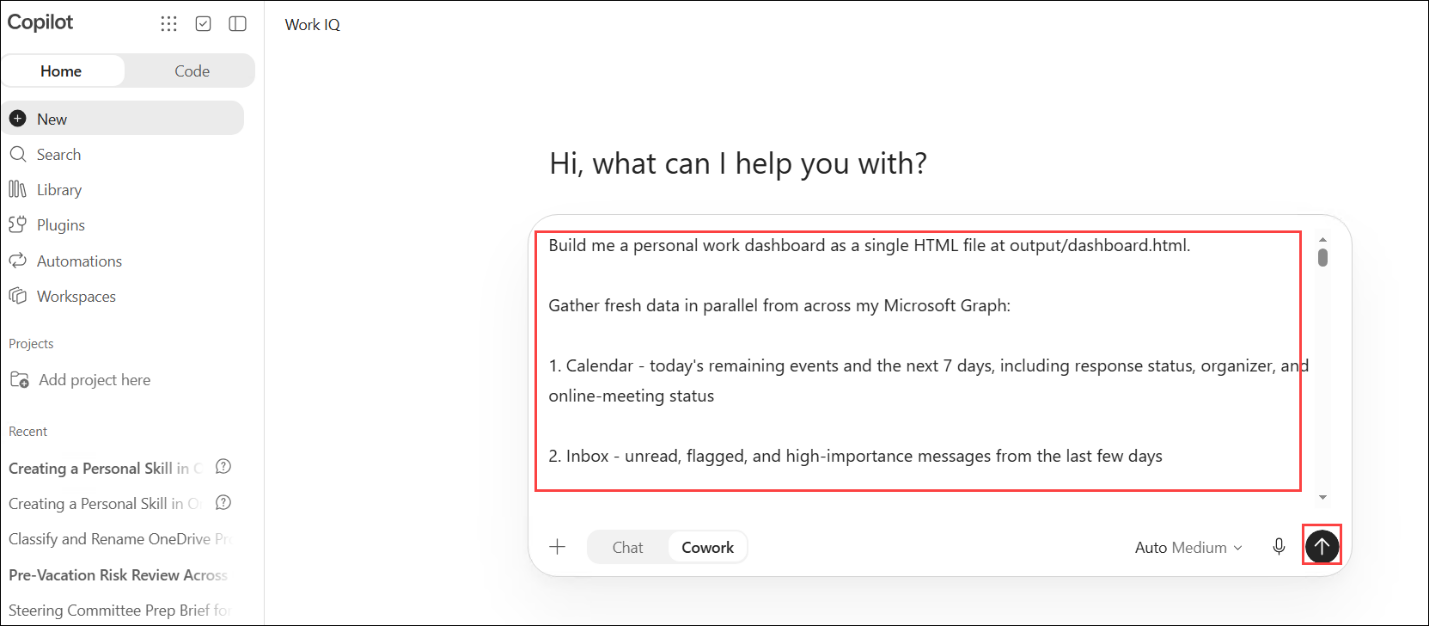
- Cowork starts processing the request and gathers data from your calendar, inbox, Teams and OneDrive in parallel. Progress appears in the Workspace panel on the right.
Note
Note: Cowork can take 5–10 minutes to complete this task.
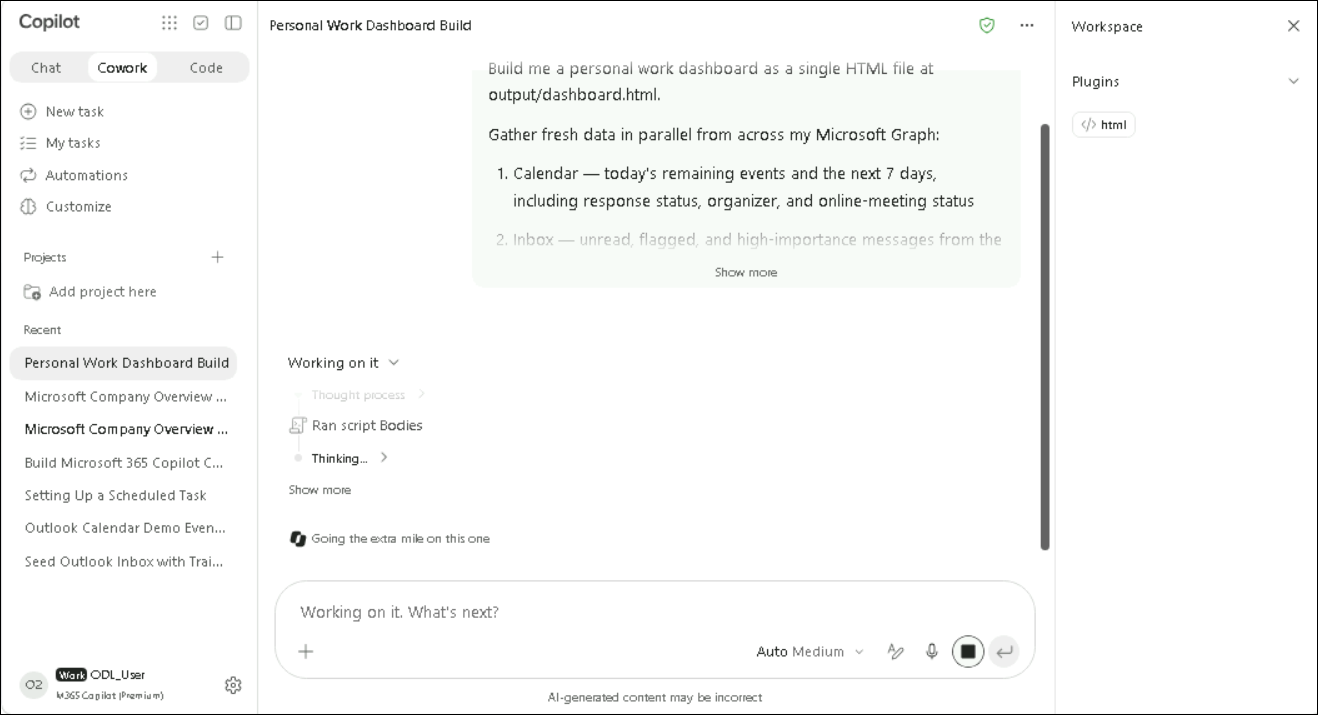
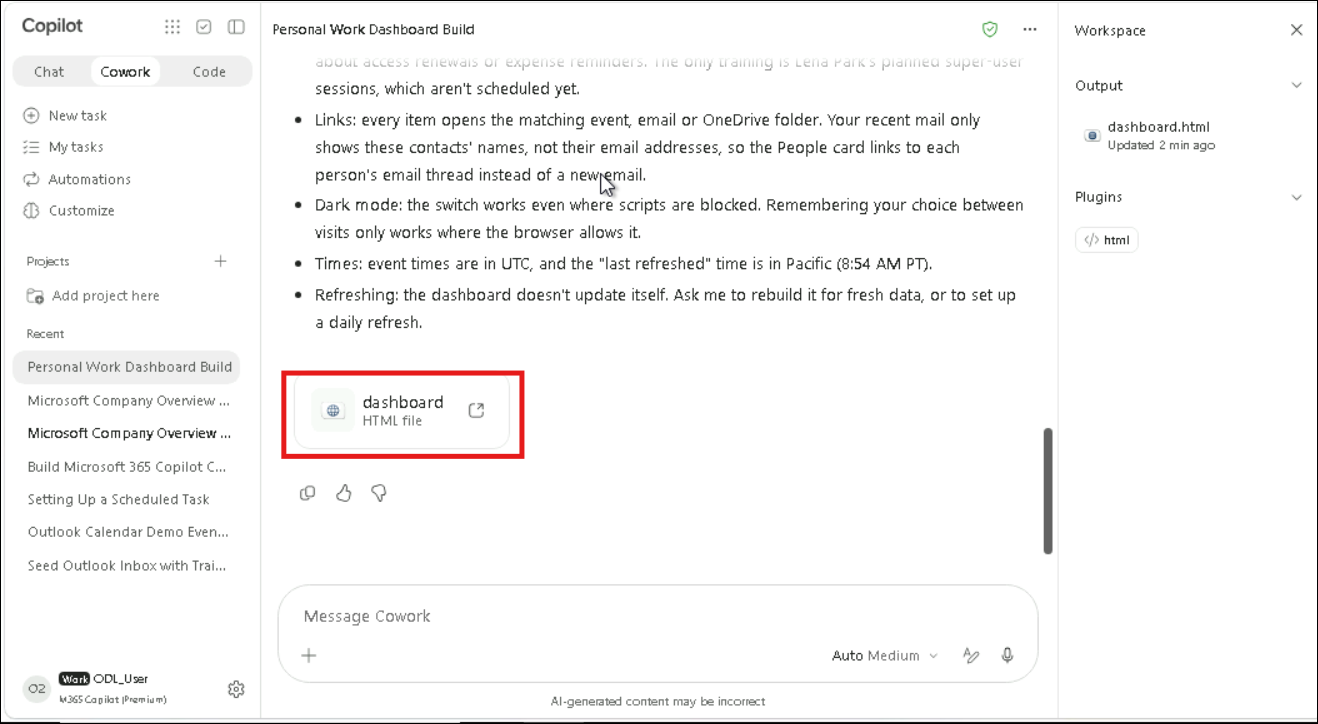
- When all steps are complete, dashboard.html appears under Output in the Workspace panel and as a card in the conversation. Click it to open the dashboard.
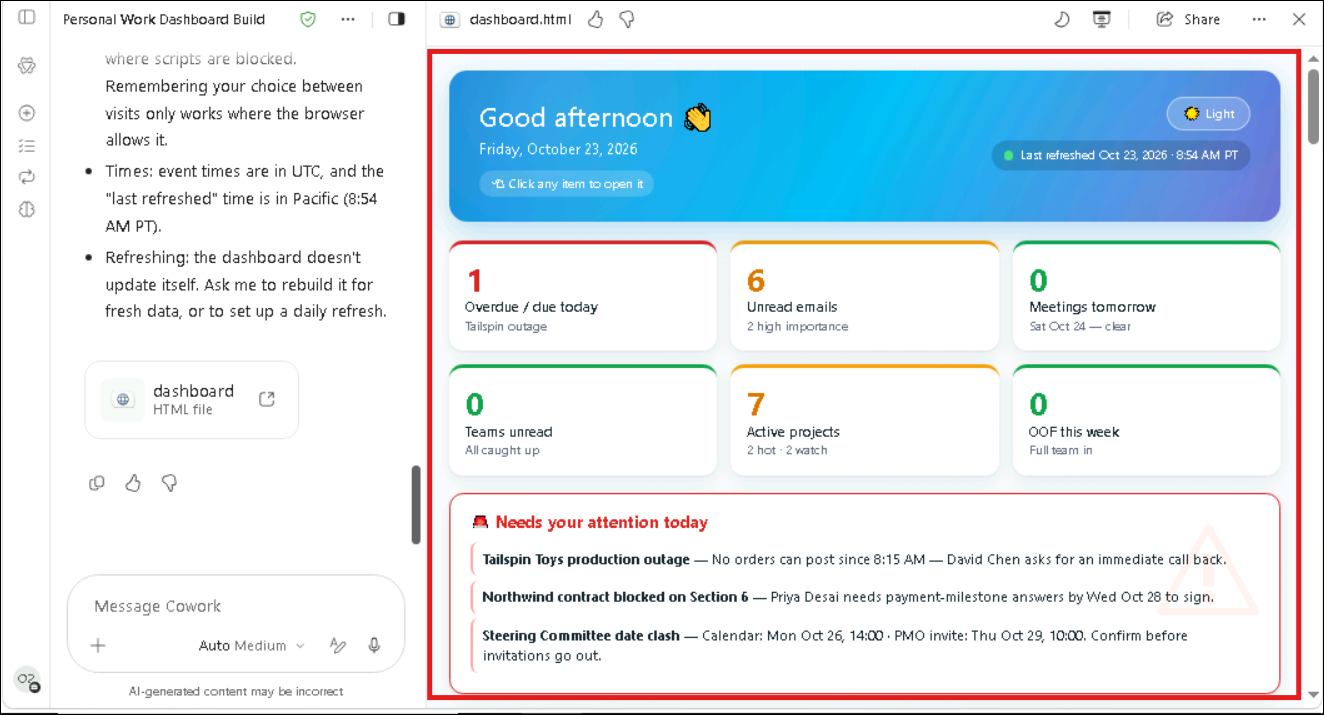
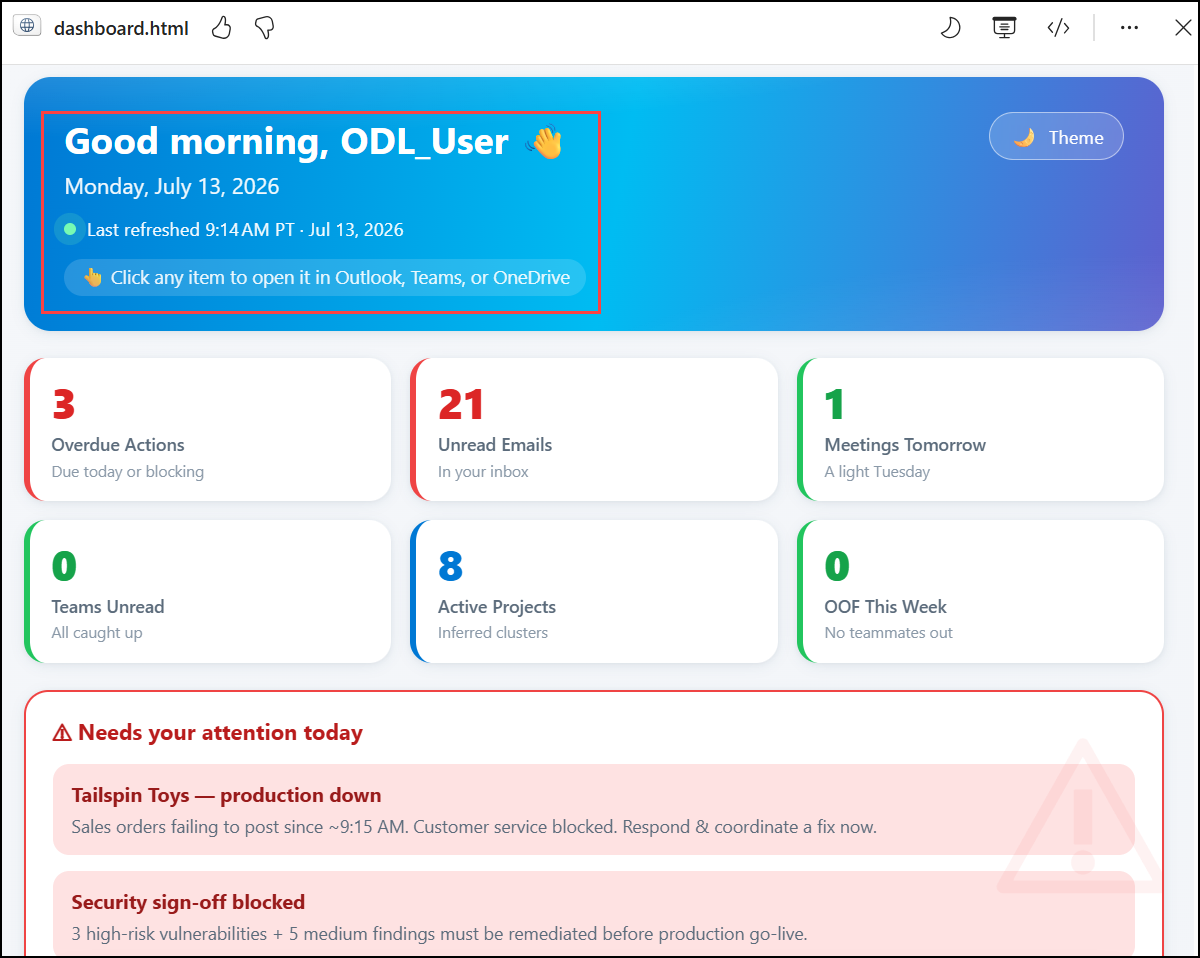
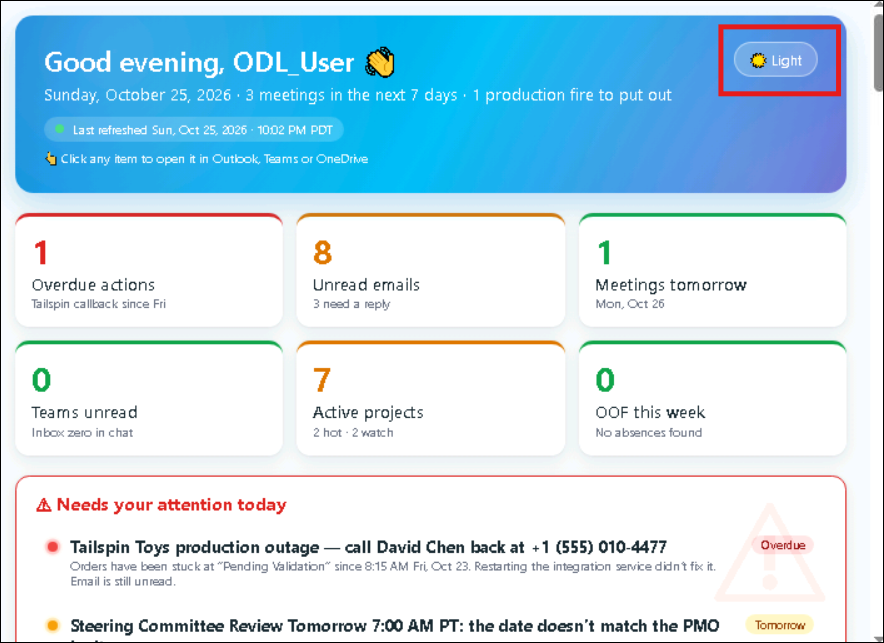
- The dashboard opens with a greeting and the last-refreshed time, six KPI tiles (Overdue actions, Unread emails, Meetings tomorrow, Teams unread, Active projects, OOF this week) and a Needs your attention today banner.
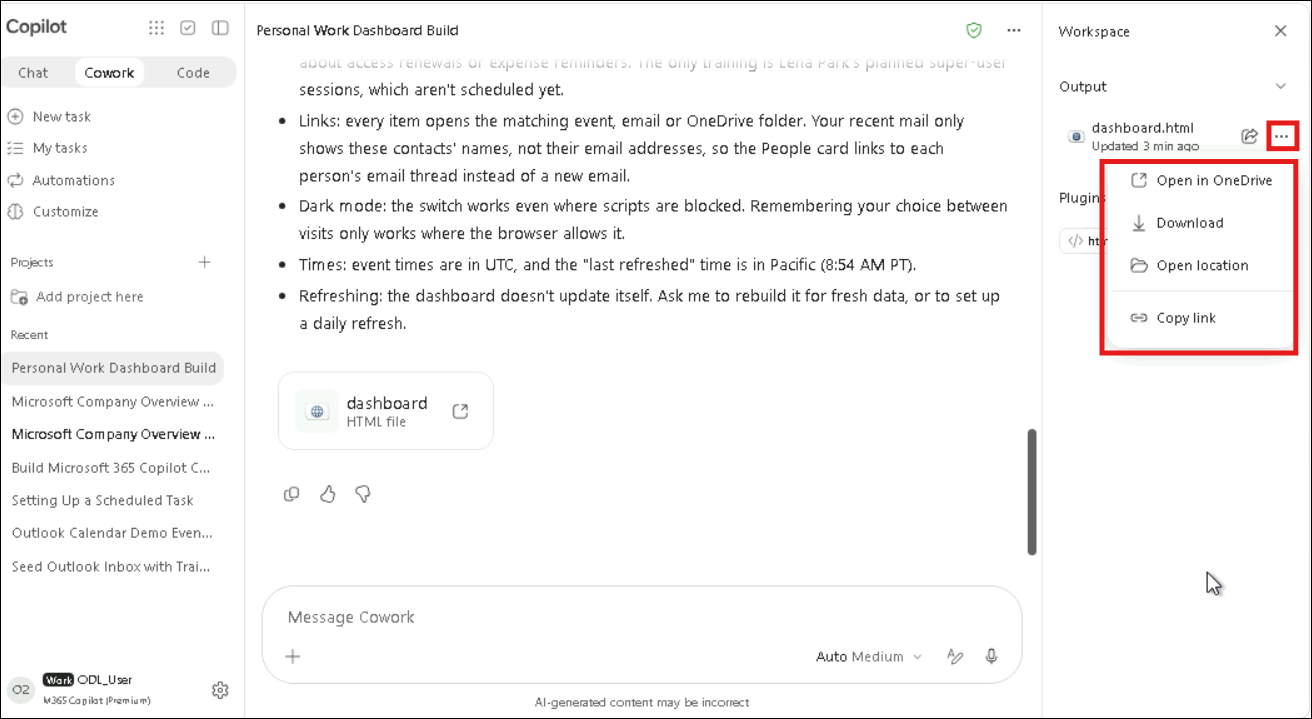
- Under Output, click the more options (...) icon next to dashboard.html and review the options: Open in OneDrive, Download, Open location and Copy link.
Task 3: Schedule the hourly refresh
In this task, Cowork creates a recurring task that refreshes the dashboard throughout the workday, and the task is run once to check it works.
- In the same conversation, enter the following prompt and select Send:
Note
Note: Replace <your lab email address> with your own lab account. The time zone settings reflect the environment used to build this lab (Pacific time, account set to IST). Adapt them to your own region if needed.
Set up a scheduled task that refreshes output/dashboard.html every weekday at :55 past the hour, from 6:55 AM through 5:55 PM Pacific time - auto-detect this from the device/browser's local timezone rather than the account's configured IST setting, and don't ask me to confirm it. If the device timezone can't be detected, default to America/Los_Angeles and proceed without asking.

Use the same data-gathering and rendering instructions from the dashboard we just built - capture webLink/webUrl for every item so links stay clickable on every refresh.

At the 9 AM Pacific run only (and no other hour), also send me an email:
To: <your lab email address>
Subject: "Your Daily Work Dashboard - [today's date in M/D format]"
Body: brief greeting noting the dashboard is attached, every item is clickable, and the in-session version refreshes hourly
Attachment: output/dashboard.html

For all other hours, refresh the file silently - no email.

Handle daylight saving automatically by re-deriving the Pacific offset at each run rather than hardcoding it, so the :55 anchor never drifts.

Name the task "Refresh work dashboard (hourly at 9 AM, email at 9 AM)"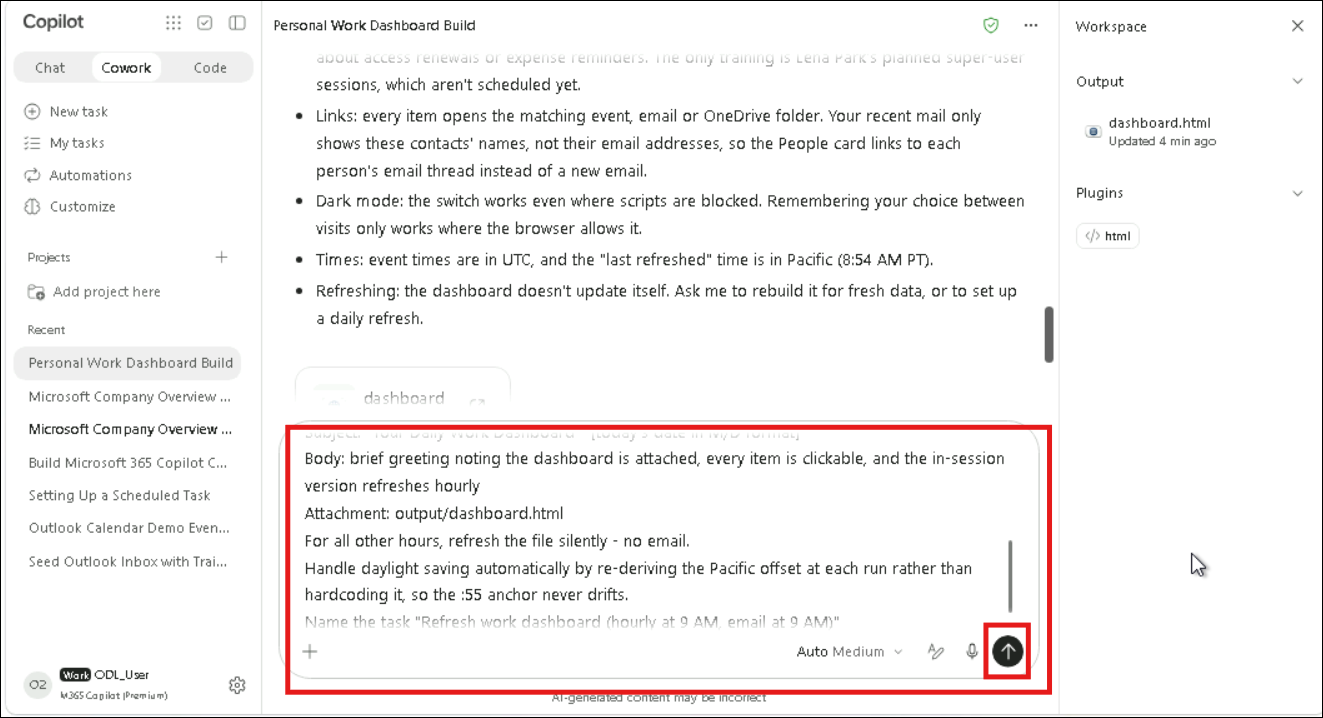
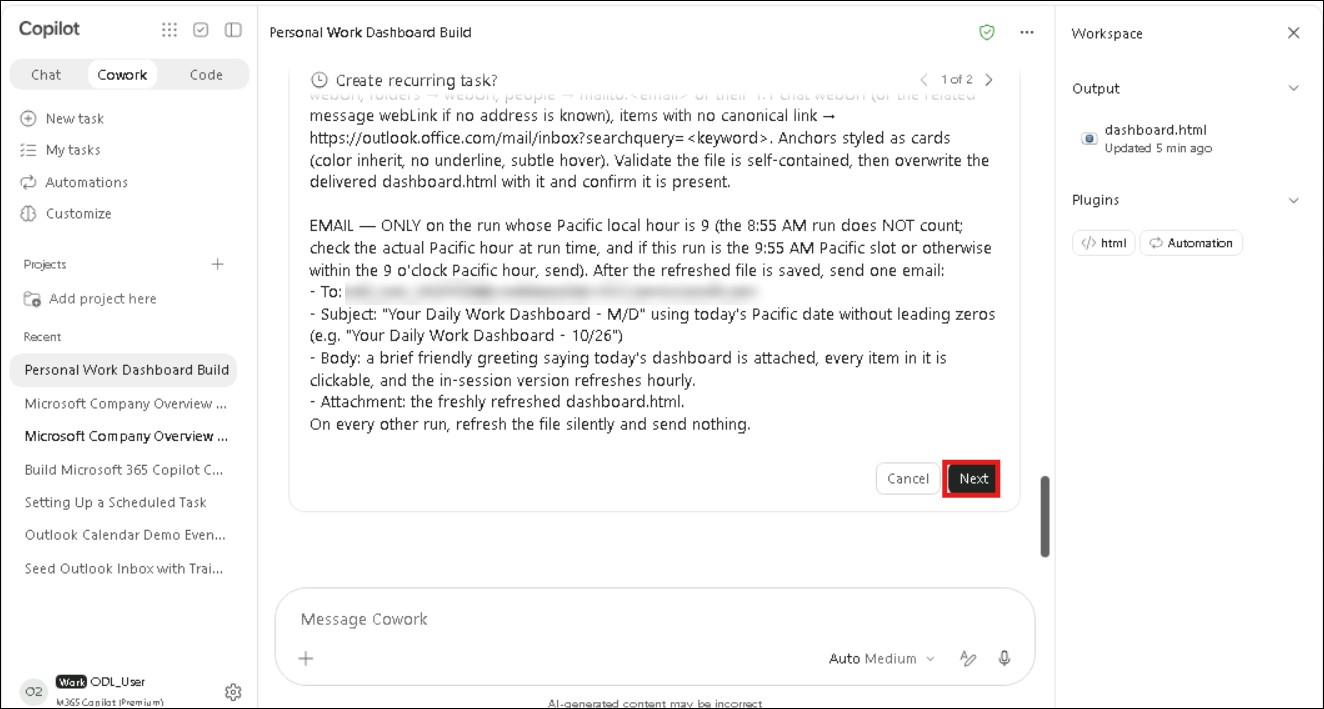
- On the Create recurring task? card, review the name, schedule, run location and instructions, then click Next.
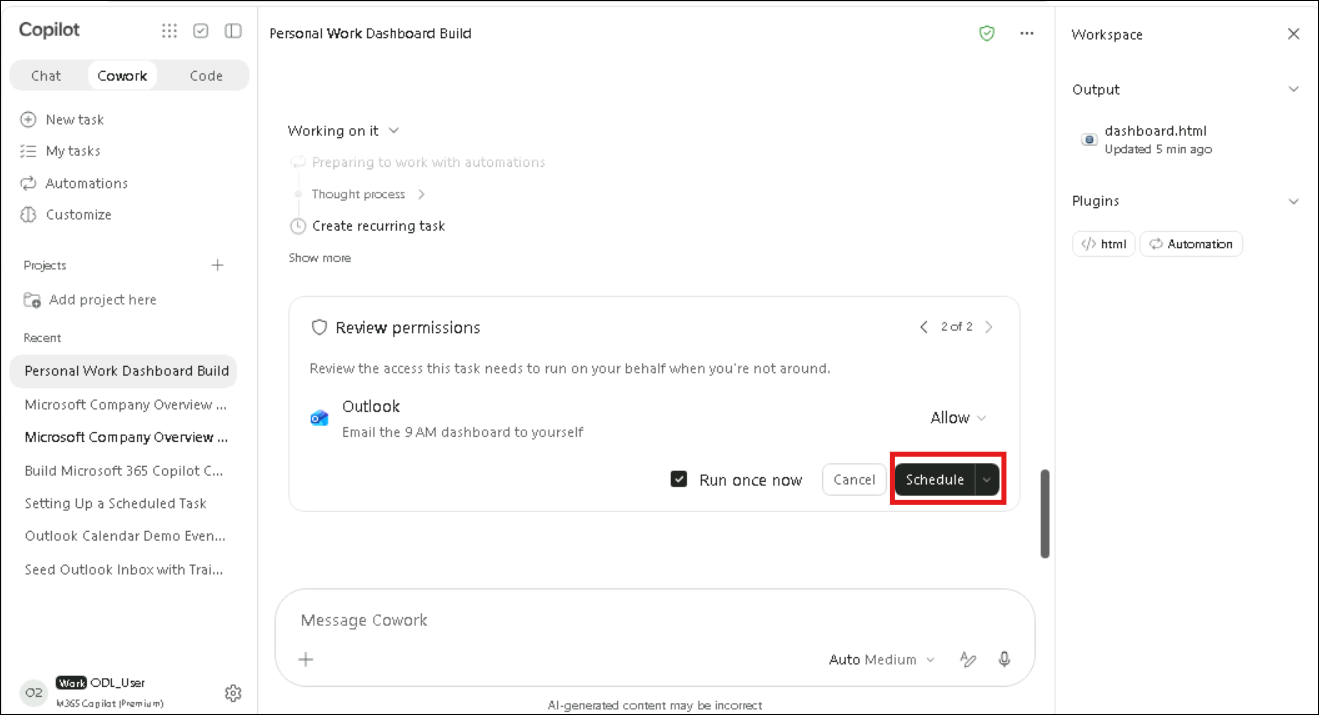
- On the Review permissions page, check the permissions the task needs (for example, Outlook to email the 9 AM dashboard to yourself), make sure Run once now is selected and click Schedule.
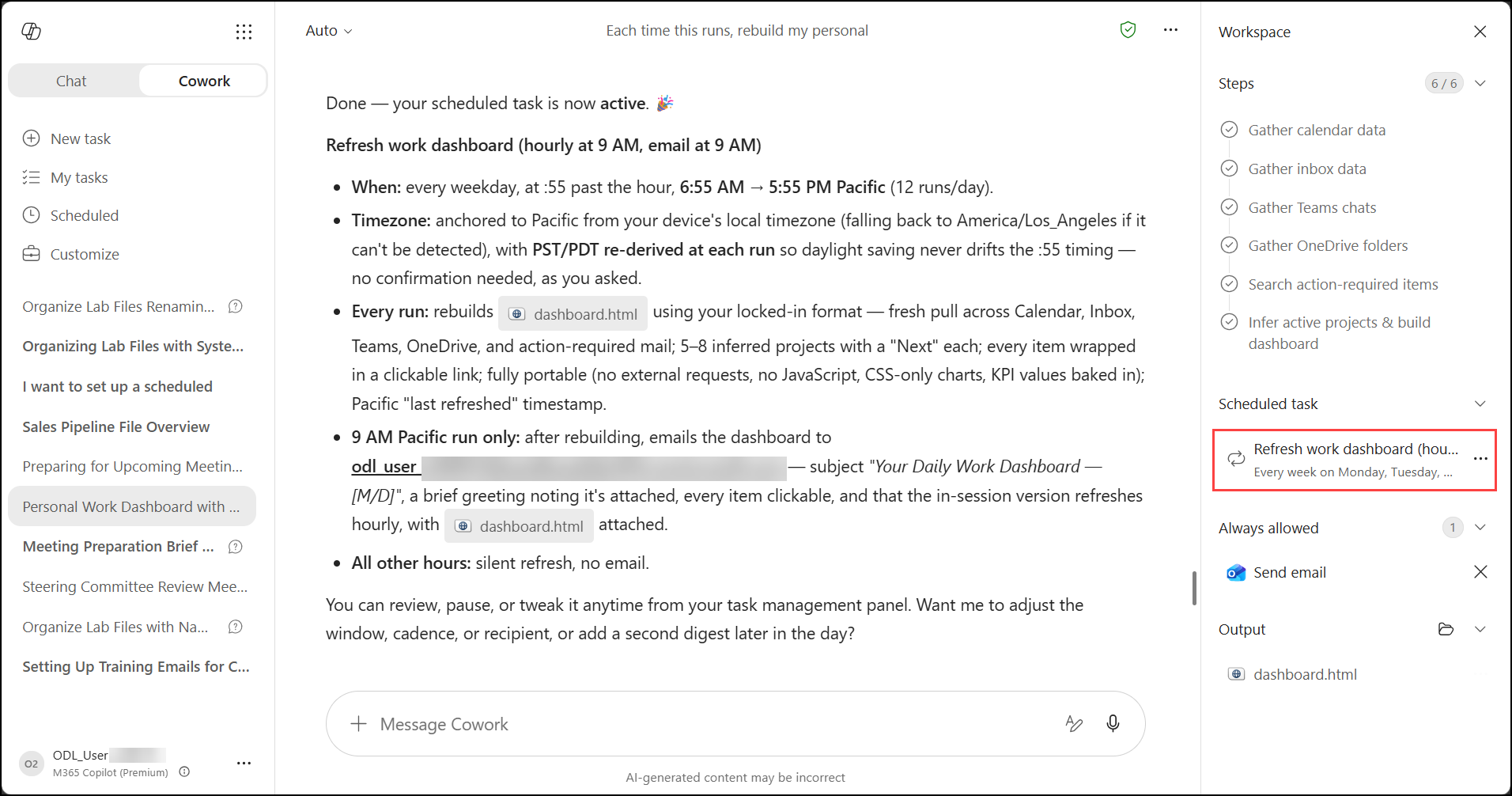
- Cowork confirms Done — your scheduled task is now active and summarizes the schedule, the time zone handling, what happens on every run and what happens at the 9 AM run.
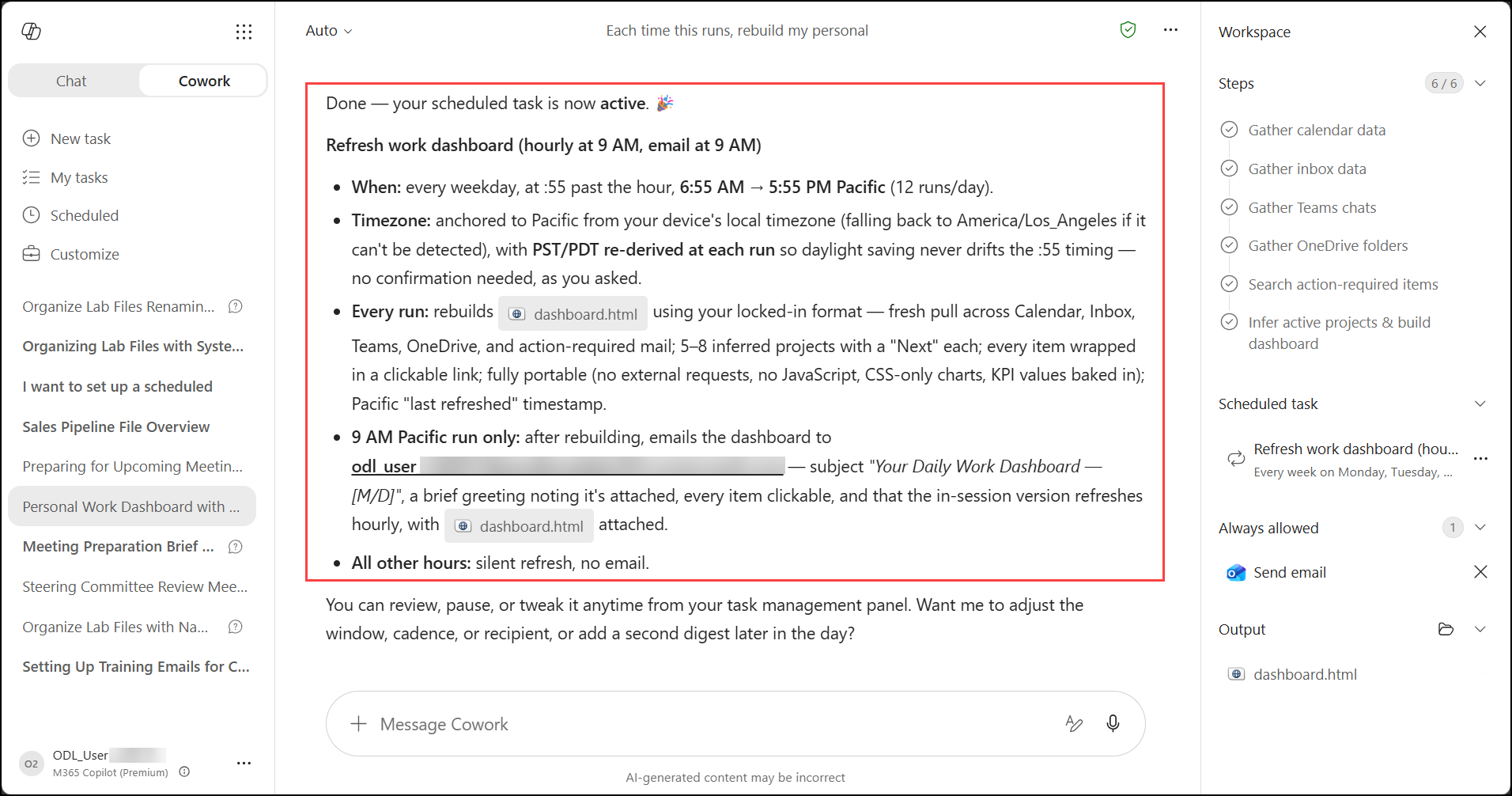
- In the Workspace panel, under Scheduled task, find the Refresh work dashboard task (running every weekday) and click it.
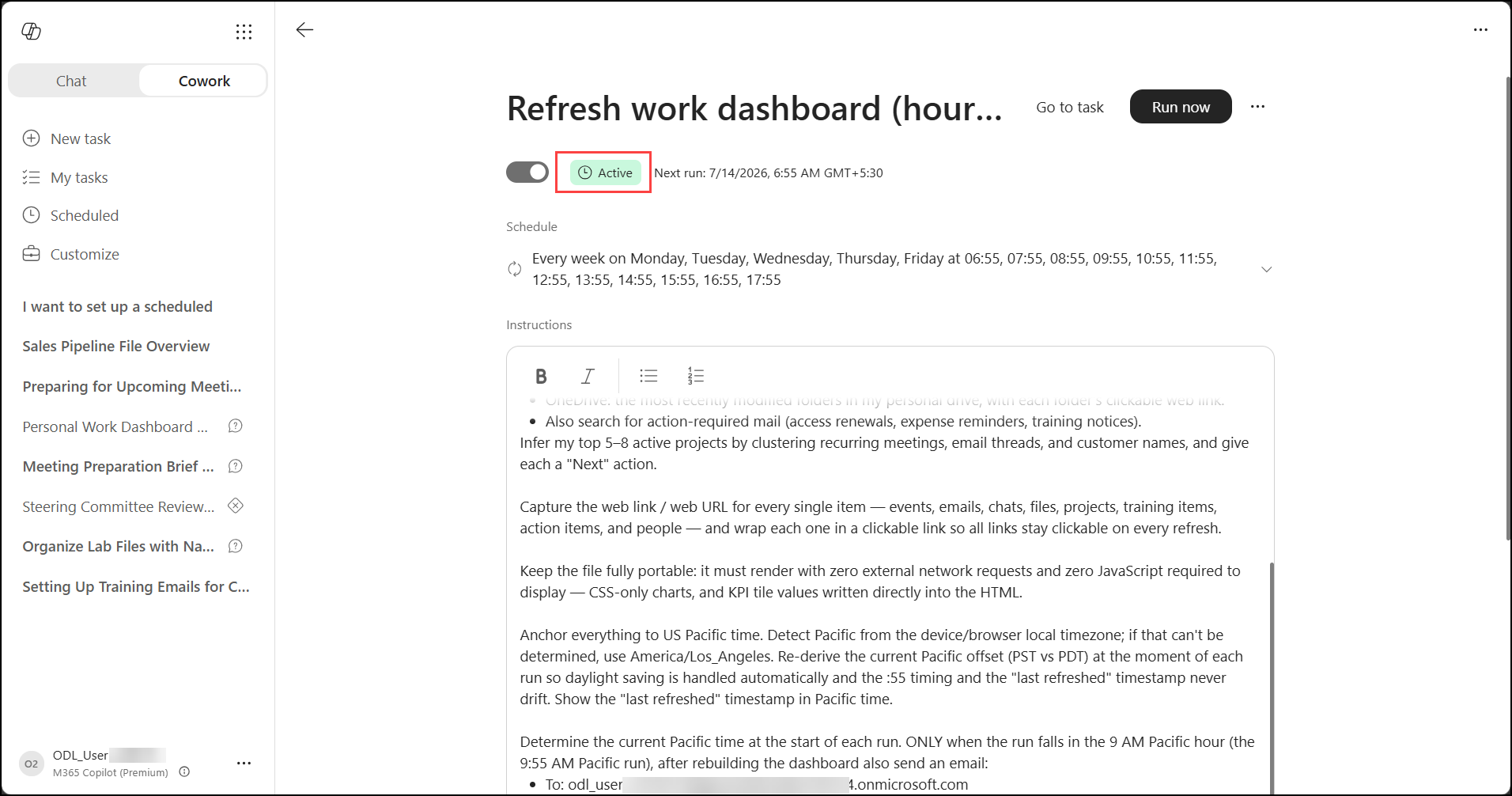
- On the task page, check that the status is Active and review the schedule and instructions.
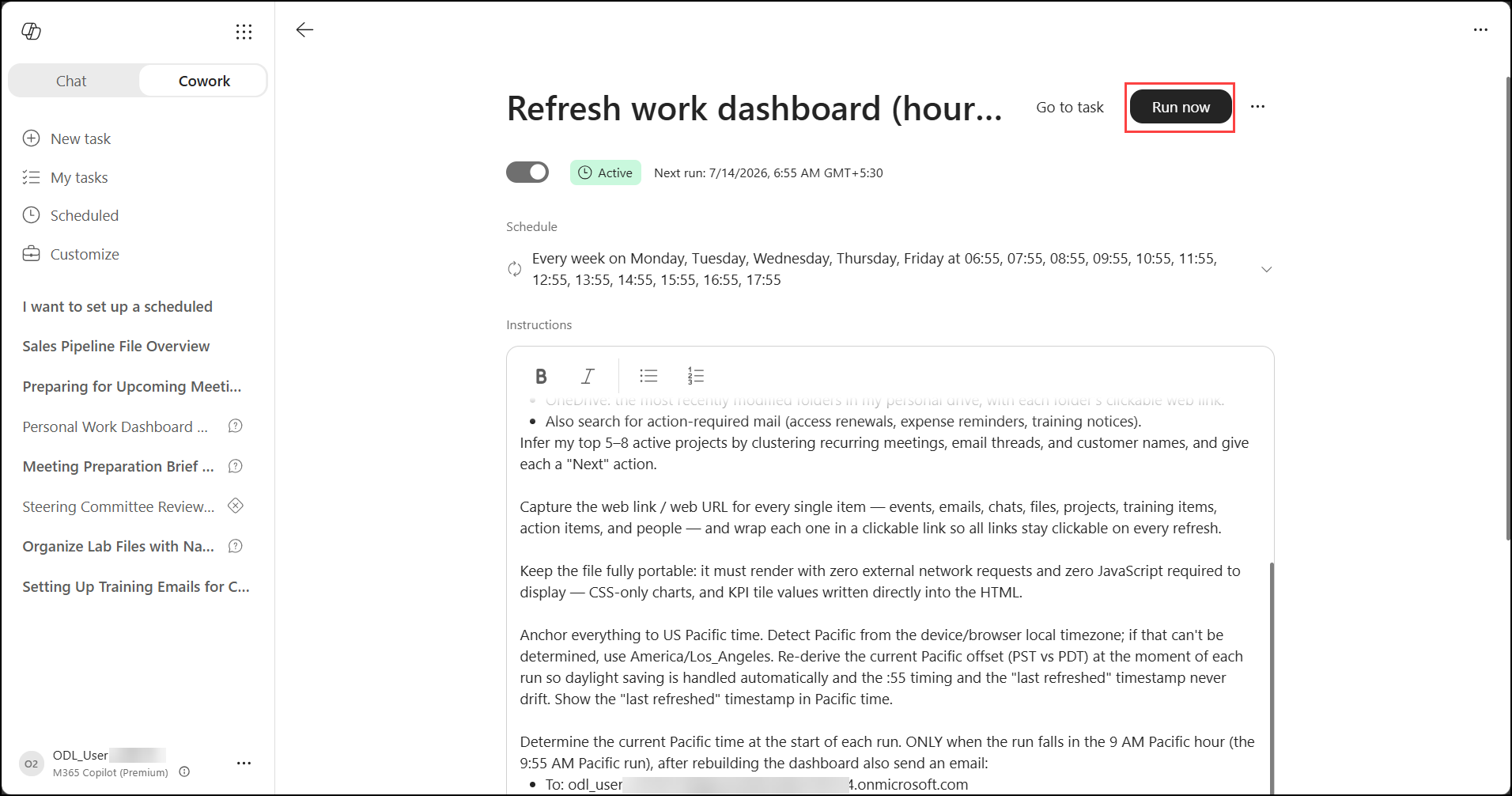
- Click Run now to run the task immediately.
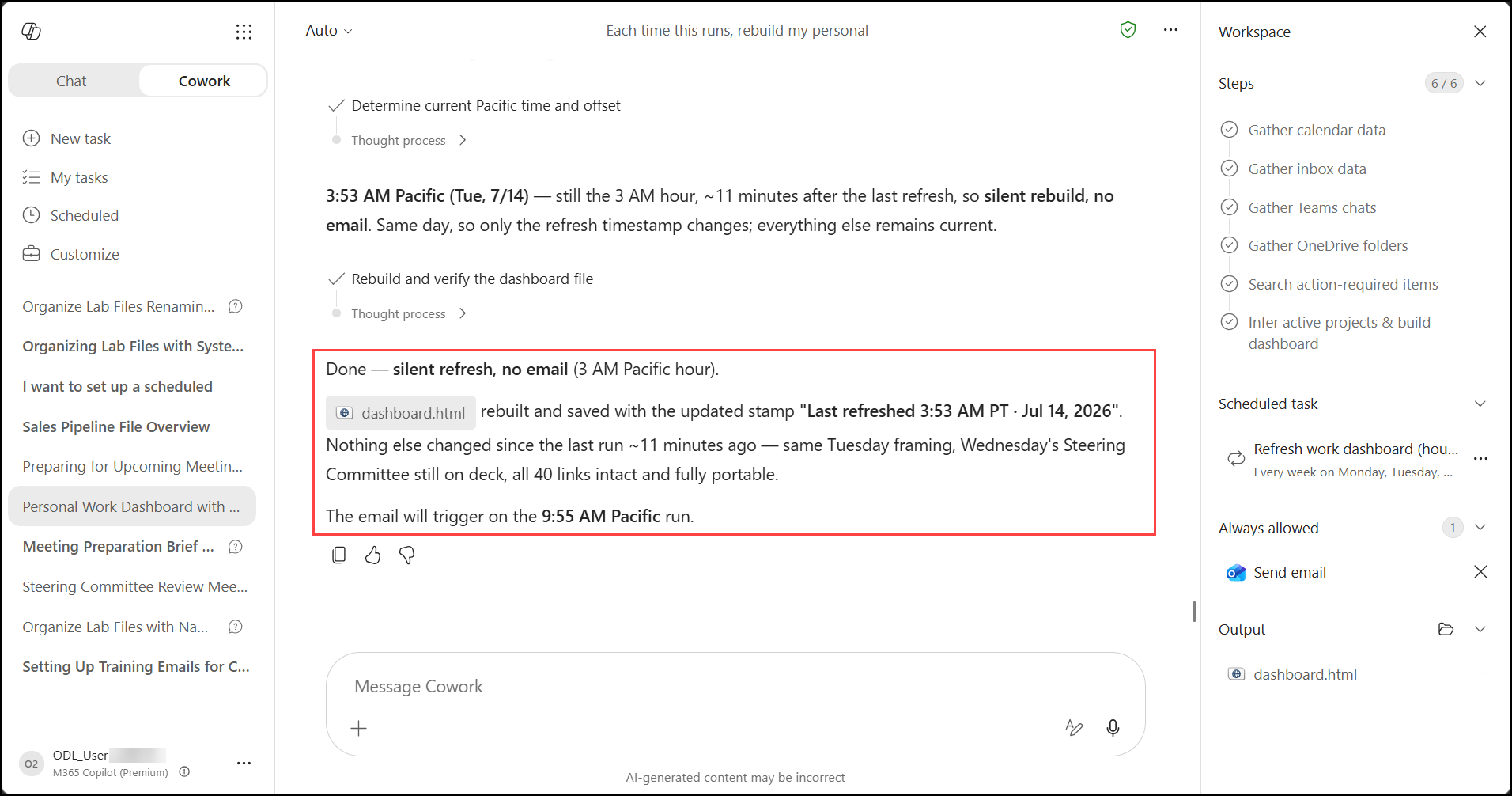
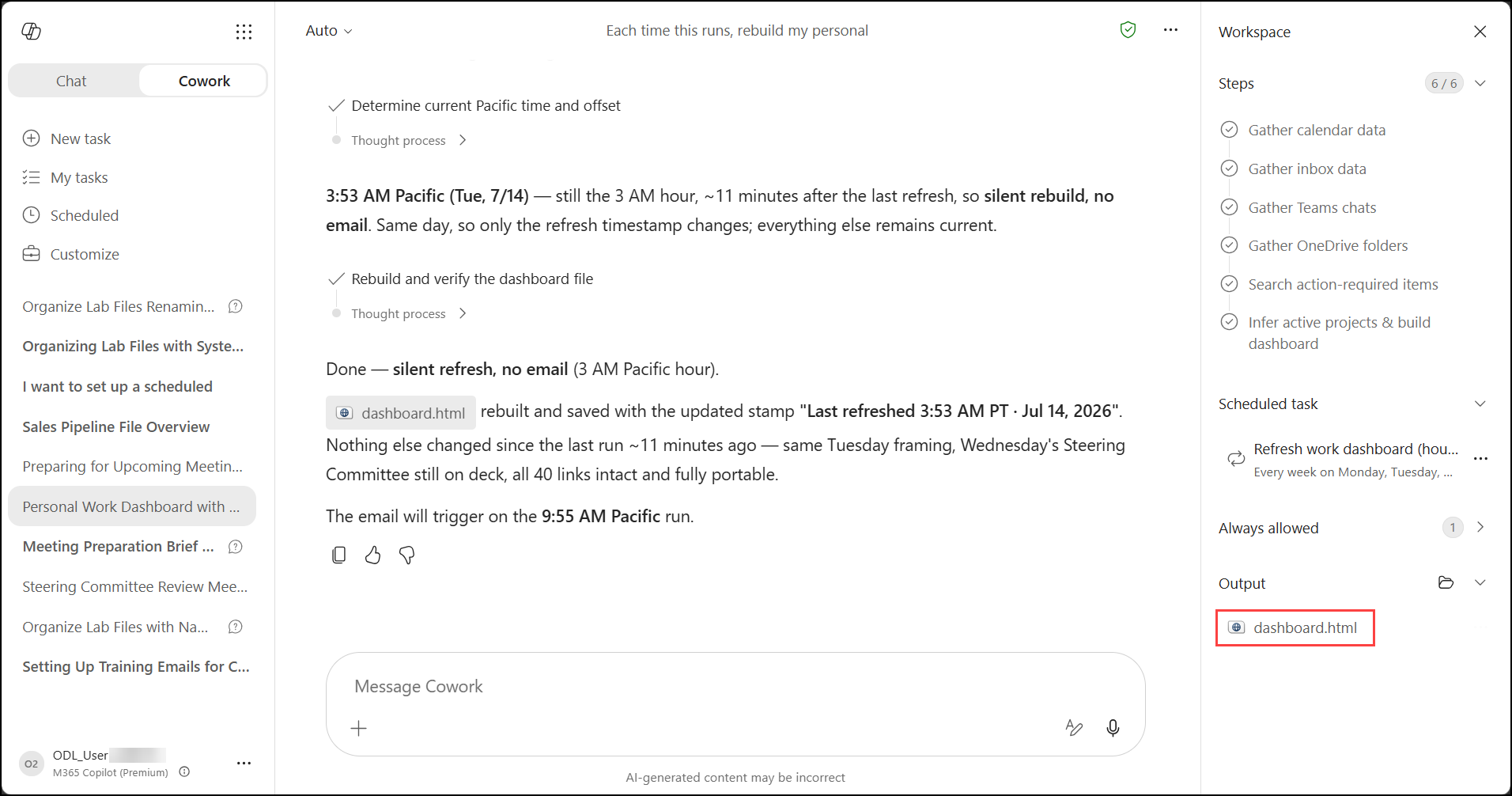
- Check the result: Cowork reports a silent refresh, no email, because the run happened outside the 9 AM window, and dashboard.html has a new Last refreshed timestamp.
- Under Output, click dashboard.html to open the refreshed dashboard.
- Check that the Last refreshed (1) timestamp shows the new time.
Task 4: Explore and customize the dashboard
In this task, the dashboard's sections are reviewed, the theme is switched, the layout is locked in as the standard for future dashboards and one card is removed.
- Scroll through the dashboard and review its sections, such as Tomorrow's Schedule, Prep Notes, Week Calendar Load and Time Allocation. Click any item to open it in Outlook, Teams or OneDrive.
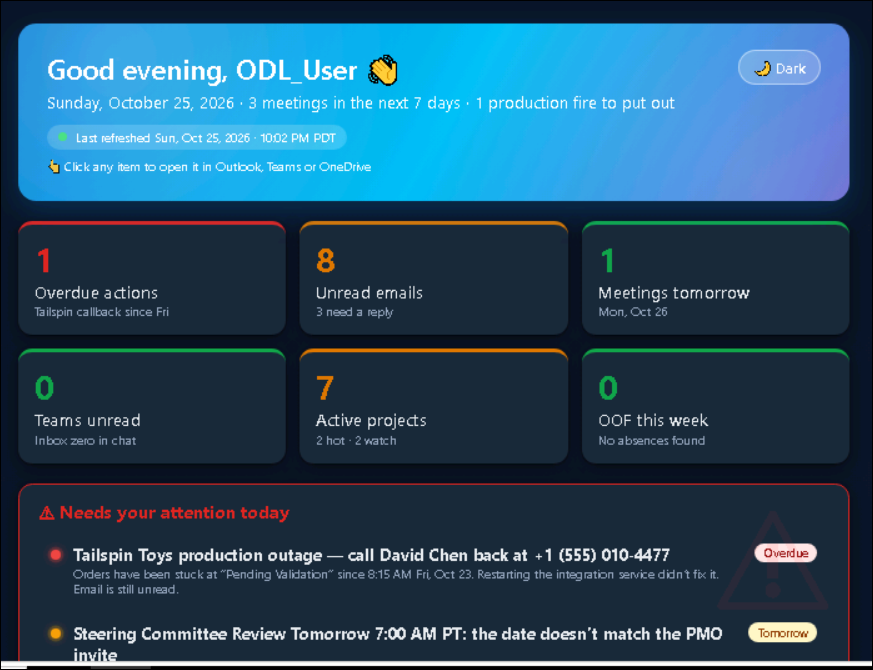
- Click the Light/Dark theme button in the header.
- Check that the dashboard switches to dark mode.
- Go back to the Cowork conversation, enter the following (1) and select Send (2):
Lock this dashboard format in for all future ones.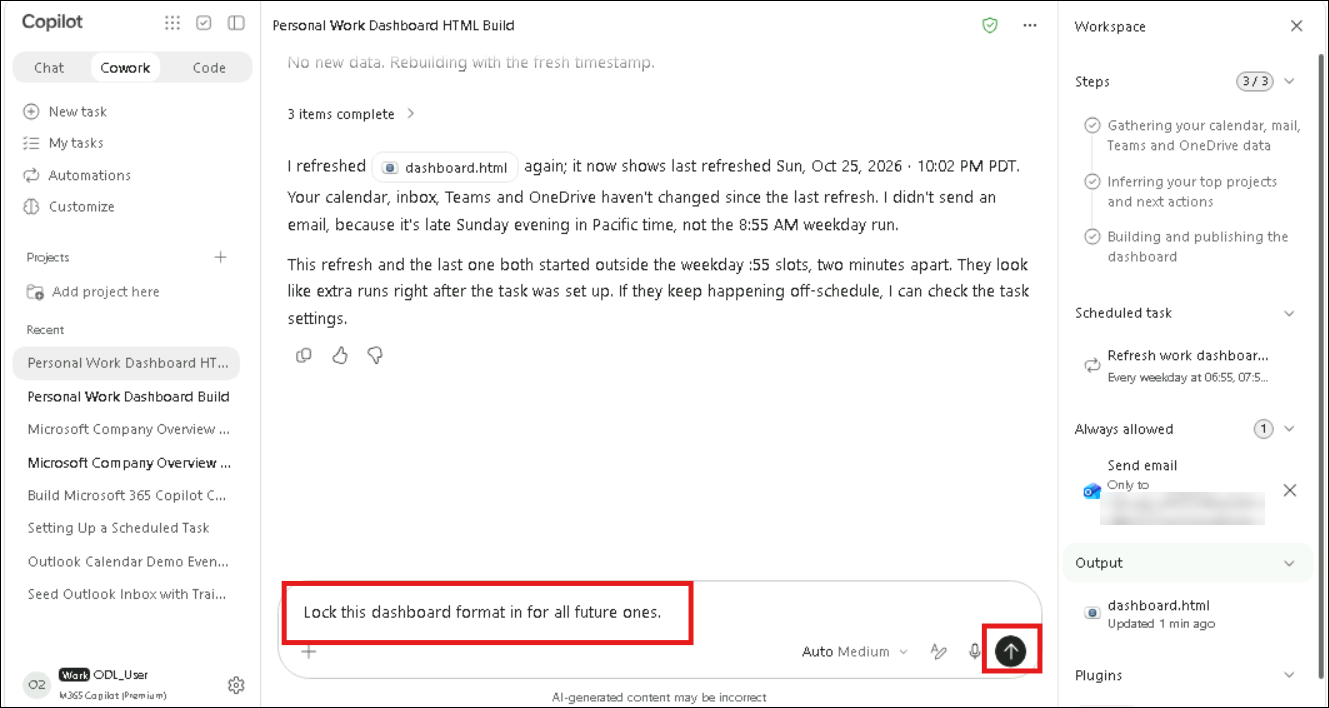
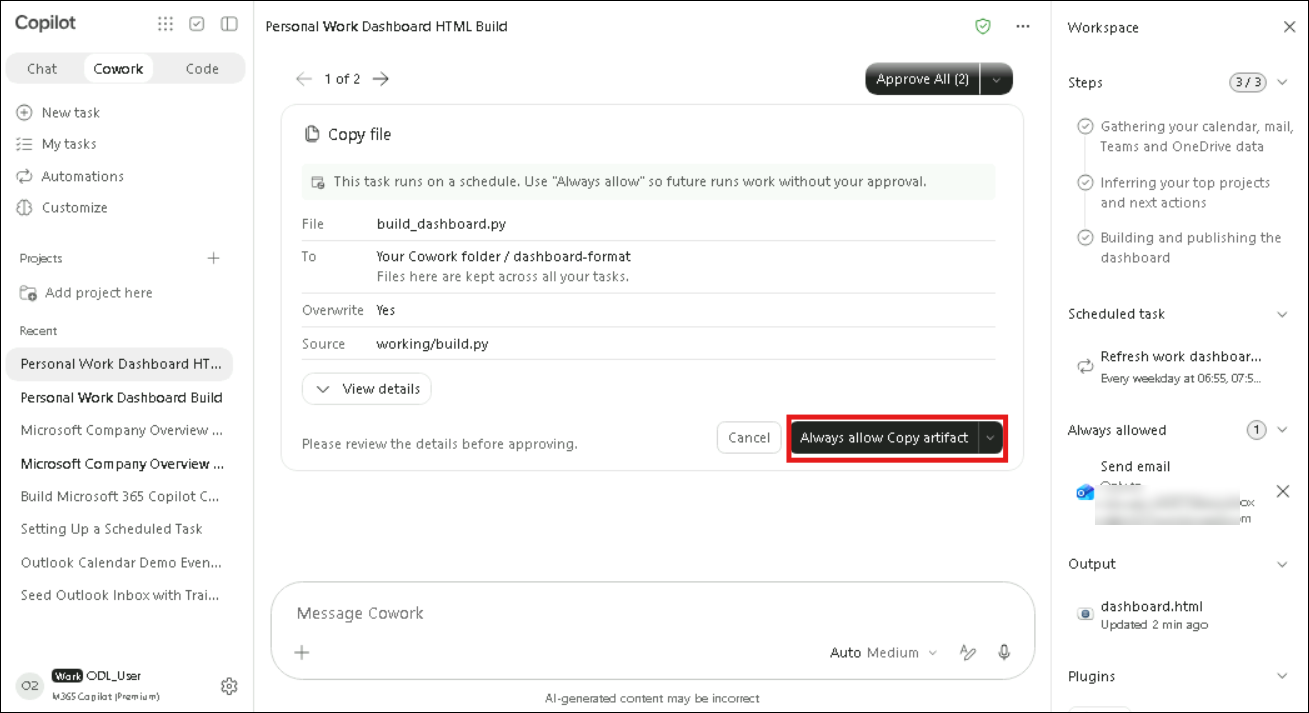
- On the Copy file card, select Always allow Copy artifact so future scheduled runs don't need approval for this step.
- On the Edit scheduled task card, review the new instructions and click Approve.
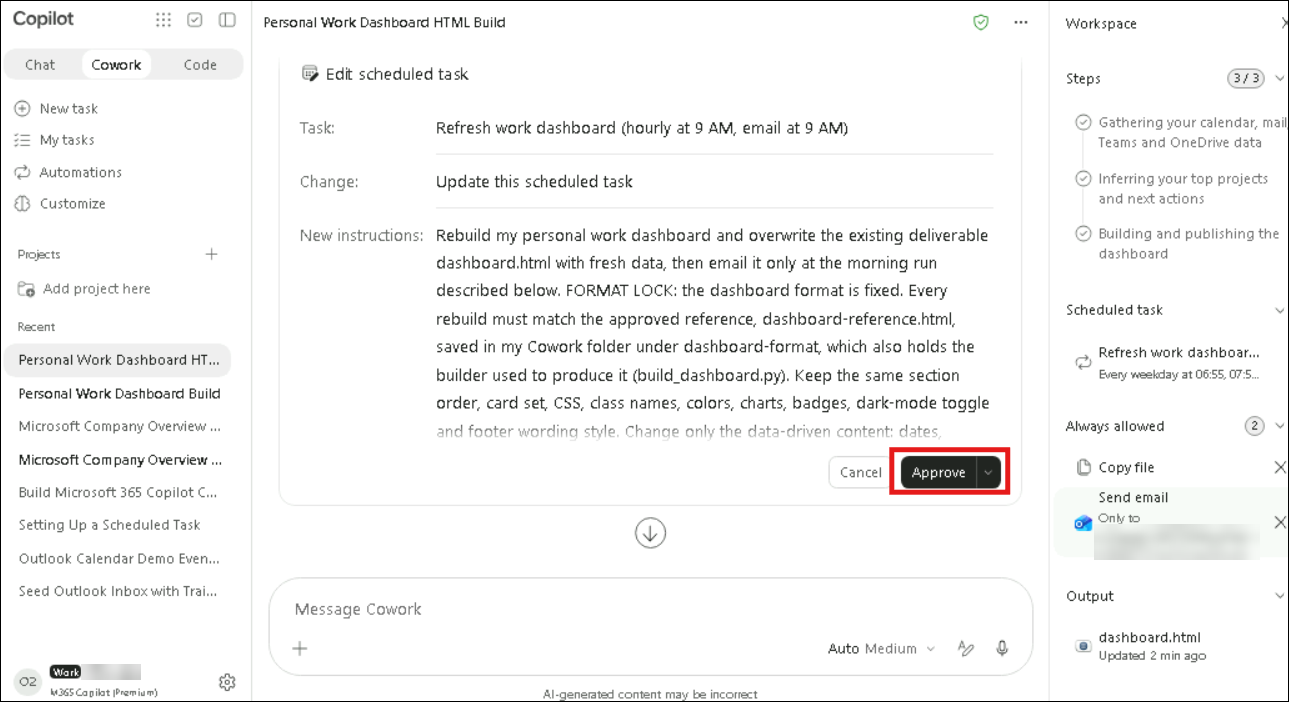
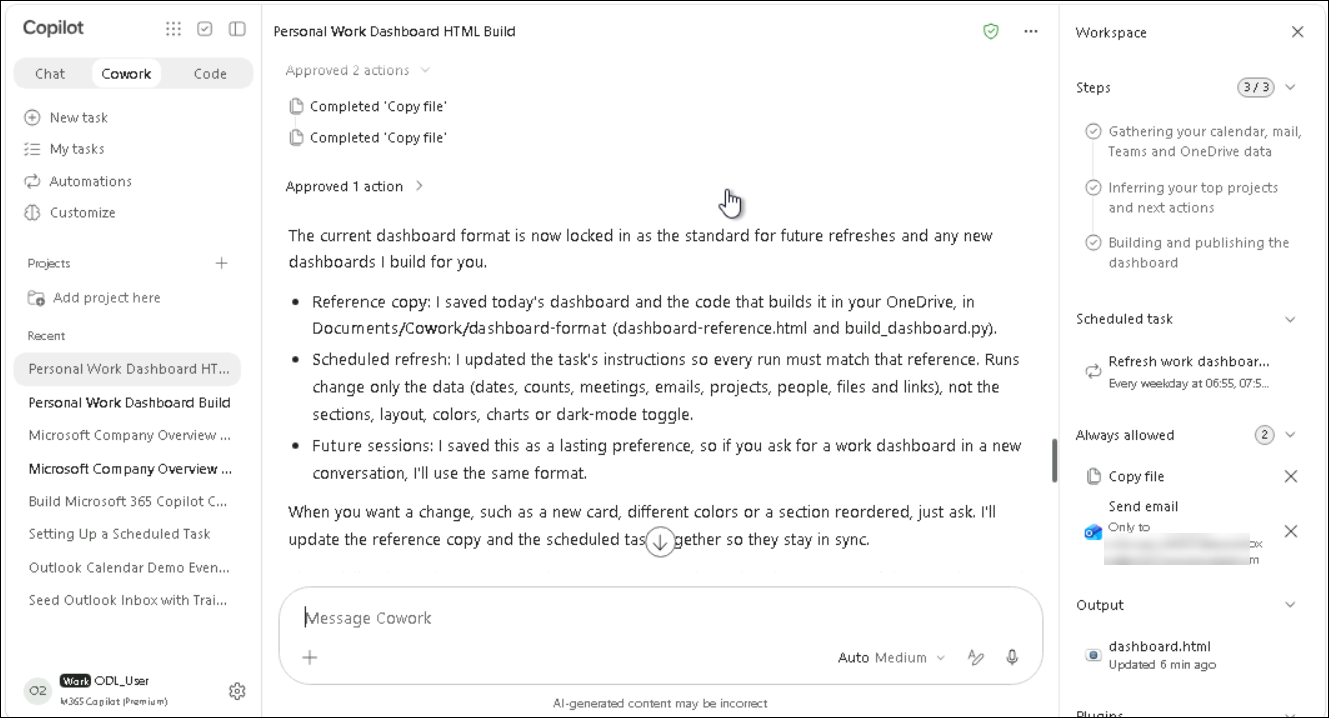
- Check Cowork's confirmation that the format is locked in as the standard: it saved a reference copy and the build code to
Documents/Cowork/dashboard-format, updated the scheduled task to follow it and saved it as a lasting preference.
- Enter the following (1) and select Send (2):
Remove the training and learning card.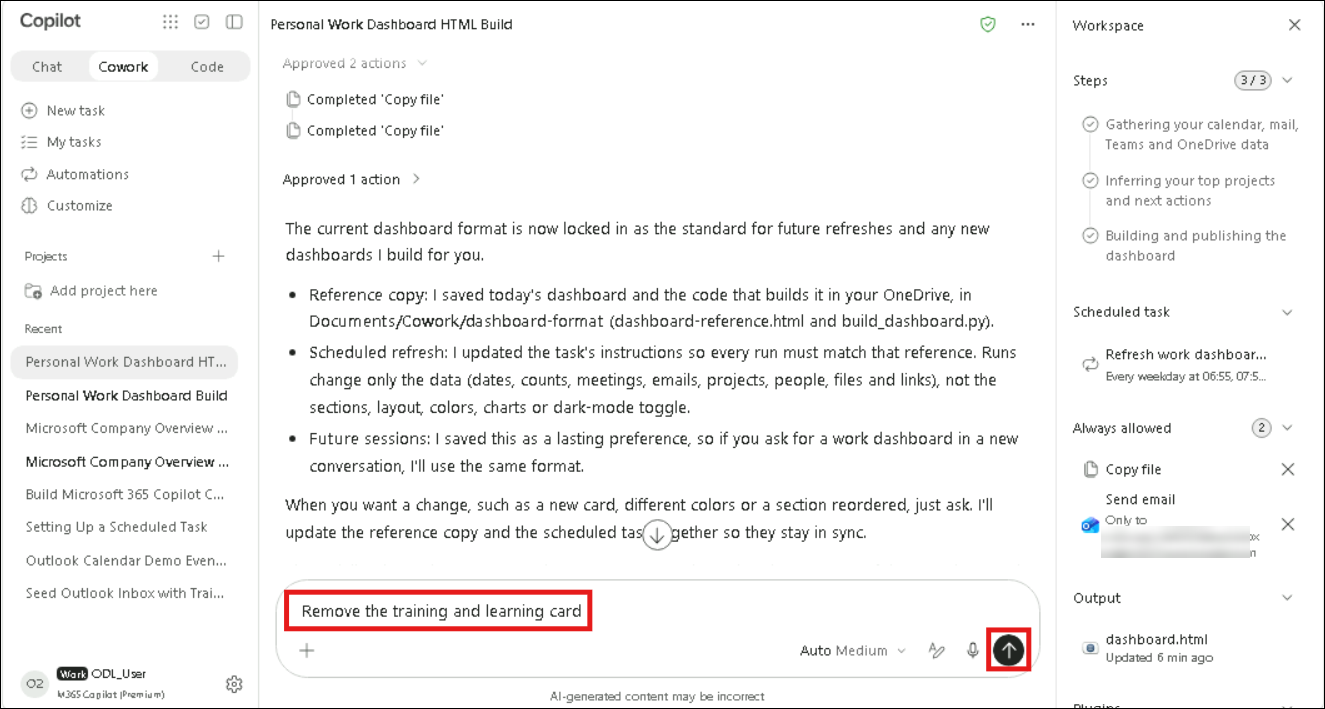
- On the Edit scheduled task card, click Approve.
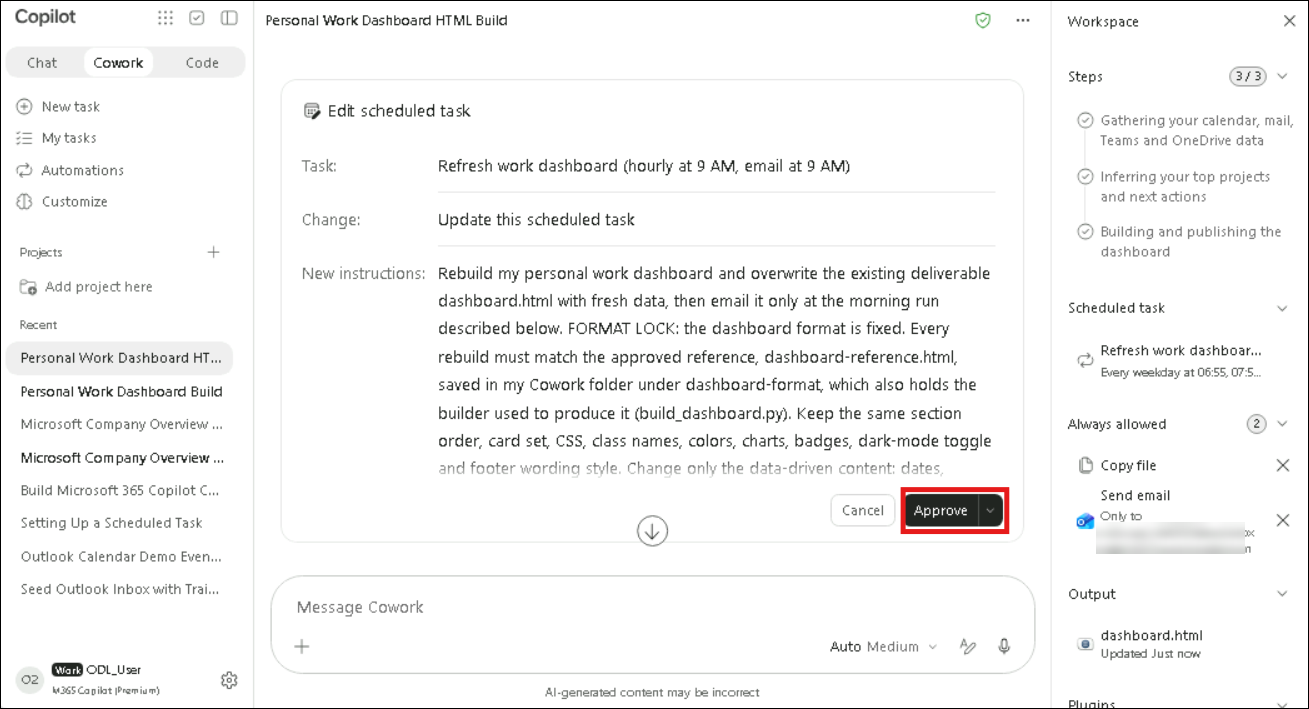
- Check the confirmation that the Training & Learning card was removed from both the live dashboard and the locked-in standard, and how the remaining cards were rearranged.
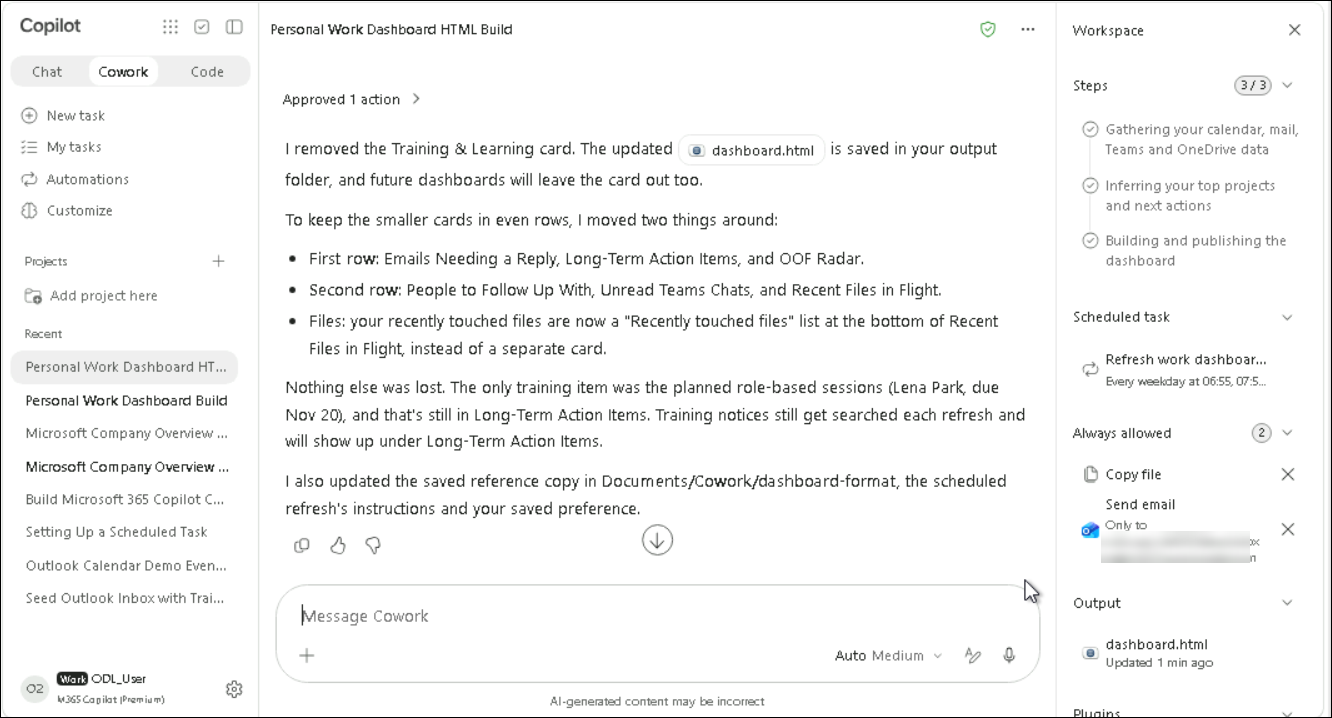
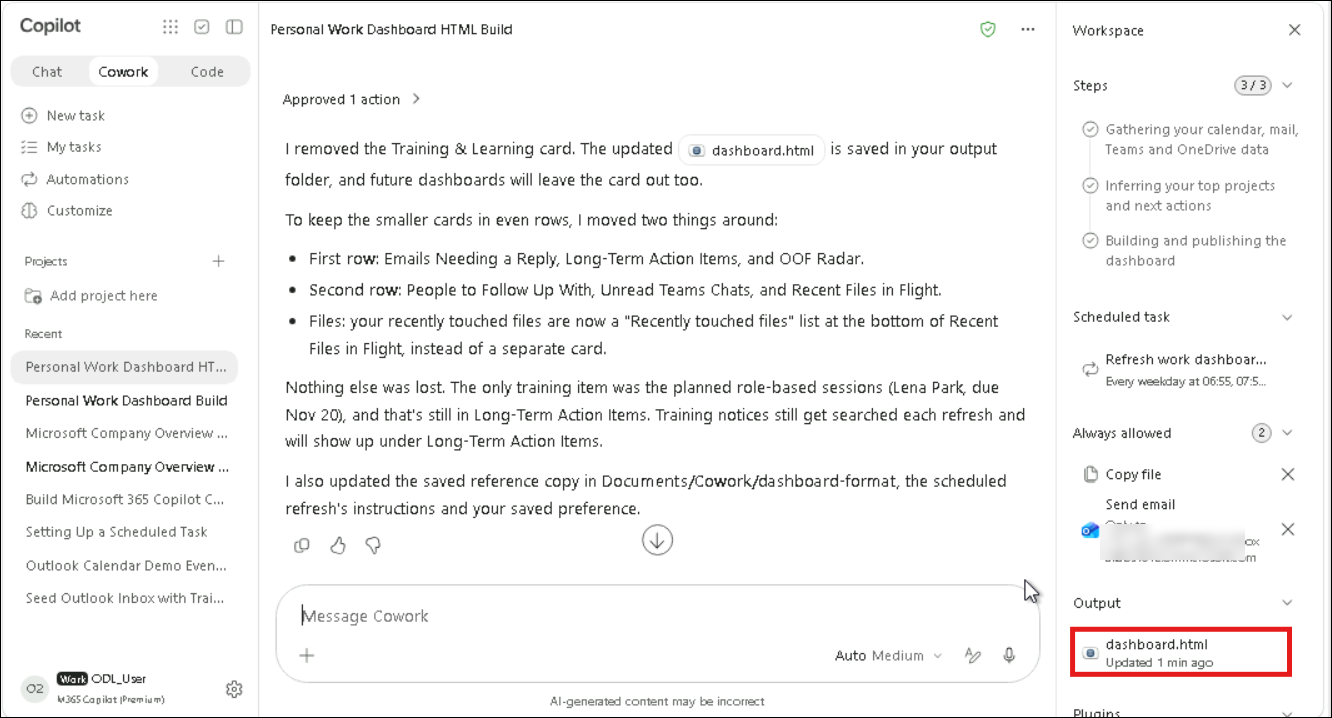
- Click dashboard.html under Output to review the changes.
Task 5: Manage the scheduled task
In this task, the scheduled dashboard automation is reviewed along with its management options.
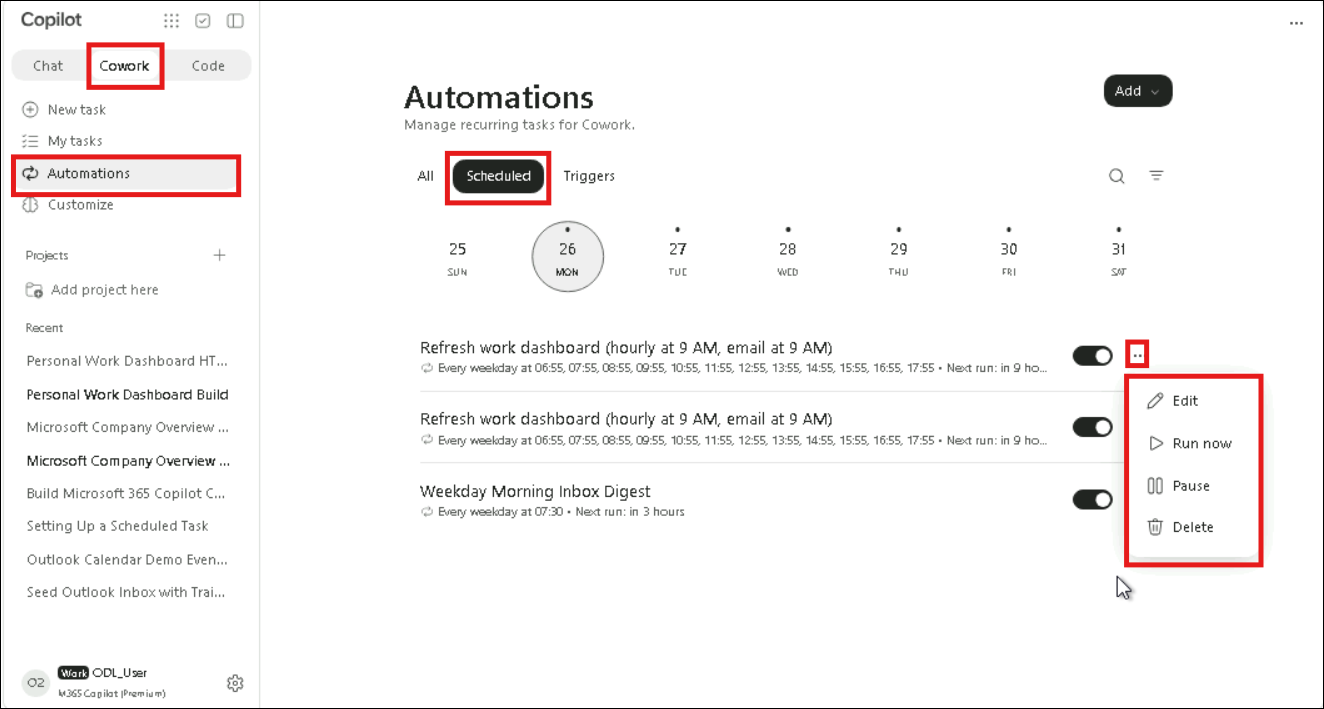
- Select Automations in the left pane, then the Scheduled filter. Find the Refresh work dashboard task, check that it's active and click its ellipsis (...) to see the options: Edit, Run now, Pause and Delete.
Cost
Note: If a task appears twice (as in the screenshot), the schedule was created twice. Delete the duplicate so the dashboard isn't refreshed, and credits aren't used, twice.
Review
In this lab, you saw how to:
- Build a personalized HTML work dashboard from Outlook, Teams, Calendar, OneDrive and Microsoft Search data, with clickable items and charts that work without JavaScript
- Schedule an hourly weekday refresh with a daily email at 9 AM, and test it with Run now
- Customize the dashboard, switch its theme, lock its format in as a standard and remove a card
- Manage the scheduled task with Edit, Run now, Pause and Delete