
Lab 6: Building and Publishing a Custom Copilot Cowork Plugin (Read-only)
Overview
Organizations can extend Microsoft 365 Copilot beyond its built-in capabilities with custom plugins that bring in enterprise knowledge, business processes and external services. A Cowork plugin bundles skills with connectors. Connectors use the Model Context Protocol (MCP) to reach external data sources, so users can retrieve live information and run specialized tasks in natural language.
In this lab, you see how Cowork generates a complete Financial Research plugin package from a structured prompt. The plugin adds seven financial research skills and connects to the public SEC EDGAR filing repository through a remote MCP server. You then see how the package is reviewed, published from the Microsoft 365 admin center, enabled in Cowork and tested with natural-language questions about a public company.
Cost
Read-only lab: This whole lab is a guided walkthrough. Publishing a custom app requires an admin role that participants are not assigned, and generating the package consumes Copilot credits. Read each step and its screenshot (your trainer may demonstrate them live), but don't run them in your own environment.
Trainer note: The SEC EDGAR MCP server used here (secedgar.caseyjhand.com) is a community-hosted server, not a Microsoft or SEC service, and it uses no authentication. It is fine for public filing data in a demo. In production, use only MCP servers your organization has reviewed and approved.
Disclaimer: Cowork is AI-powered, so the generated files, summaries and results differ between runs.
Objectives
- Task 1: Review plugins and skills in Cowork
- Task 2: Generate the plugin package with Cowork
- Task 3: Publish the plugin from the Microsoft 365 admin center
- Task 4: Enable and test the plugin in Cowork
Task 1: Review plugins and skills in Cowork
In this task, the plugins and skills already available in Cowork are reviewed, to confirm the environment is ready for a custom plugin.
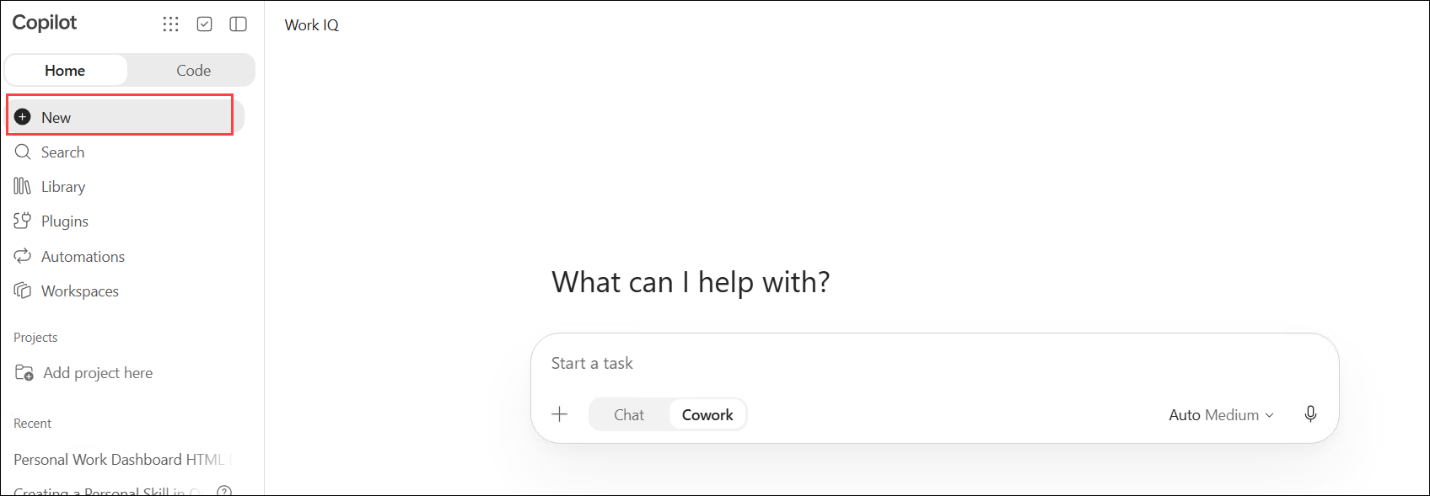
- In the left pane, select New, and make sure Cowork is selected in the task box.
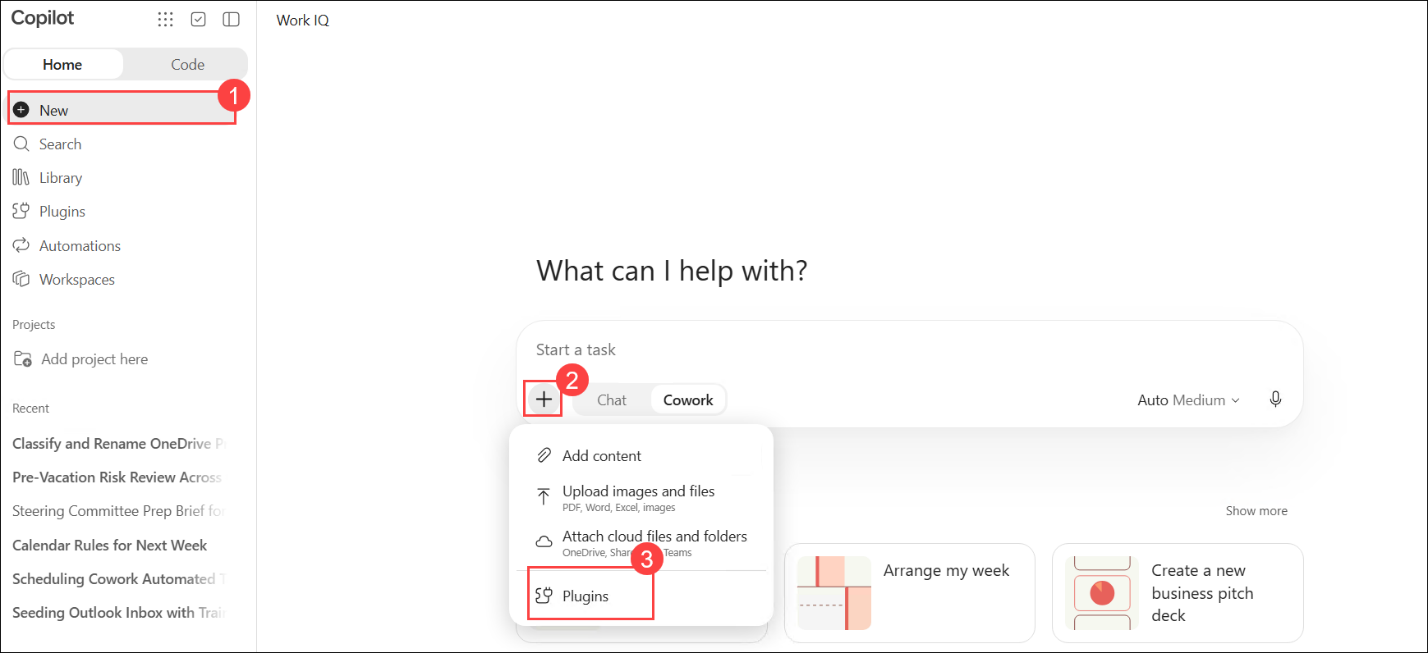
- In the task box, select the + (2) icon, then select Plugins (3).
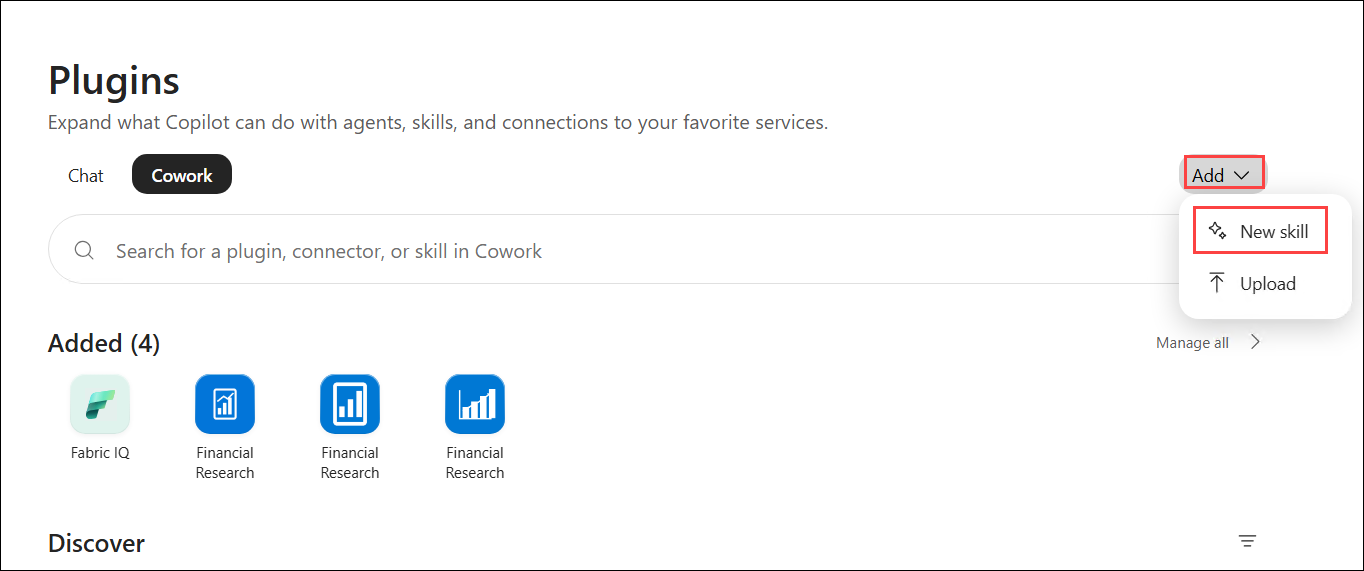
- On the Plugins page, make sure Cowork is selected. Review the plugins under Added, then select Add to see the two ways to add a capability: New skill and Upload.
Note
Note: The demo environment already contains copies of Financial Research from earlier runs. A clean environment shows only the built-in plugins.
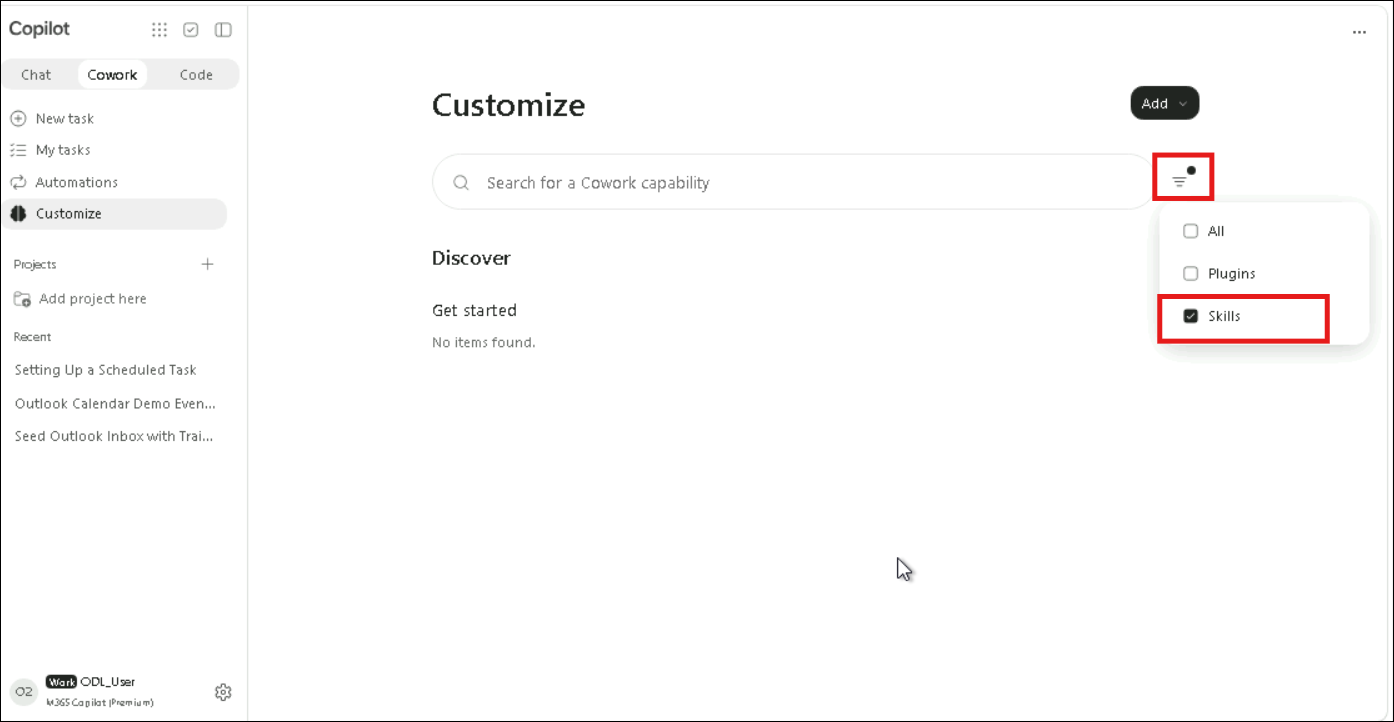
- Open the filter (1) and select Skills (2). Check that no custom skills are listed (No items found).
Task 2: Generate the plugin package with Cowork
In this task, Cowork generates the complete Financial Research plugin package: the manifest, seven skills, the connector configuration, the icons and the ZIP file to deploy.
- Select New (1), enter the following prompt (2) in the task box, then select Send (3).
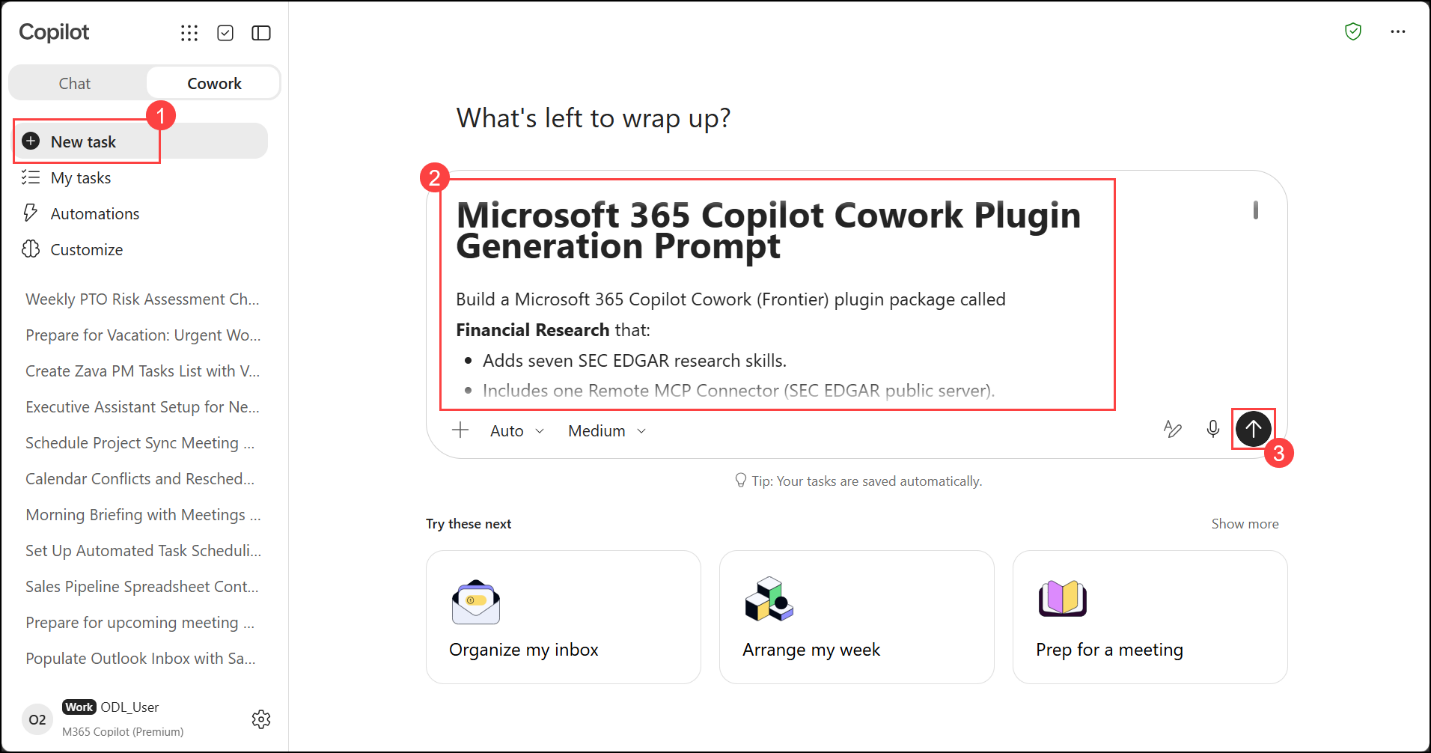
# Microsoft 365 Copilot Cowork Plugin Generation Prompt

Build a Microsoft 365 Copilot Cowork (Frontier) plugin package called
**Financial Research** that:
- Adds seven SEC EDGAR research skills.
- Includes one Remote MCP Connector (SEC EDGAR public server).
- Produces a single ZIP package ready for upload via the Microsoft 365 Admin Center.
- Validates against the Microsoft 365 Unified App Manifest (devPreview) schema.
- Binds to Microsoft 365 Copilot Cowork (not just Microsoft Teams).

## Output Path
Place all source files under: output/microsoft-financial-research-tools/
Place the final ZIP at: output/microsoft-financial-research-tools.zip

## Package Structure
microsoft-financial-research-tools/
|-- manifest.json
|-- color.png      (192 x 192 RGBA, Microsoft blue background)
|-- outline.png    (32 x 32 RGBA, transparent bg, white glyph)
`-- skills/
    |-- company-snapshot/SKILL.md
    |-- financial-trends/SKILL.md
    |-- peer-comparison/SKILL.md
    |-- risk-factor-analysis/SKILL.md
    |-- earnings-deep-dive/SKILL.md
    |-- executive-research/SKILL.md
    `-- filing-search/SKILL.md

## manifest.json (use this canonical structure)
agentSkills and agentConnectors MUST be top-level properties and MUST NOT be nested under copilotAgents.

{
  "$schema": "https://developer.microsoft.com/json-schemas/teams/vDevPreview/MicrosoftTeams.schema.json",
  "manifestVersion": "devPreview",
  "version": "1.0.0",
  "id": "<NEW GUID v4>",
  "packageName": "com.microsoft.financial-research-tools",
  "developer": {
    "name": "Microsoft",
    "websiteUrl": "https://www.microsoft.com",
    "privacyUrl": "https://privacy.microsoft.com",
    "termsOfUseUrl": "https://www.microsoft.com/legal/terms-of-use"
  },
  "name": {
    "short": "Financial Research",
    "full": "Microsoft Financial Research Tools"
  },
  "description": {
    "short": "SEC EDGAR research skills for public-company analysis.",
    "full": "Seven skills plus the SEC EDGAR MCP connector for company snapshots, financial trends, peer comparison, risk-factor analysis, earnings deep dives, executive research, and full-text filing search."
  },
  "icons": { "color": "color.png", "outline": "outline.png" },
  "accentColor": "#0078D4",
  "agentSkills": [
    { "folder": "./skills/company-snapshot" },
    { "folder": "./skills/financial-trends" },
    { "folder": "./skills/peer-comparison" },
    { "folder": "./skills/risk-factor-analysis" },
    { "folder": "./skills/earnings-deep-dive" },
    { "folder": "./skills/executive-research" },
    { "folder": "./skills/filing-search" }
  ],
  "agentConnectors": [
    {
      "id": "secedgar",
      "displayName": "SEC EDGAR",
      "description": "Public SEC EDGAR data: company search, filings (10-K/10-Q/8-K/DEF 14A), XBRL financials, full-text search.",
      "toolSource": {
        "remoteMcpServer": {
          "mcpServerUrl": "https://secedgar.caseyjhand.com/mcp",
          "authorization": { "type": "None" }
        }
      }
    }
  ],
  "validDomains": [ "secedgar.caseyjhand.com" ]
}

## Schema Rules
- agentSkills and agentConnectors MUST be top-level properties.
- Do NOT place them under copilotAgents.
- copilotAgents only accepts declarativeAgents.
- packageName MUST be included.
- manifestVersion MUST be "devPreview".
- Use the Microsoft Teams vDevPreview schema URL.
- agentConnectors[].toolSource.remoteMcpServer.authorization.type MUST be "None".
- validDomains MUST include: secedgar.caseyjhand.com
- Generate a new GUID v4 for the id.

## SKILL.md Frontmatter (every skill must use this)
---
name: <kebab-case folder name>
description: |
  <2-4 sentence description>
  Use when the user asks:
  "<trigger phrase 1>"
  "<trigger phrase 2>"
  "<trigger phrase 3>"
license: MIT
metadata:
  author: Microsoft
  version: "1.0"
  cowork.category: Finance
  cowork.icon: <PascalCase Fluent UI icon>
---
# <Display Name>
## What This Skill Does
## When to Use
## Workflow
## Output Format

IMPORTANT: cowork.category and cowork.icon MUST be nested under metadata.

## Skills, Fluent icons, and trigger phrases
company-snapshot (icon: BuildingBank)
- snapshot of <ticker>
- overview of <company>
- tell me about <company>
financial-trends (icon: ChartMultiple)
- 5-year financials for <company>
- revenue trend / how has <company> grown
peer-comparison (icon: ScaleFill)
- compare A vs B / benchmark <company>
- rank companies by revenue
risk-factor-analysis (icon: ShieldError)
- what are the risks for <company>
- risk factors in <company>'s 10-K
earnings-deep-dive (icon: DocumentBulletList)
- analyze latest earnings / earnings recap
executive-research (icon: People)
- who runs <company> / leadership of <company>
- executive compensation
filing-search (icon: SearchInfo)
- find filings mentioning <phrase>
- which companies disclosed <topic>

Each skill should invoke these MCP tools:
- secedgar_company_search
- secedgar_get_filing
- secedgar_get_financials
- secedgar_search_filings

## Icons
color.png   : 192 x 192 RGBA, Microsoft Blue (#0078D4), white centered chart/document glyph.
outline.png : 32 x 32 RGBA, transparent bg, white outline glyph.
Generate icons using Pillow. Do NOT use external image services.

## Packaging
Use Python's zipfile module.
Place manifest.json at the ROOT of the ZIP.
Generate: output/microsoft-financial-research-tools.zip

## Validation Checklist
[ ] manifest.json is at the ZIP root
[ ] Uses the Microsoft Teams vDevPreview schema
[ ] manifestVersion = devPreview
[ ] packageName is present
[ ] New GUID v4 generated
[ ] agentSkills is top-level
[ ] agentConnectors is top-level
[ ] Every skill folder exists
[ ] Every SKILL.md contains valid metadata
[ ] metadata.cowork.category is nested correctly
[ ] metadata.cowork.icon is nested correctly
[ ] color.png is 192 x 192
[ ] outline.png is 32 x 32
[ ] validDomains contains secedgar.caseyjhand.com
[ ] ZIP rebuilt after latest edits

## Upload
Upload ONLY through the Microsoft 365 Admin Center:
Copilot > Agents > All Agents > Upload Agent
Do NOT upload through the Teams Admin Center (lenient validation may register the package as a Teams-only app).

## Success Criteria
- microsoft-financial-research-tools.zip exists.
- All validation checks pass.
- The plugin uploads successfully.
- Supported On displays the Copilot icon.
- Categories are populated.
- SHA256 hash of the ZIP is reported.
- A summary of the generated package is provided.- Cowork starts working through the steps in the Workspace panel: building the manifest, skills and icons, then packaging, validating and preparing the ZIP.
Note
Note: Cowork can take 5–10 minutes to complete this task.
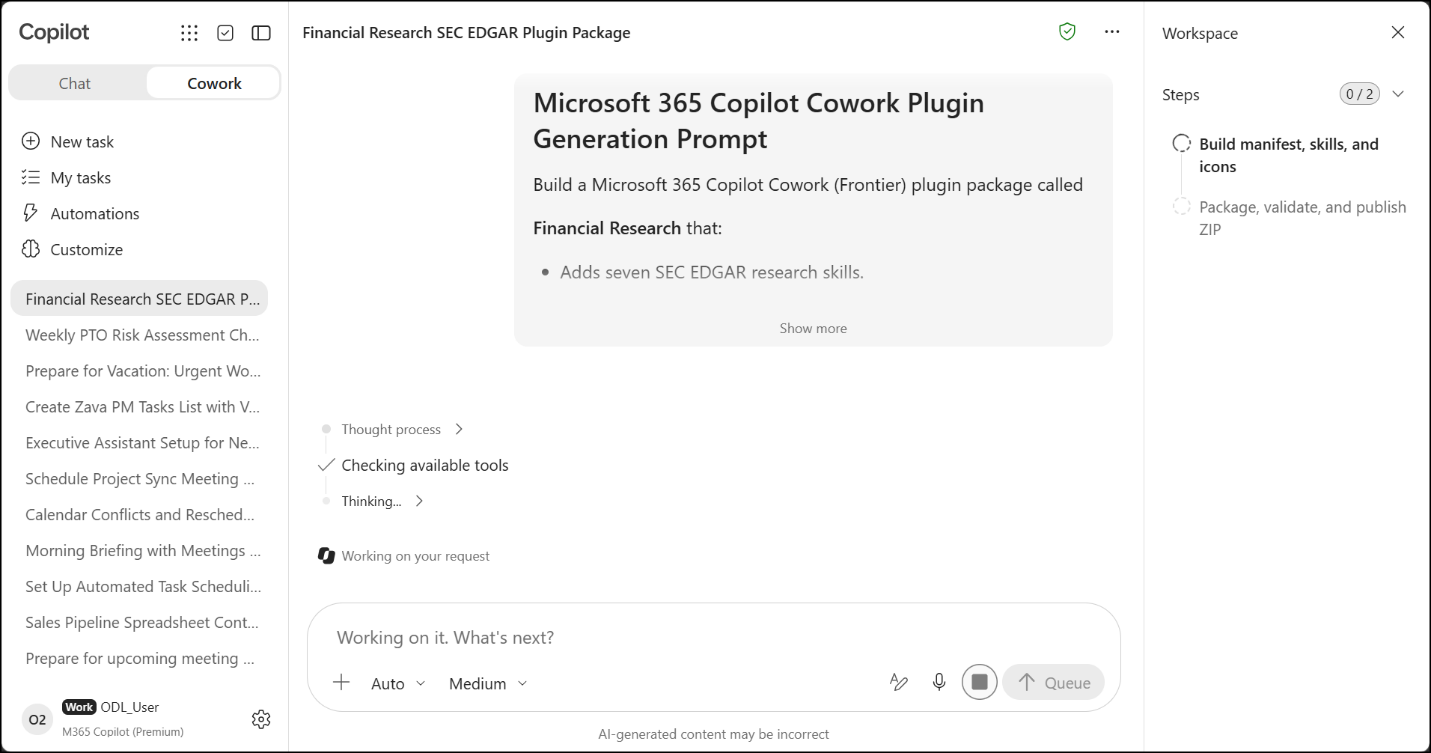
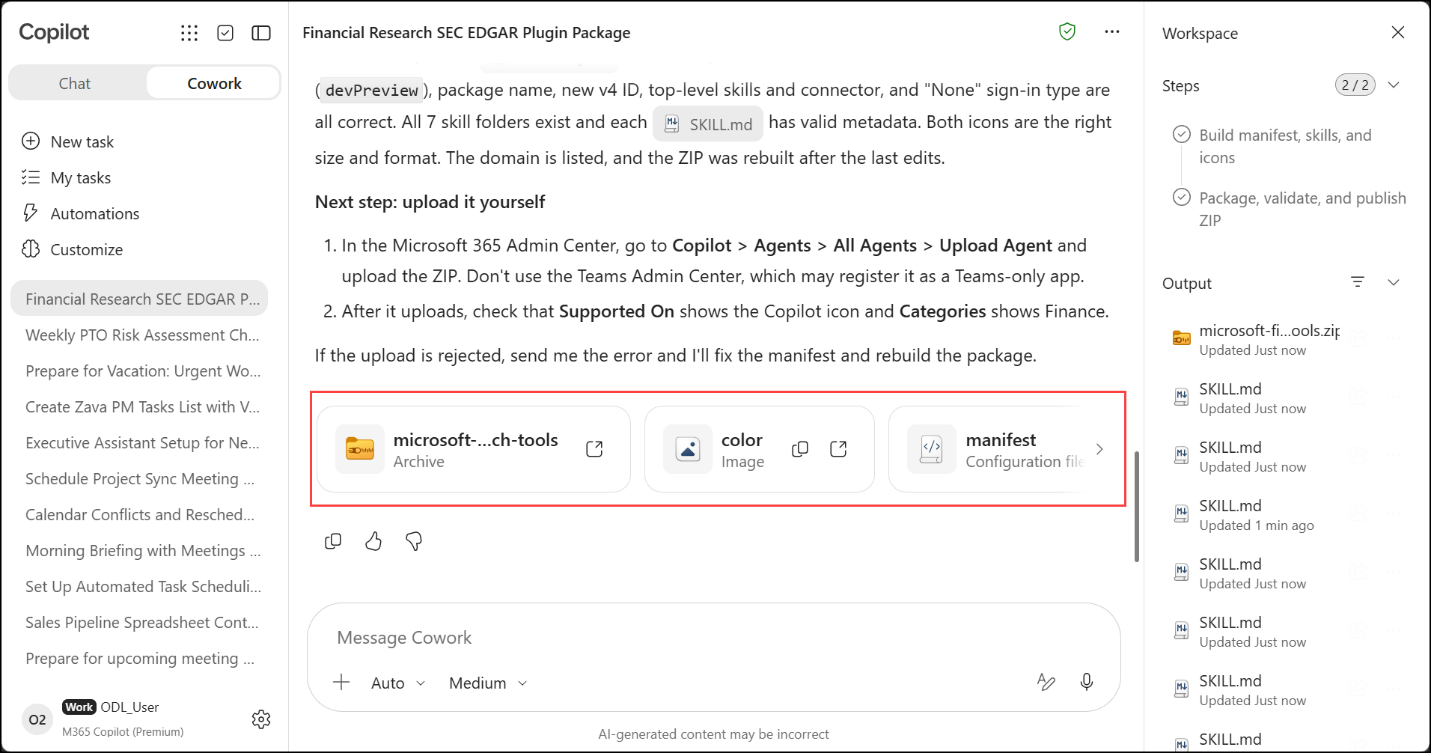
- When all steps are complete, review Cowork's summary and the files listed under Output: the ZIP file (microsoft-...-tools.zip), the seven SKILL.md files, manifest.json, color.png and outline.png.
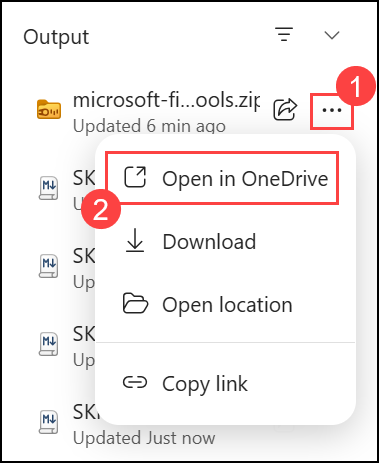
- Under Output, select the more options (...) (1) icon next to the ZIP file, then select Open in OneDrive (2).
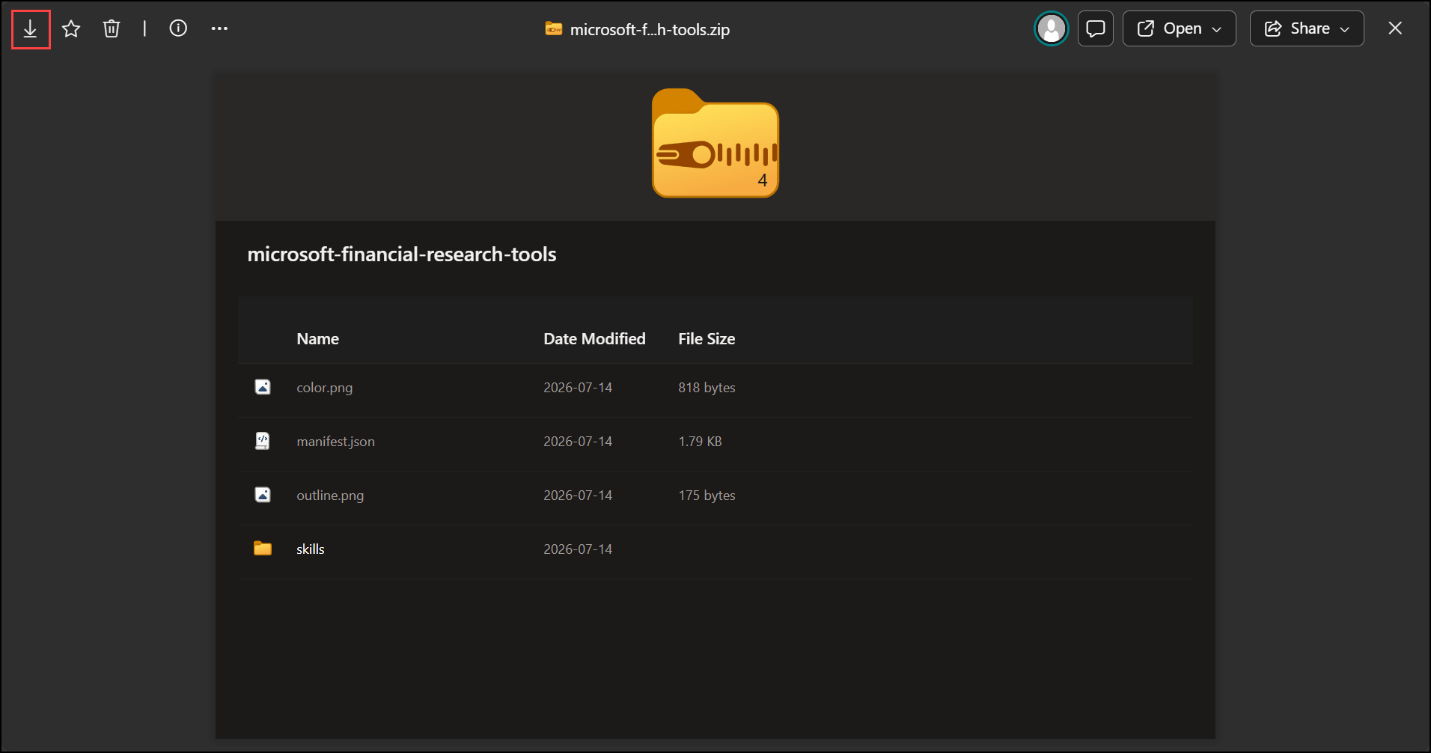
- Review the contents of the microsoft-financial-research-tools package: color.png, manifest.json, outline.png and the skills folder. Then select the Download (1) icon.
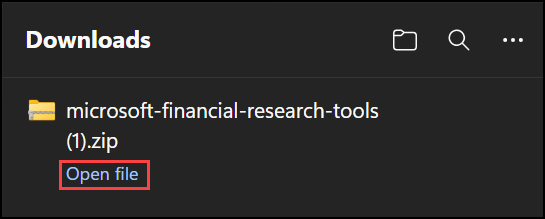
- In the browser's Downloads panel, select Open file under the downloaded ZIP.
Note
Note: If you downloaded the file more than once, the browser adds a number to the name, for example microsoft-financial-research-tools (1).zip.
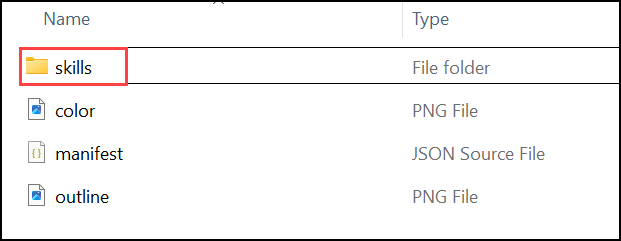
- Double-click the skills folder to open it.
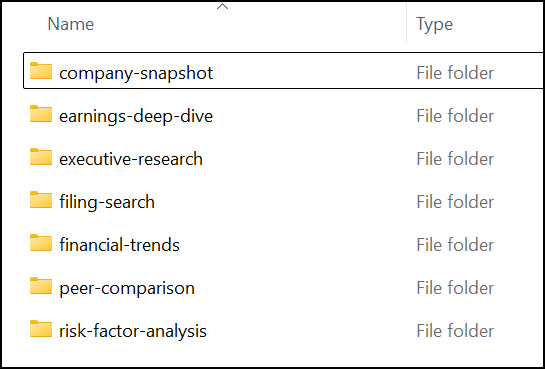
- Review the seven skill folders: company-snapshot, earnings-deep-dive, executive-research, filing-search, financial-trends, peer-comparison and risk-factor-analysis.
Task 3: Publish the plugin from the Microsoft 365 admin center
In this task, the generated package is published from the Microsoft 365 admin center, so it becomes available to Copilot users across the organization.
Note
Note: This task requires an admin role that participants are not assigned.
- Go to the Microsoft 365 admin center:
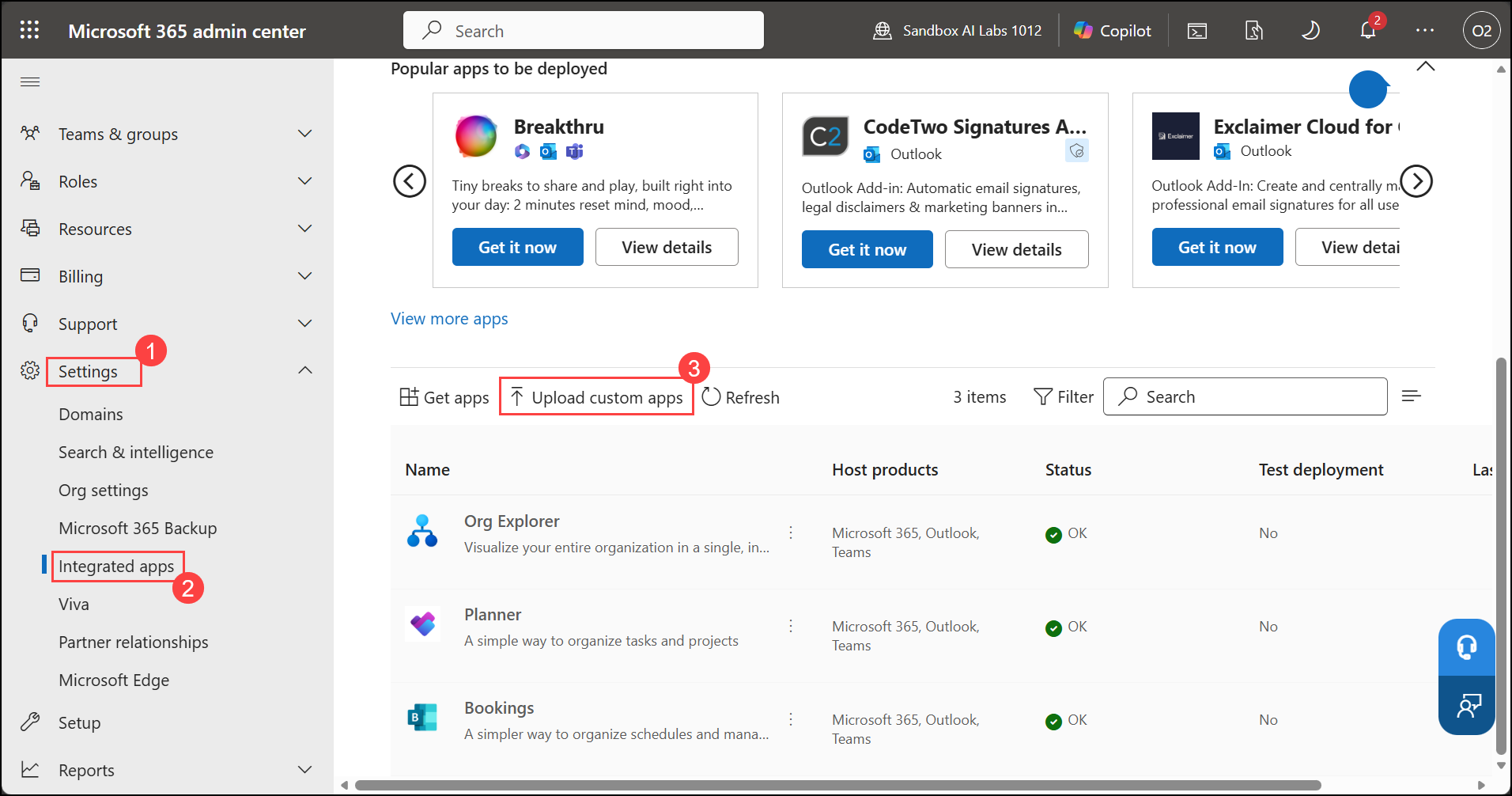
https://admin.cloud.microsoft- Select Settings (1) in the left navigation, select Integrated apps (2), then select Upload custom apps (3).
Note
Note: Cowork's summary (and the Upload section of the prompt) points to Copilot > Agents > All agents > Upload agent. This lab uses Settings > Integrated apps, which also deploys the package from the Microsoft 365 admin center. Don't use the Teams admin center.
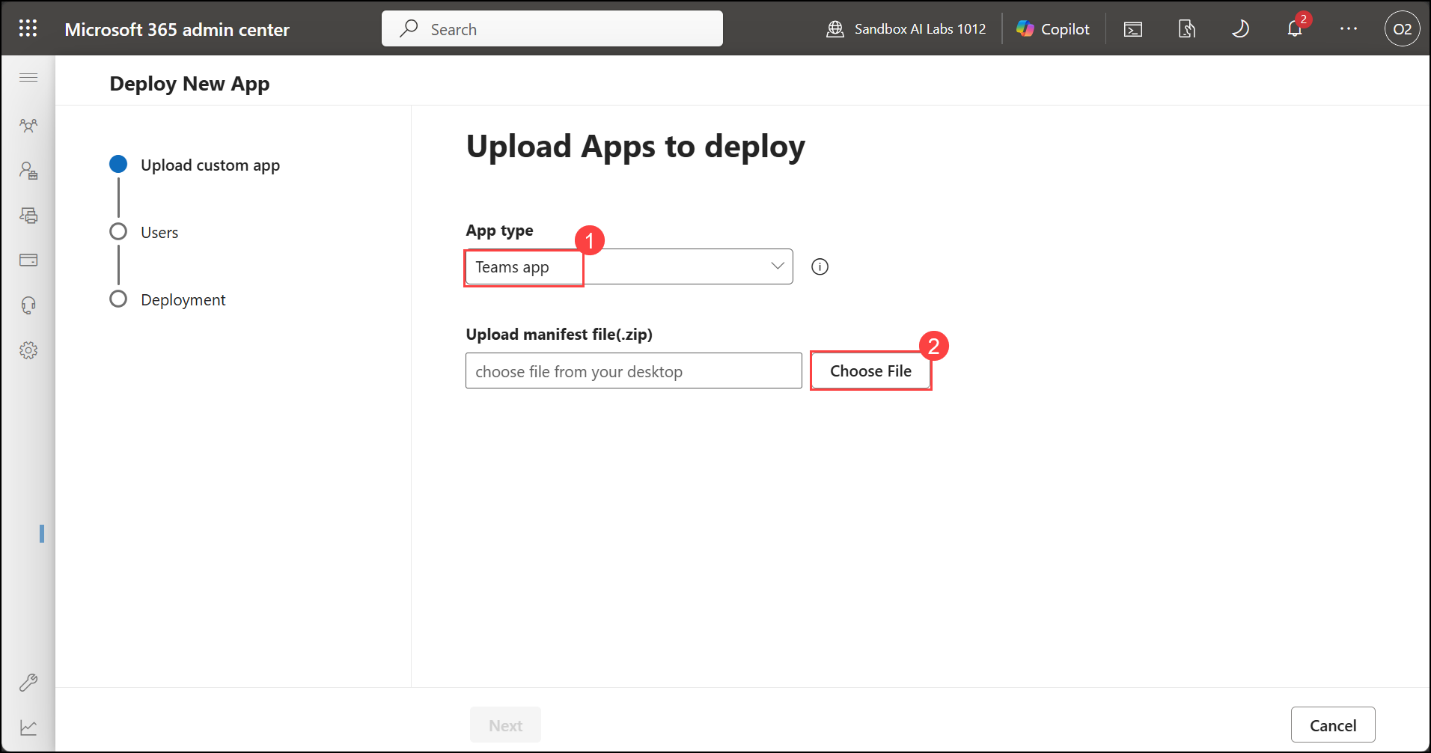
- Check that App type (1) is set to Teams app, then select Choose File (2) to upload the ZIP file.
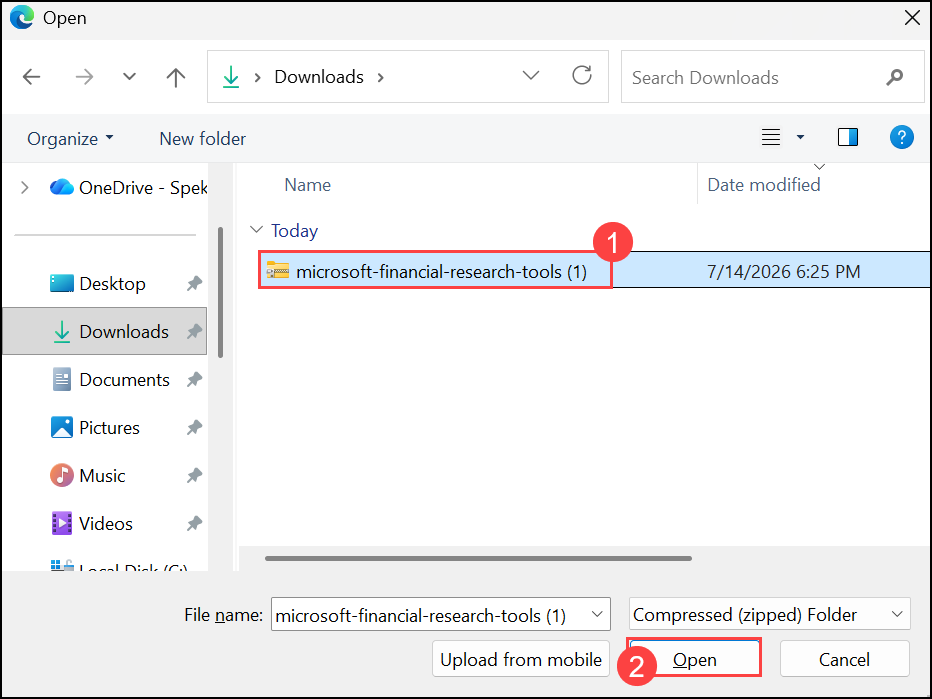
- Select the microsoft-financial-research-tools (1) ZIP file, then select Open (2).
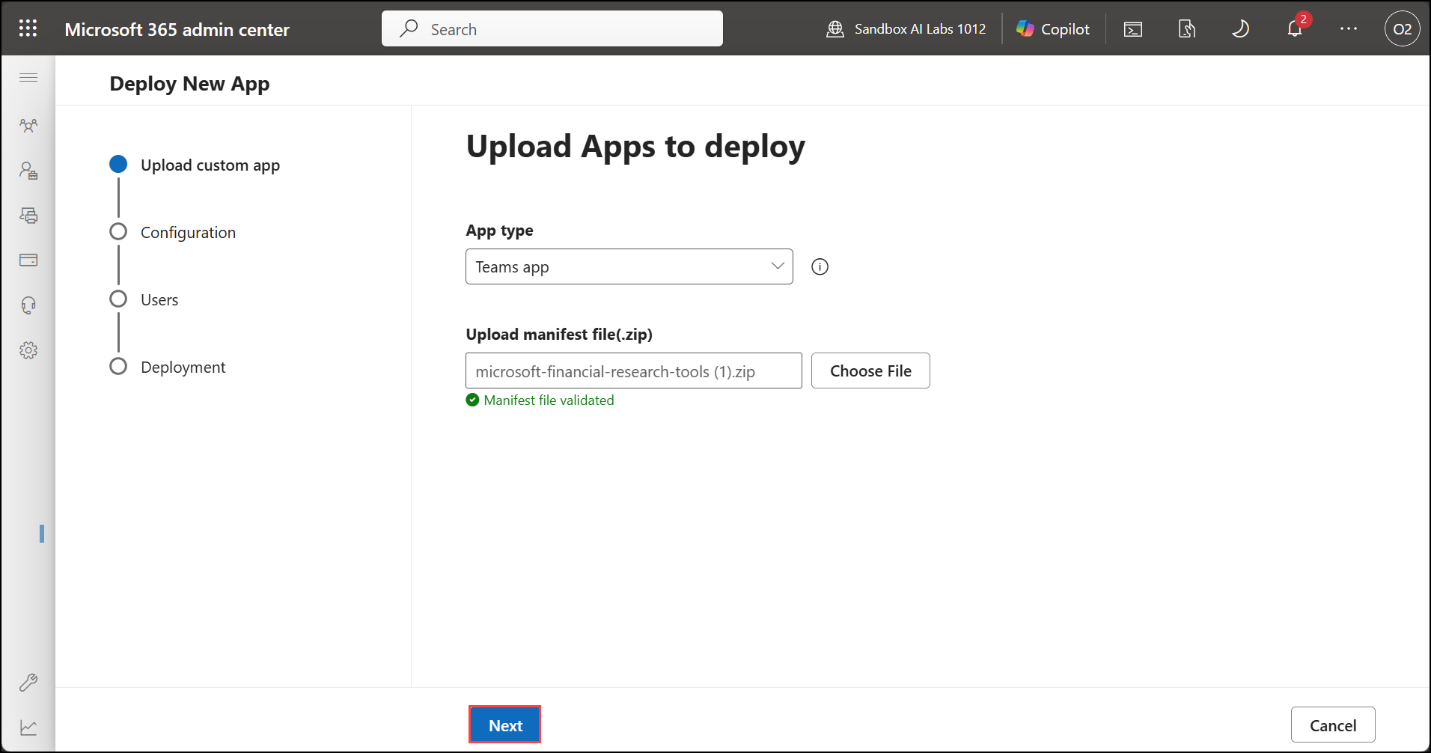
- Check that the Manifest file validated message appears, then select Next.
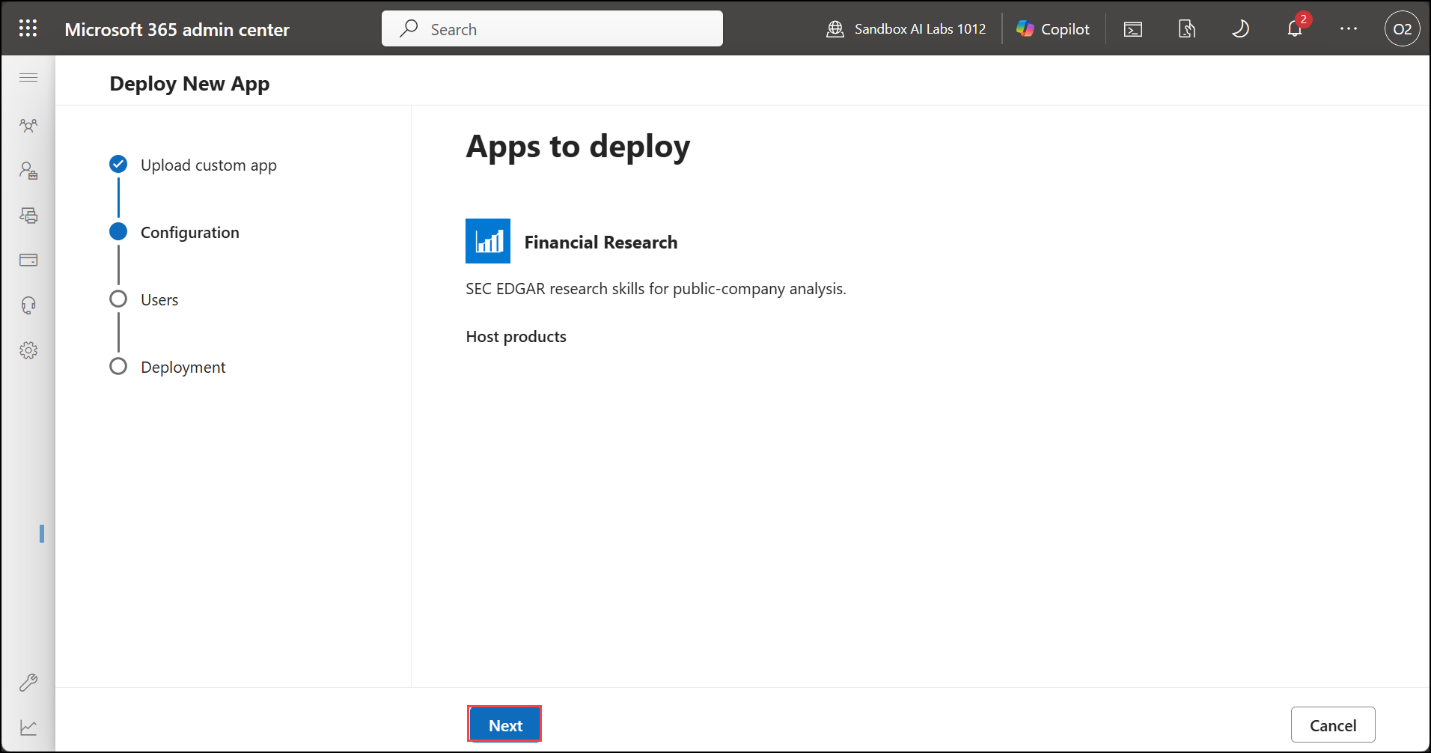
- Check the details of Financial Research under Apps to deploy, then select Next.
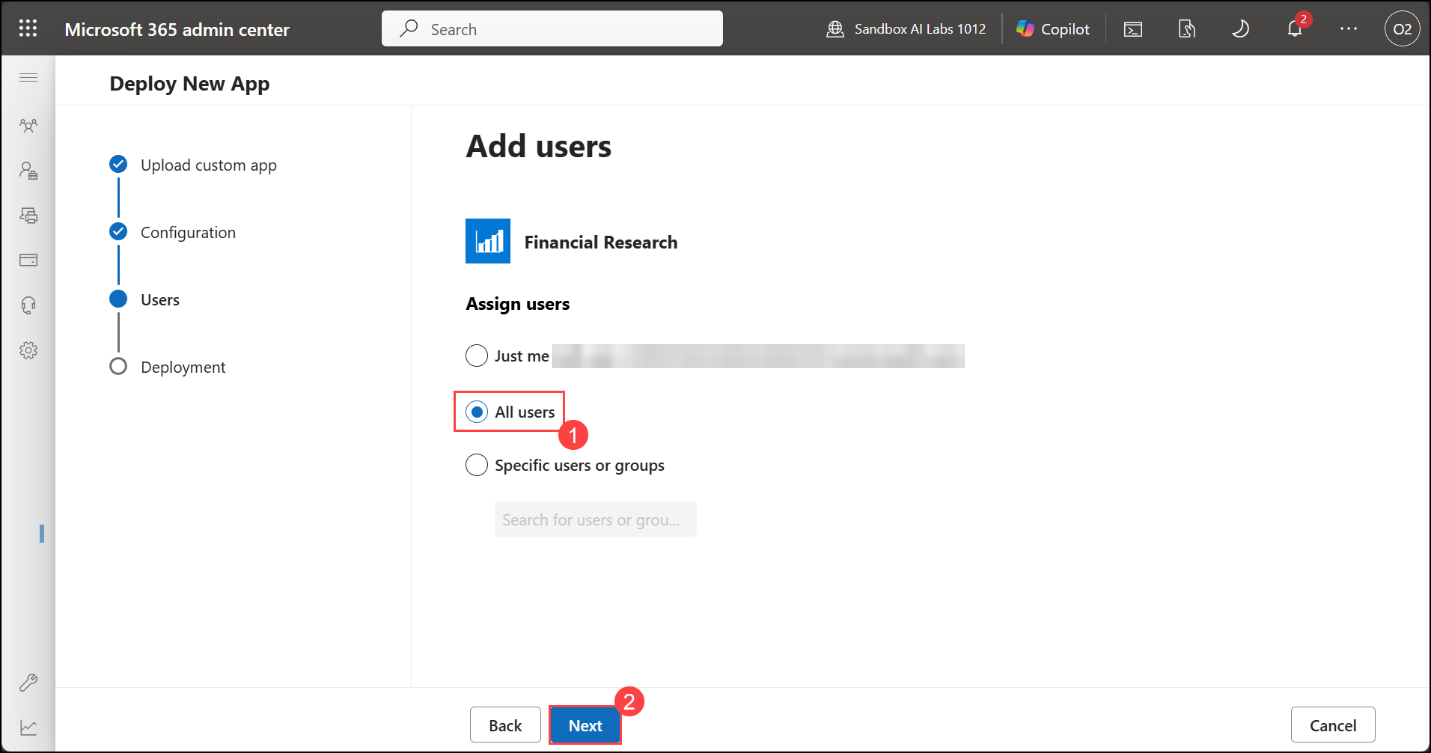
- Under Assign users, select All users (1), then select Next (2).
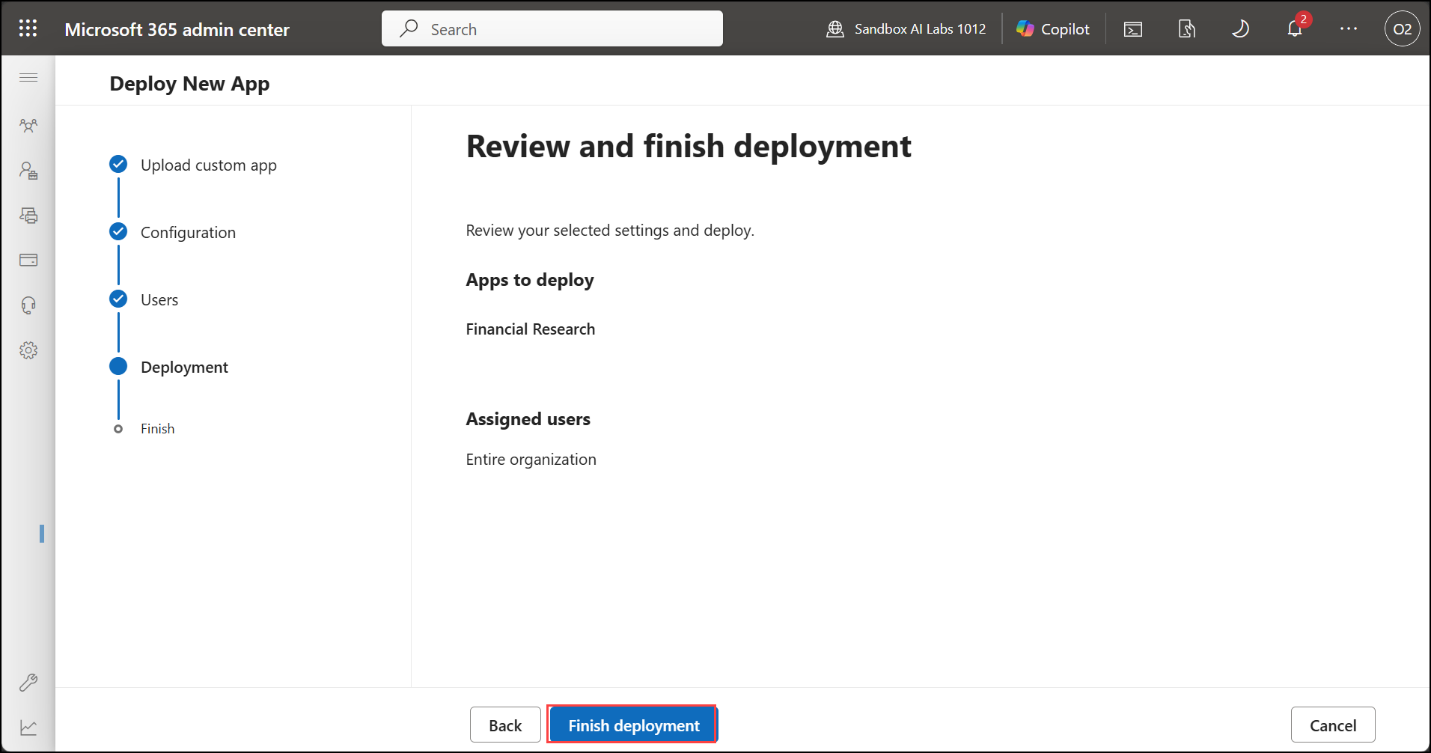
- Check that Apps to deploy shows Financial Research and Assigned users shows Entire organization, then select Finish deployment.
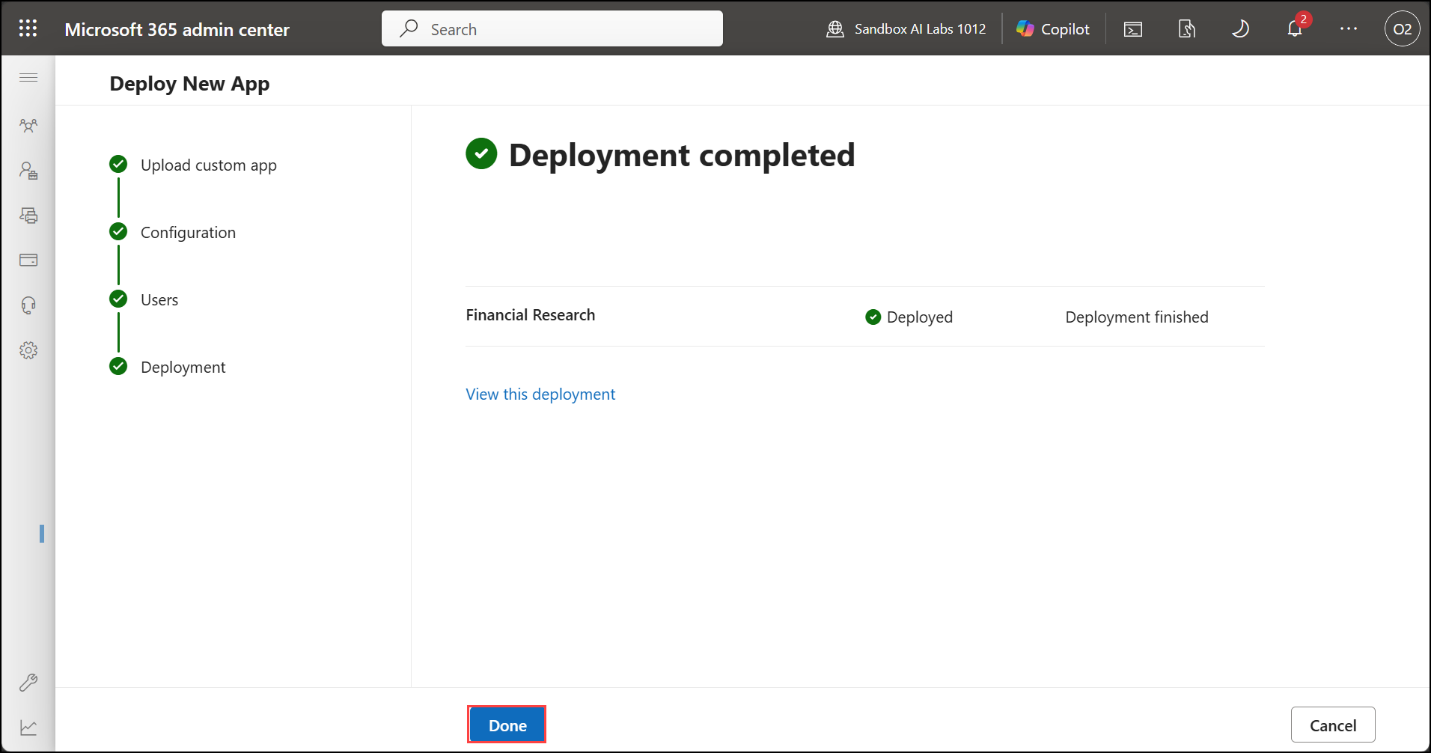
- Check that Deployment completed shows Financial Research as Deployed, then select Done.
Note
If the deployment doesn't complete: you can still add the plugin from Microsoft 365 Copilot, as shown in the next three steps.
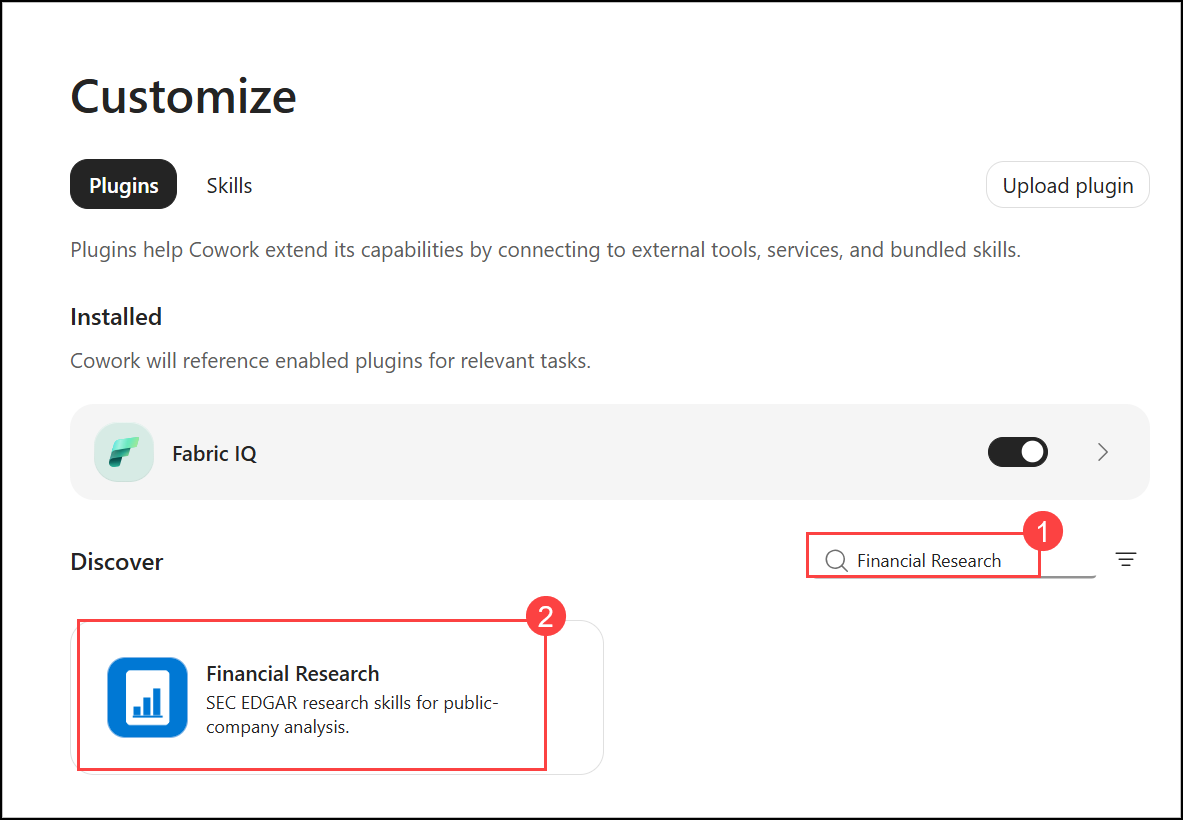
- In the left pane, select Plugins, search for Financial Research (1) under Discover, and select the plugin (2).
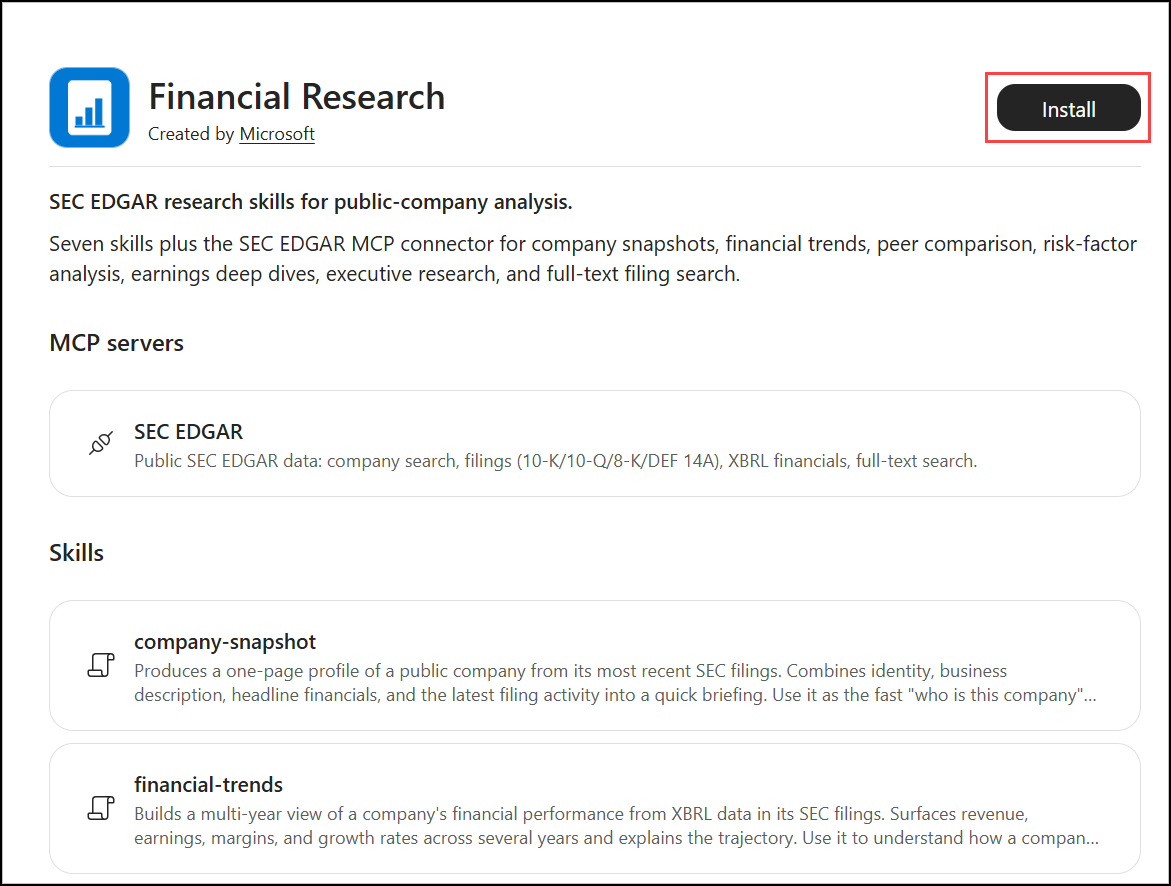
- Select Install.
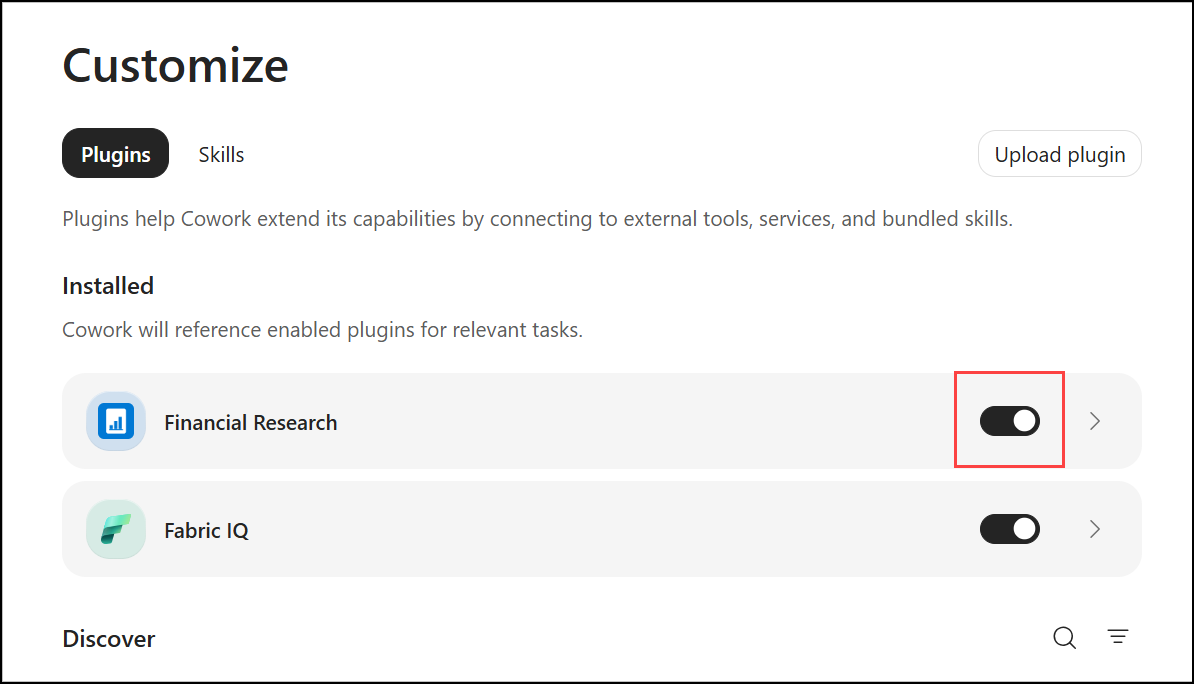
- When the installation is complete, turn on the plugin's toggle to enable it in Cowork.
Task 4: Enable and test the plugin in Cowork
In this task, the published plugin is enabled in Cowork and tested with natural-language research questions answered from SEC EDGAR data.
- Go back to Microsoft 365 Copilot:
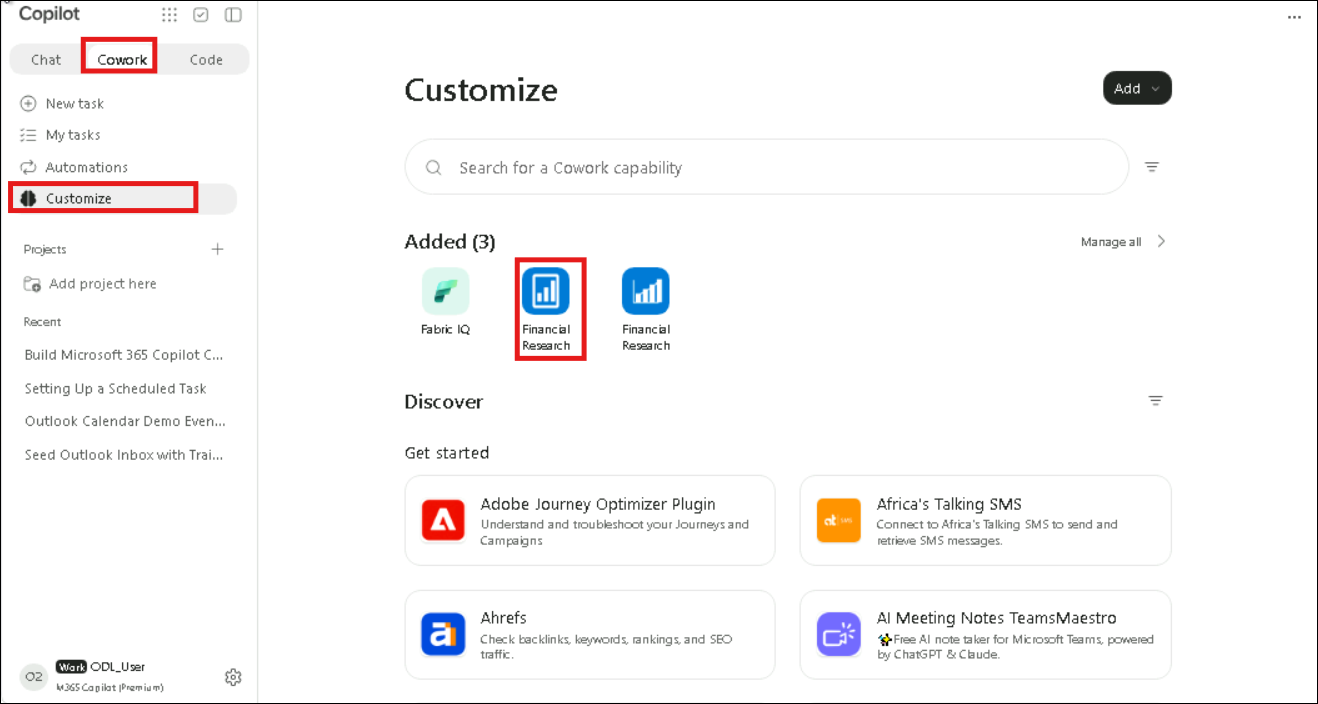
https://m365.cloud.microsoft- In the left pane, select Plugins (1), make sure Cowork (2) is selected, and check that Financial Research now appears under Added. Select it.
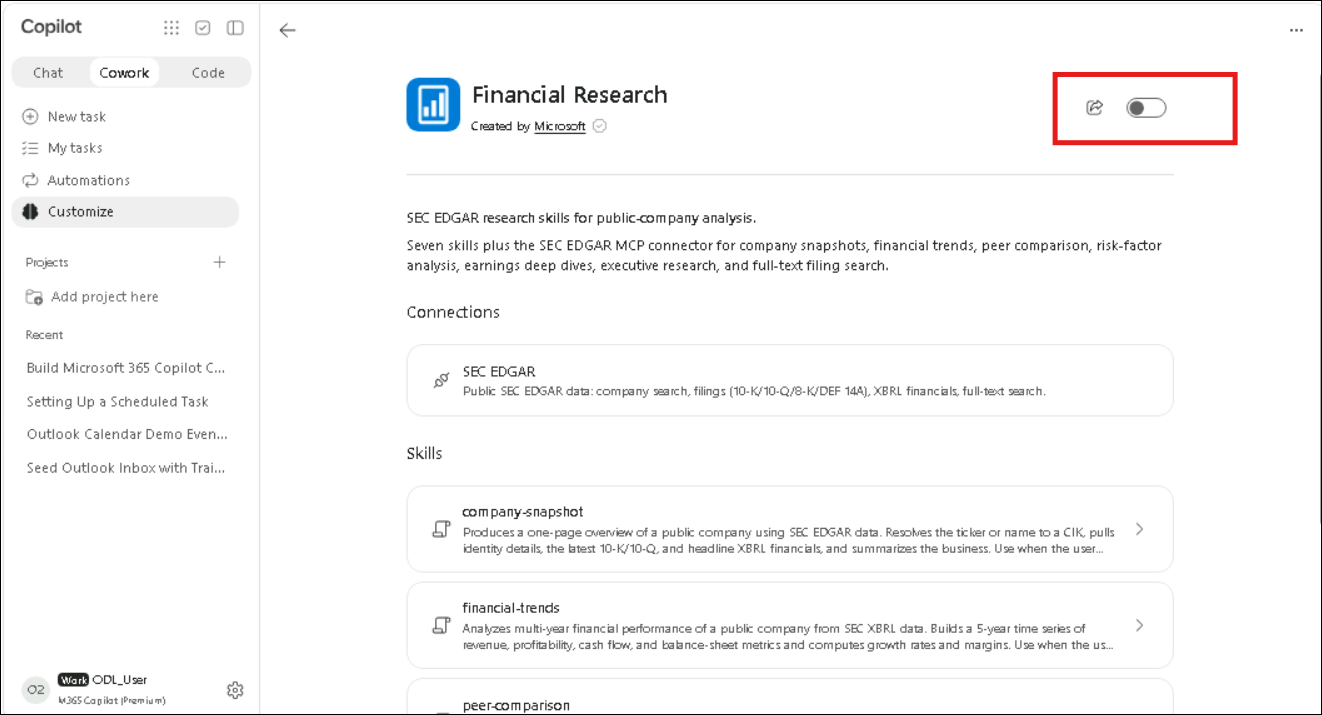
- Review the plugin page: the SEC EDGAR connection and the list of skills. Notice that the toggle is off.
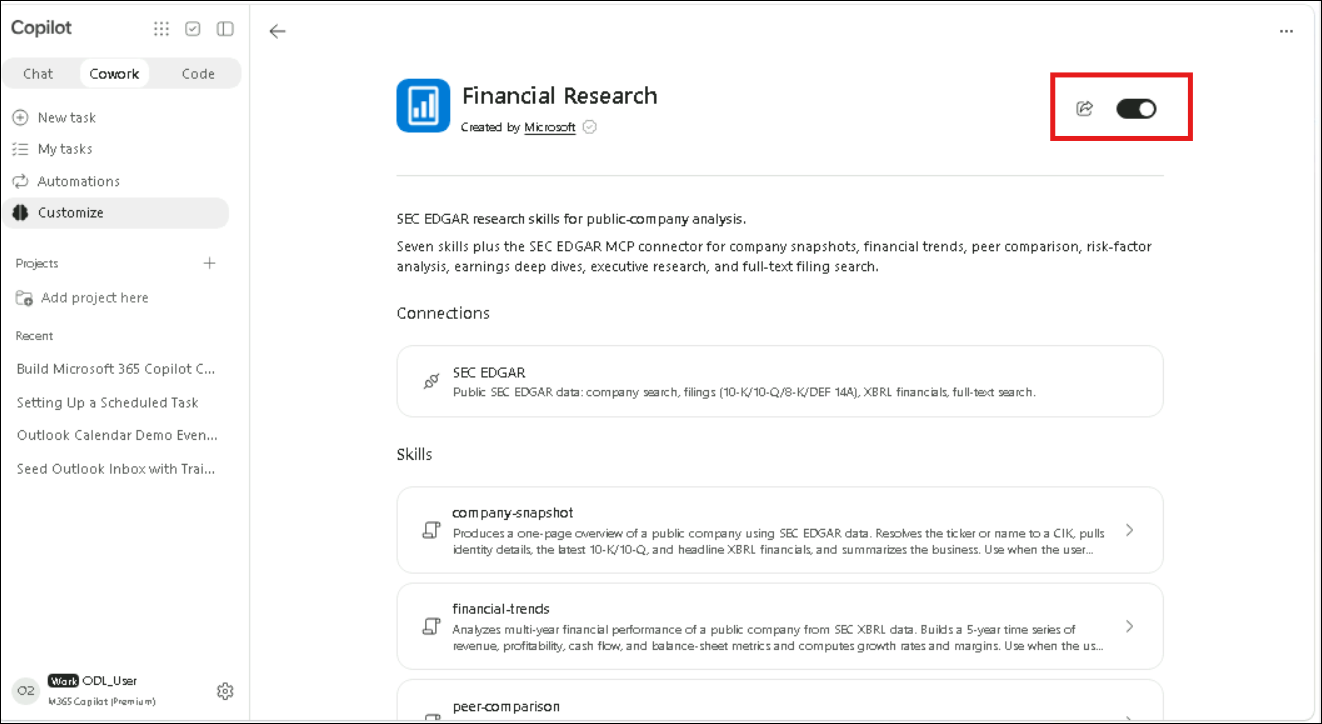
- Turn on the toggle to enable the plugin.
- Select New, enter the following prompt (1) in the task box, then select Send (2):
Give me a snapshot of Microsoft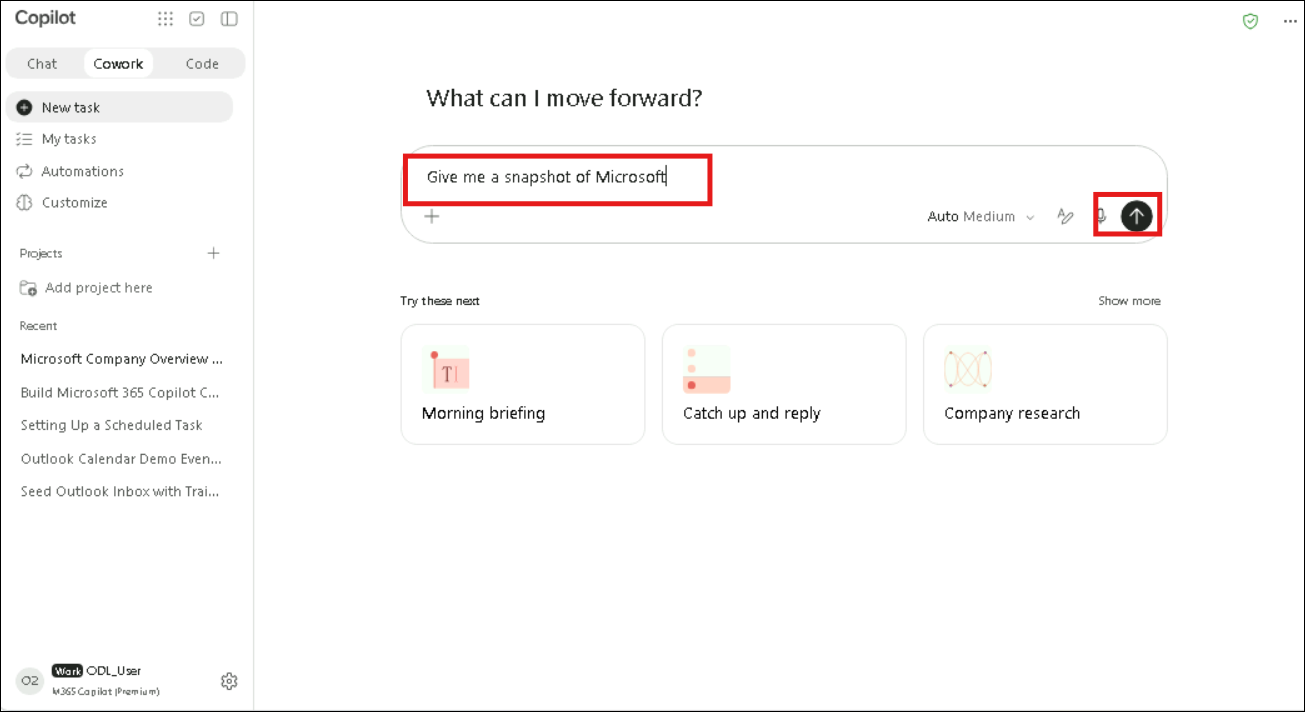
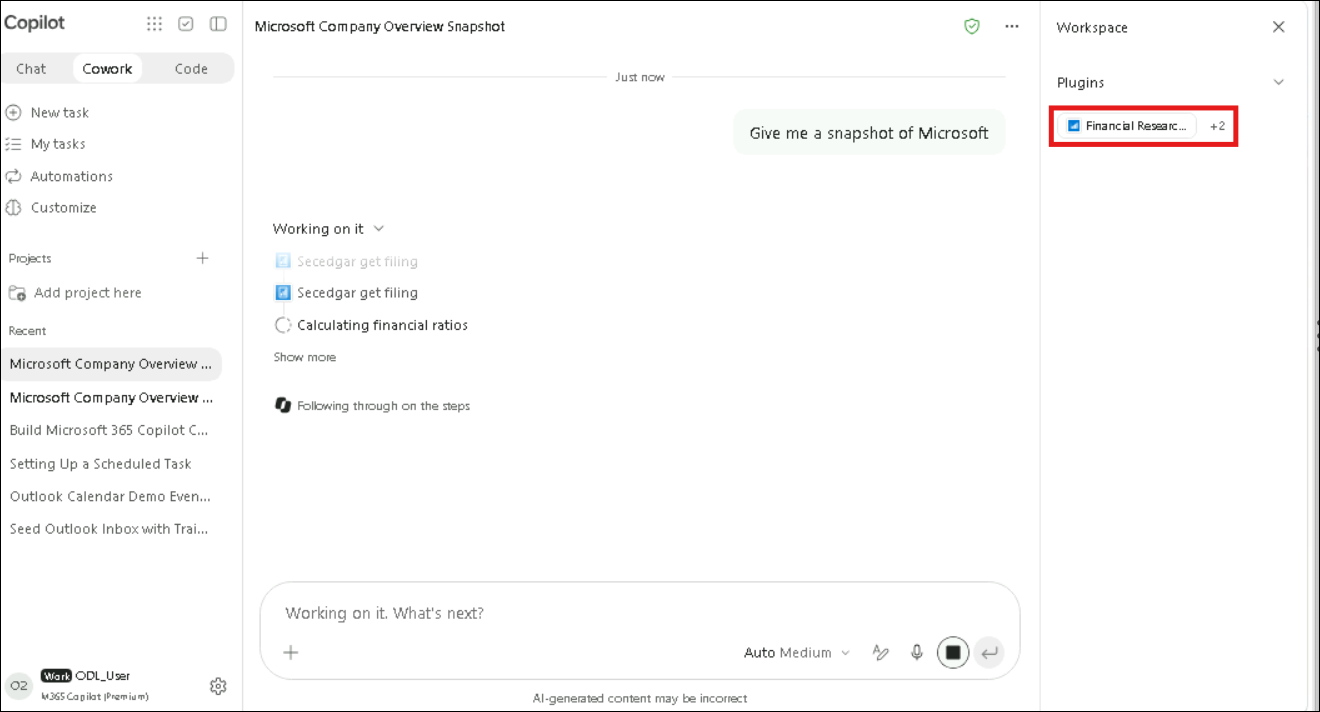
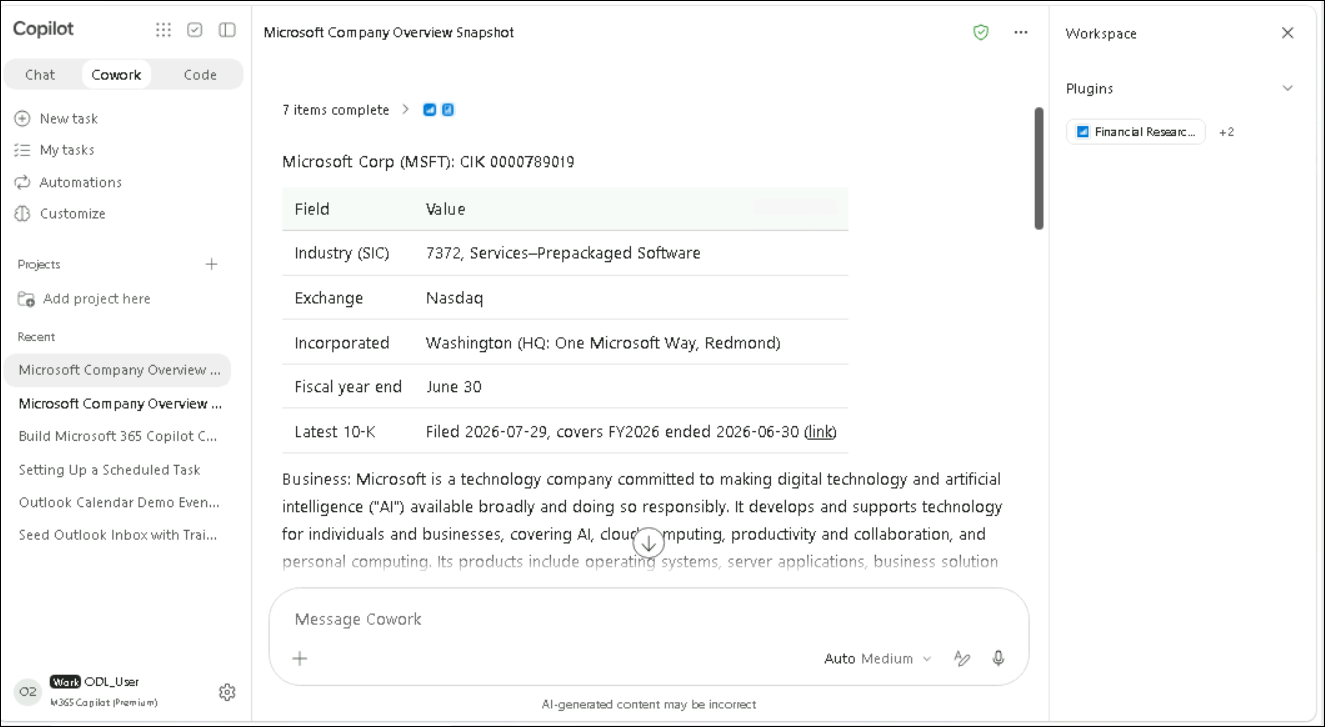
- Check that Financial Research appears under Plugins in the Workspace panel, and that Cowork calls the SEC EDGAR tools (such as Secedgar get filing) to build the company snapshot.
- Review the company snapshot that Cowork generated with the custom plugin: identifiers, industry, exchange, fiscal year end, latest 10-K and a business summary.
- In the same conversation, enter the following prompt (1) and select Send (2):
Show Microsoft's five-year revenue trend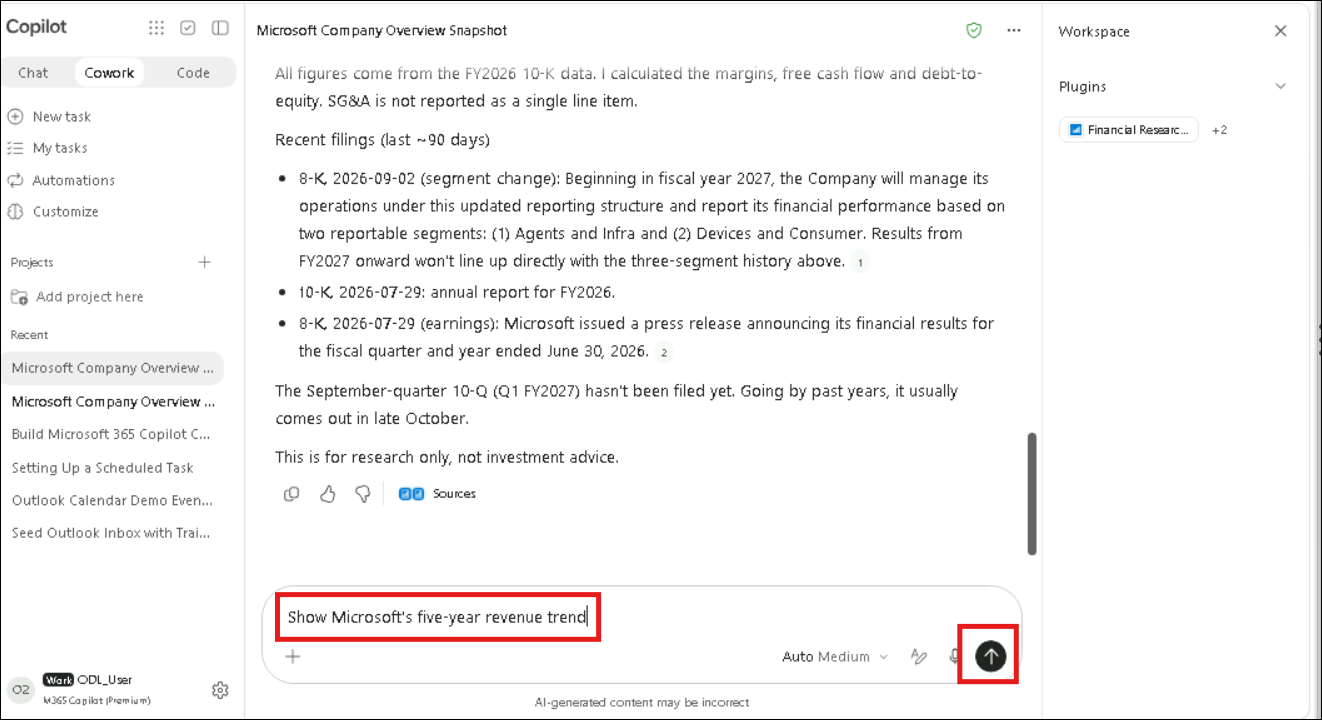
- Check that Cowork calls the Secedgar get financials MCP tool (listed under Skills & Plugins) to build the five-year trend.
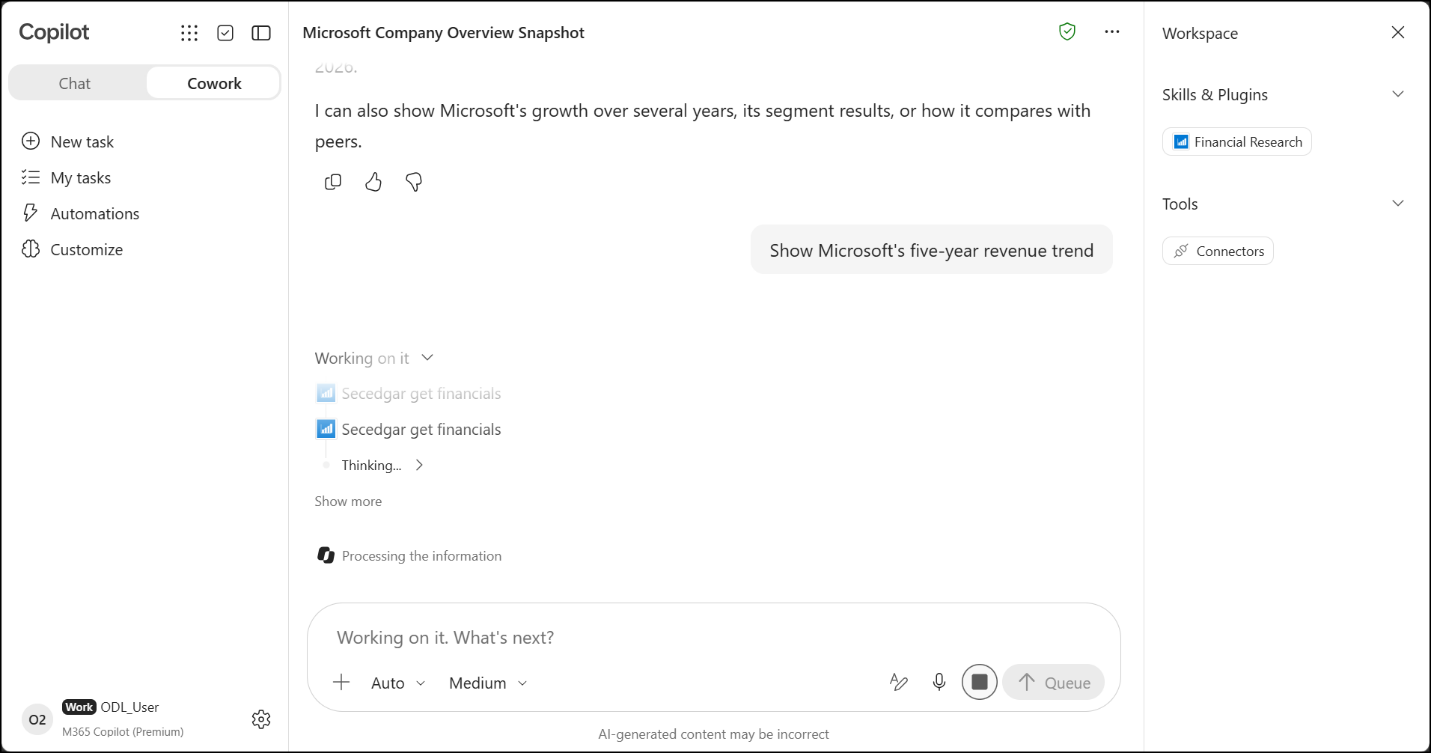
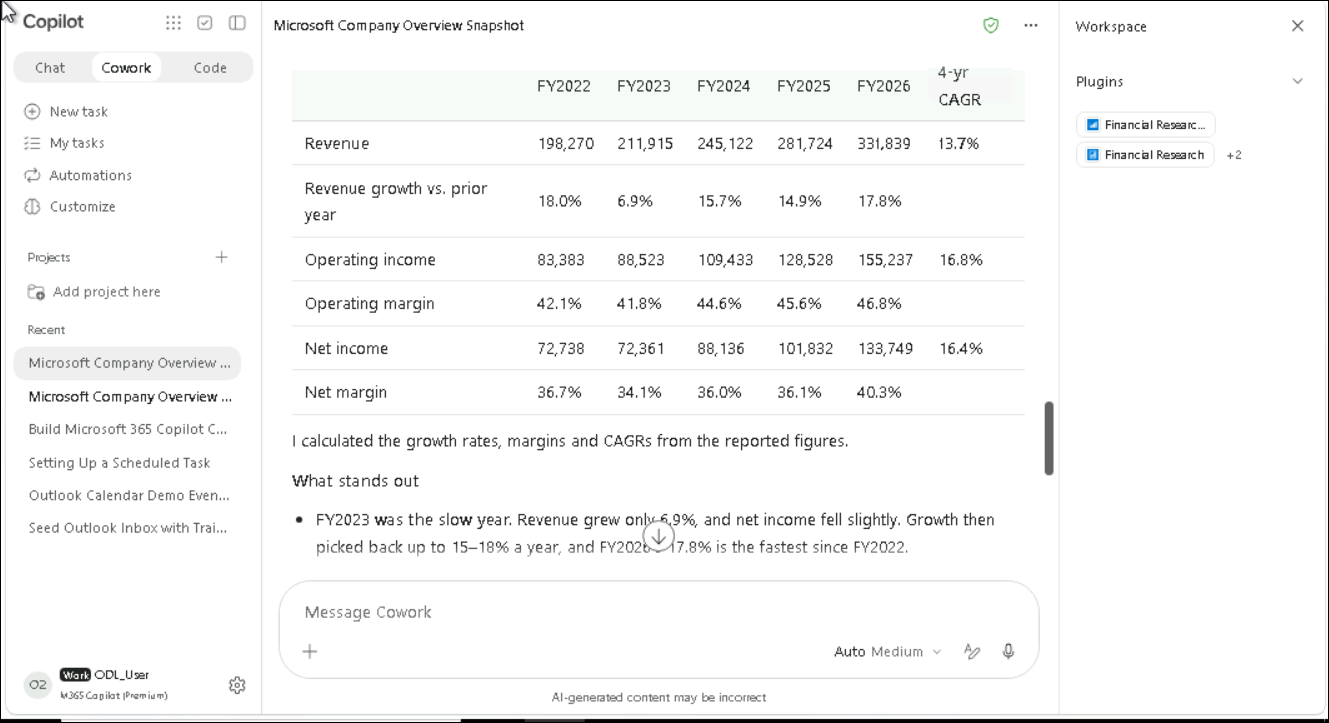
- Review the result: a five-year table of revenue, operating income, net income and margins, with growth rates and a short analysis.
Note
Note: Cowork's answers about public companies are for research only, not investment advice. Check the figures against the source filings before using them.
Review
In this lab, you saw how to:
- Review the plugins and skills available in Cowork
- Generate a complete plugin package with Cowork from a structured prompt: a manifest, seven skills, a remote MCP connector, icons and a ZIP file
- Publish the package to the whole organization from the Microsoft 365 admin center, or add it from the Plugins page if deployment fails
- Enable the plugin in Cowork and test it with natural-language questions answered from SEC EDGAR data