
Lab 3: Intelligent File Organizer
Overview
In this lab, you act as a power user or IT administrator at Contoso Electronics. You look after a OneDrive folder of Project Orion business documents covering Sales, Procurement, Security and Executive work. File naming is inconsistent, governance is weak and a compliance review is coming up.
You will use Copilot Cowork to:
- Classify the Project Orion files by business function and rename them with an AI-generated naming convention
- Run a governance audit for duplicates, stale content, sharing risks and ownership gaps
- Generate an Excel governance tracker and post a summary to Teams
Every bulk file operation waits for your explicit approval before it runs.
Note
Prerequisite: Complete Lab 1, Task 4. This lab works on the Project Orion Files folder and the Lab Files folder in your OneDrive, and posts to the Retail team.
Tip: Run the whole lab in one Cowork conversation. Task 1 asks Cowork to build a file inventory once and keep it, and Tasks 2 and 3 reuse it. If you start a new task in between, Cowork loses that inventory.
Disclaimer: Cowork is AI-powered, so your output may differ from the screenshots. The proposed names, the number of findings and the order of approval cards will vary. Follow the workflow and check the expected outcome.
Objectives
- Task 1: Automated file classification and renaming
- Task 2: OneDrive governance audit
- Task 3: AI-generated Excel tracking and Teams reporting
Task 1: Automated file classification and renaming
In this task, you ask Cowork to classify the files in your Project Orion Files folder by business function and propose a consistent YYYY-MM-DD_BusinessFunction_DocType naming scheme. Once you approve the plan, Cowork renames the files and sorts them into business-function subfolders.
- In Copilot, select Home (1) and then New (2) in the left pane. Enter the following prompt (3), make sure Cowork (4) is selected, then click Send (5):
Analyze the files in my OneDrive "Project Orion Files" folder. Classify each by business function (Sales, Procurement, Security, or Executive) based on its content, then propose a renaming scheme of the form YYYY-MM-DD_<BusinessFunction>_<DocType>.

Build your file inventory once and keep it for this session - I'll ask follow-up questions about these same files.

Show me the old-name → new-name mapping as a compact table only.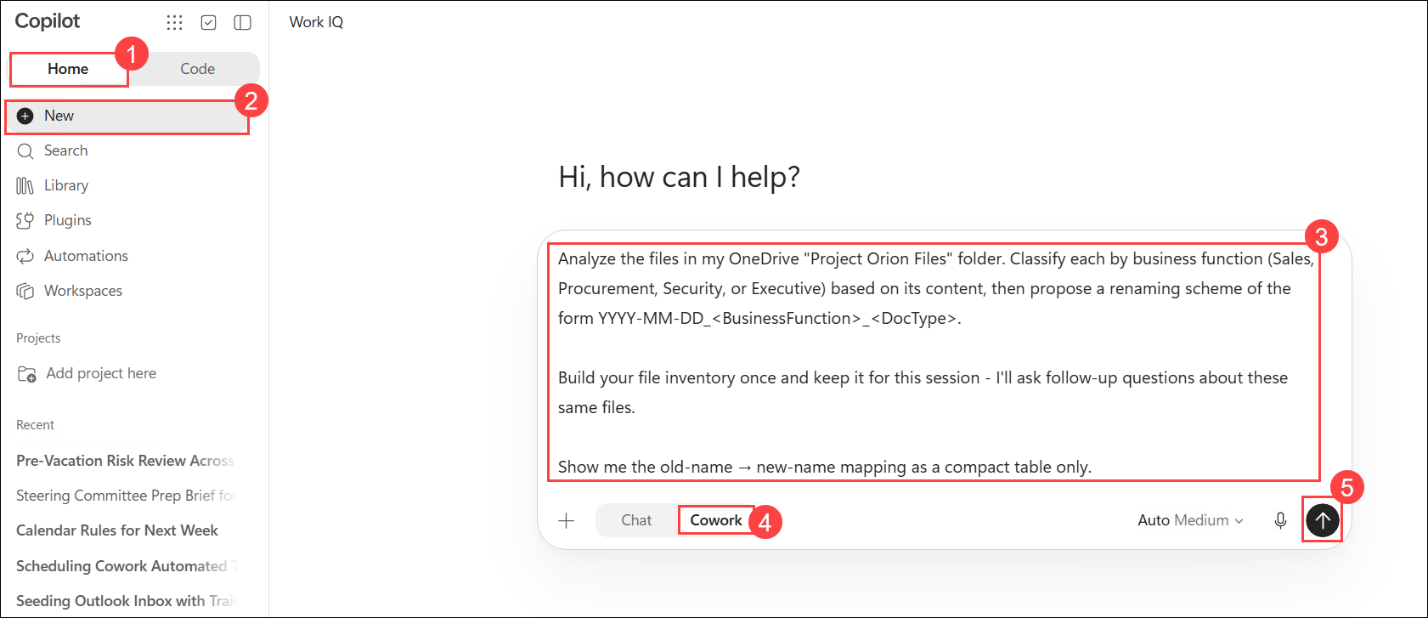
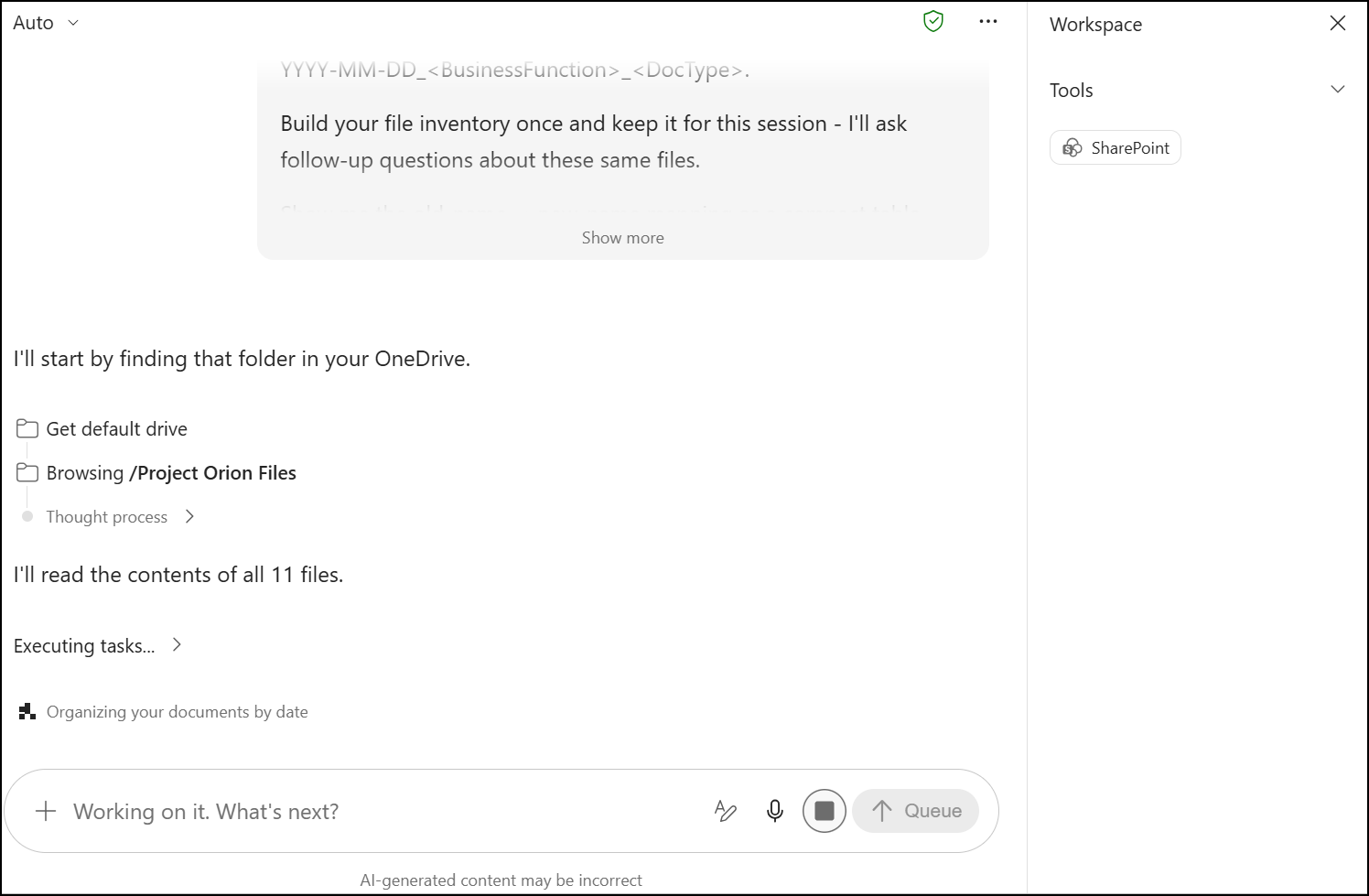
- Watch Cowork start: it finds the folder, browses /Project Orion Files and reads the content of each file. The Workspace panel shows the tools it uses, such as SharePoint.
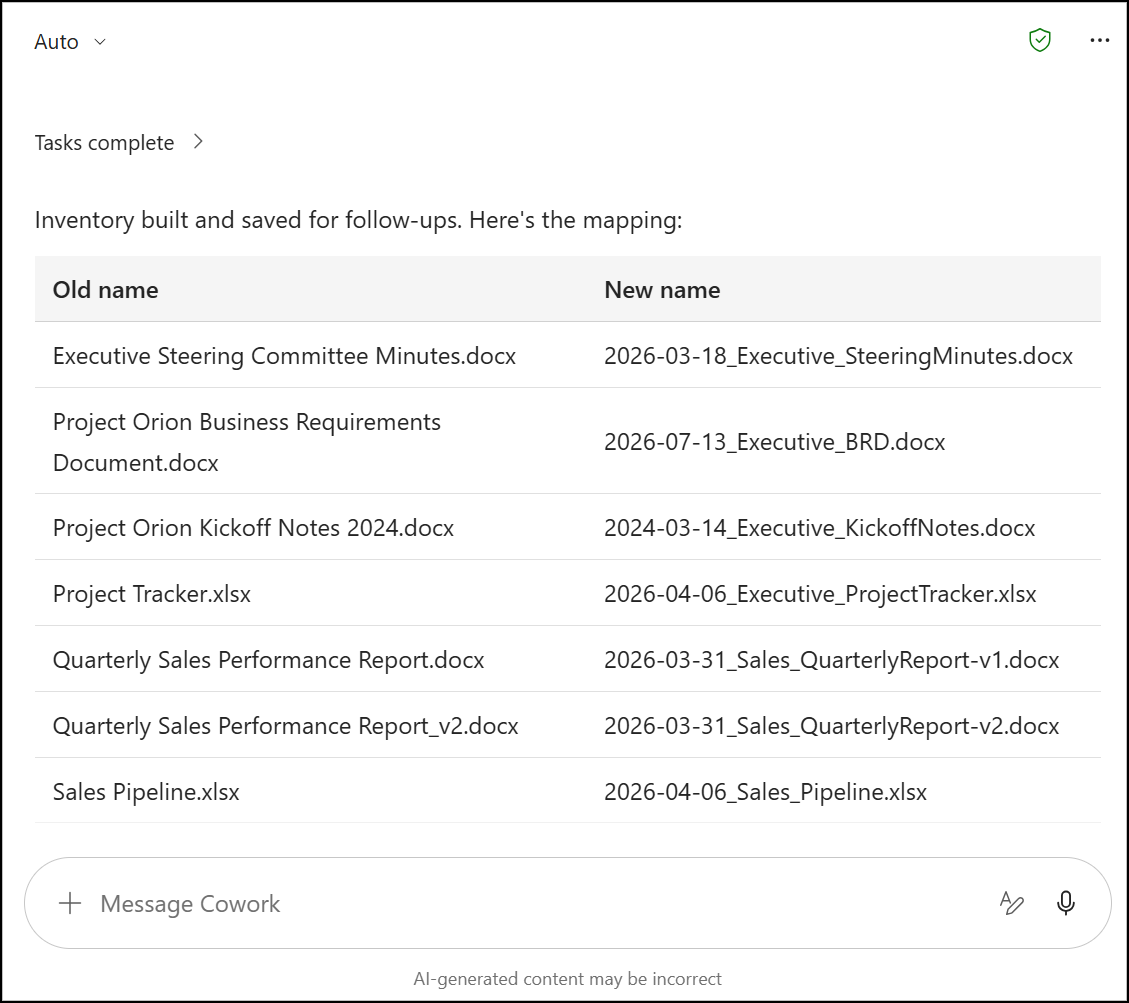
- Review the old-name → new-name mapping and check the proposed names. Below the table, Cowork explains where each date came from (a date inside the document, or the file's creation date when the document has none).
- Enter the following follow-up prompt (1) and click Send (2) to approve the rename:
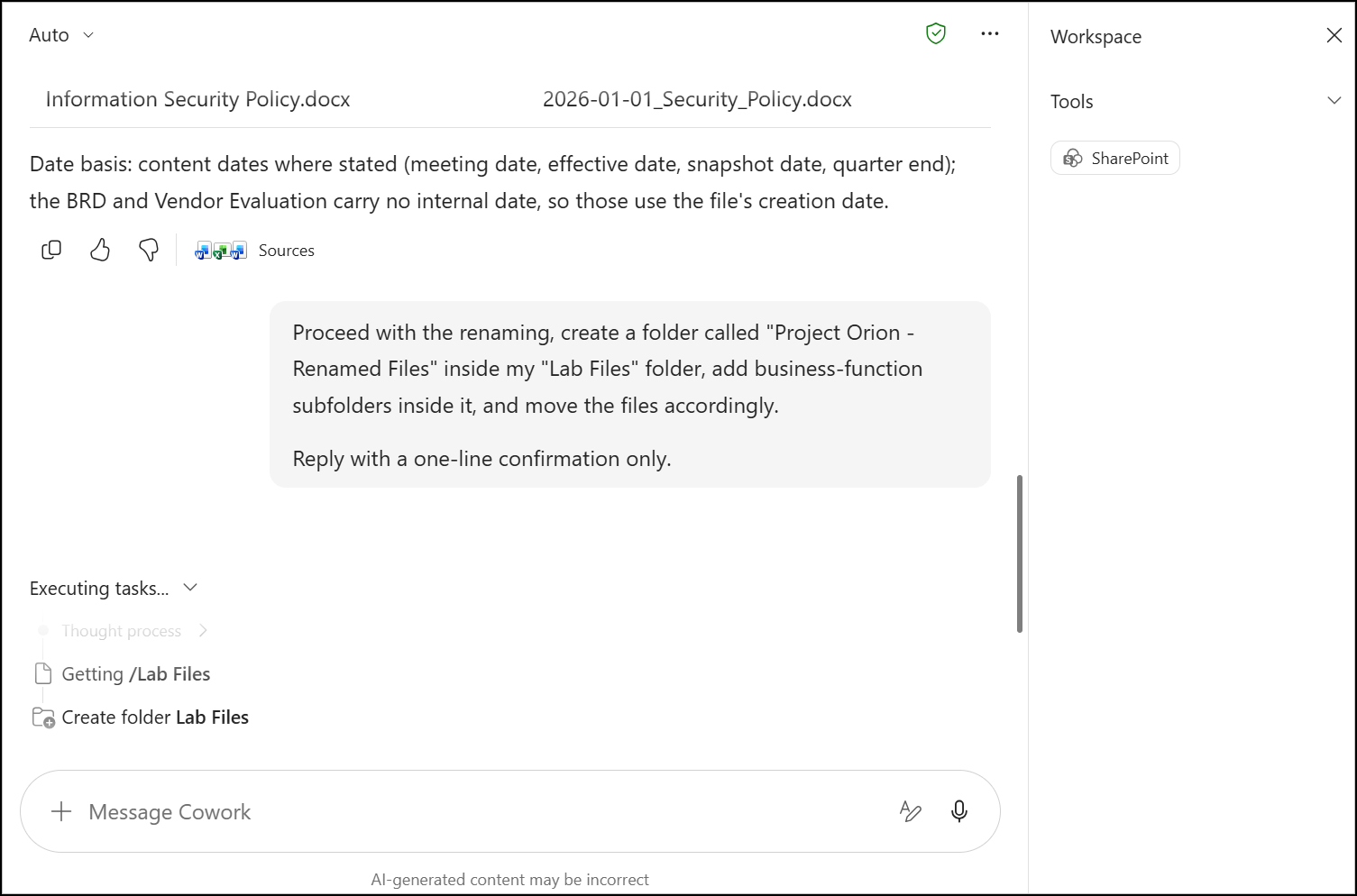
Proceed with the renaming, create a folder called "Project Orion - Renamed Files" inside my "Lab Files" folder, add business-function subfolders inside it, and move the files accordingly.

Reply with a one-line confirmation only.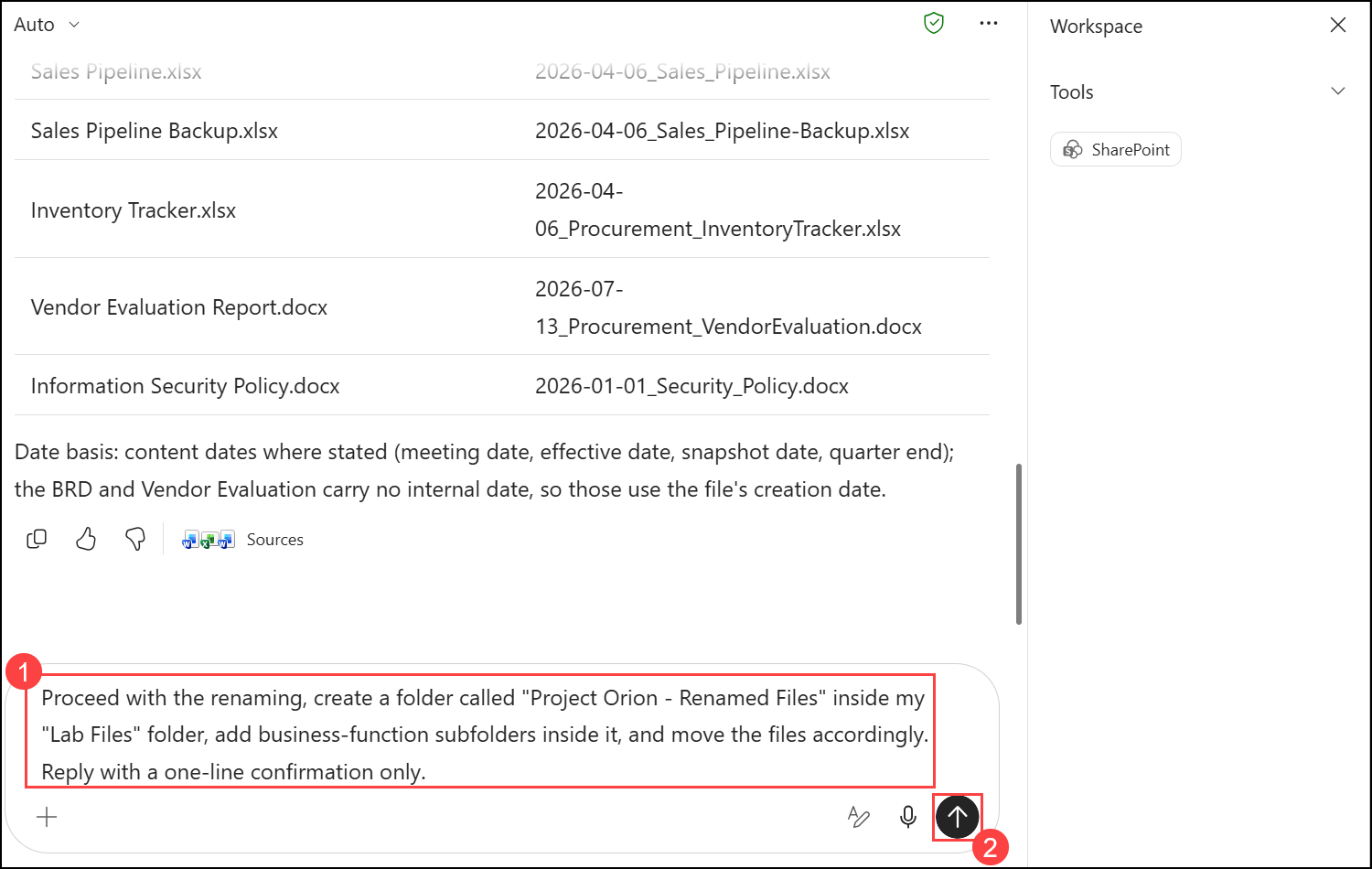
- Cowork starts working on the request: it opens /Lab Files and prepares the new folder.
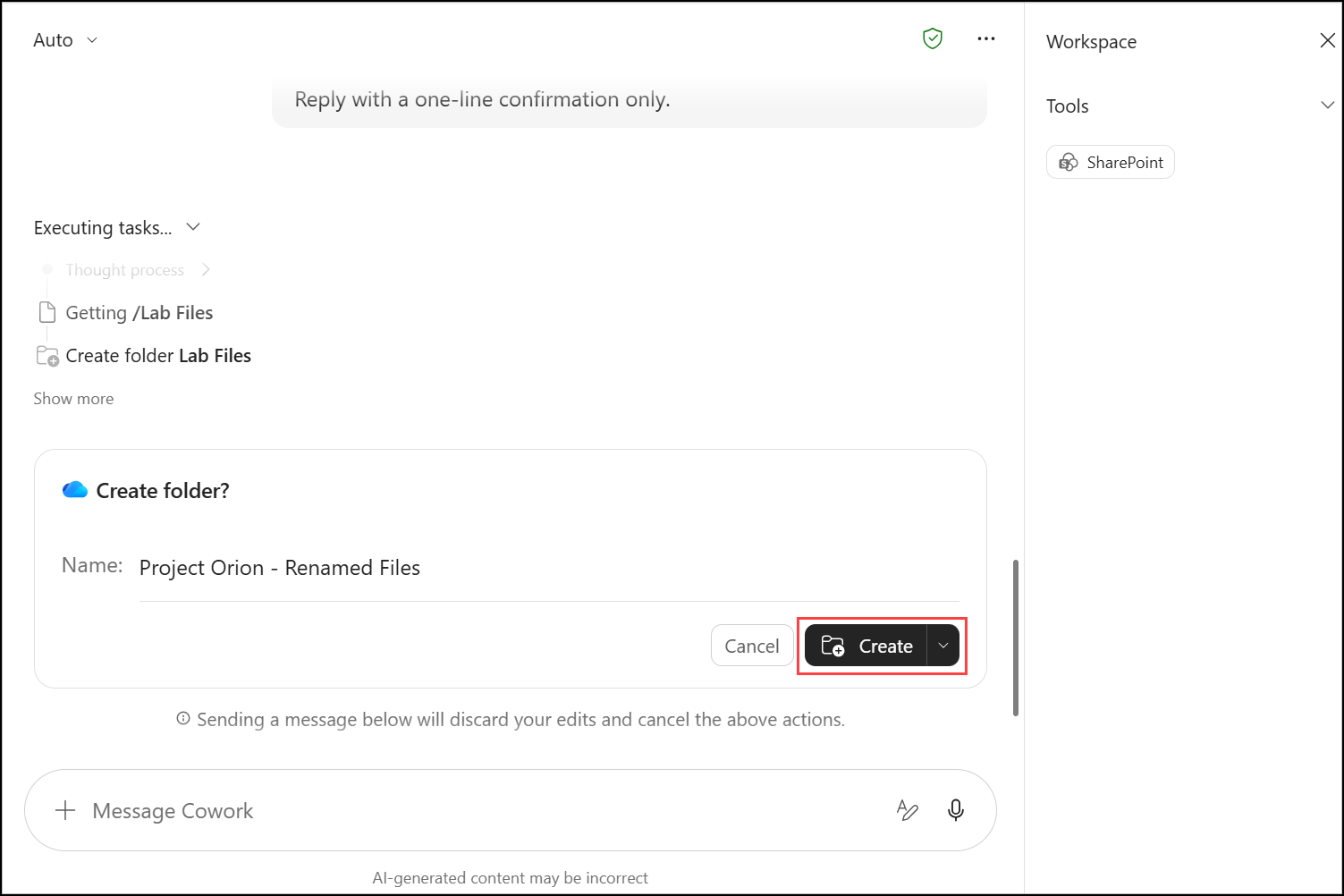
- On the Create folder? card, check that the name is Project Orion - Renamed Files and click Create.
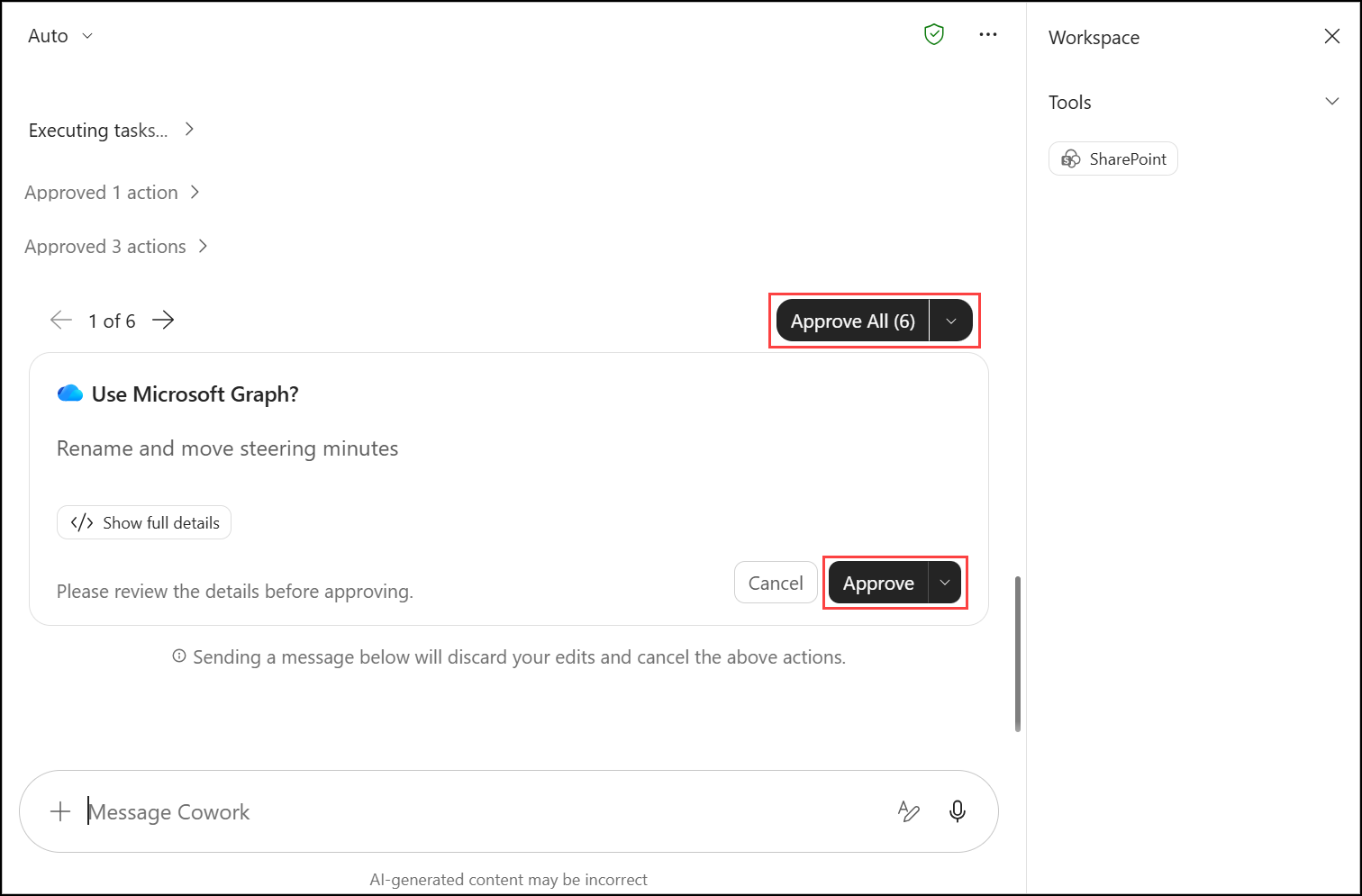
- Cowork then shows an approval card for each remaining action (subfolders, renames and moves). Click Approve on each card, or use Approve All once you've checked them. Use the arrows to move between queued cards.
Important
Note: If some file actions don't go through the first time, Cowork tells you and retries them automatically. Approve the new cards when they appear.
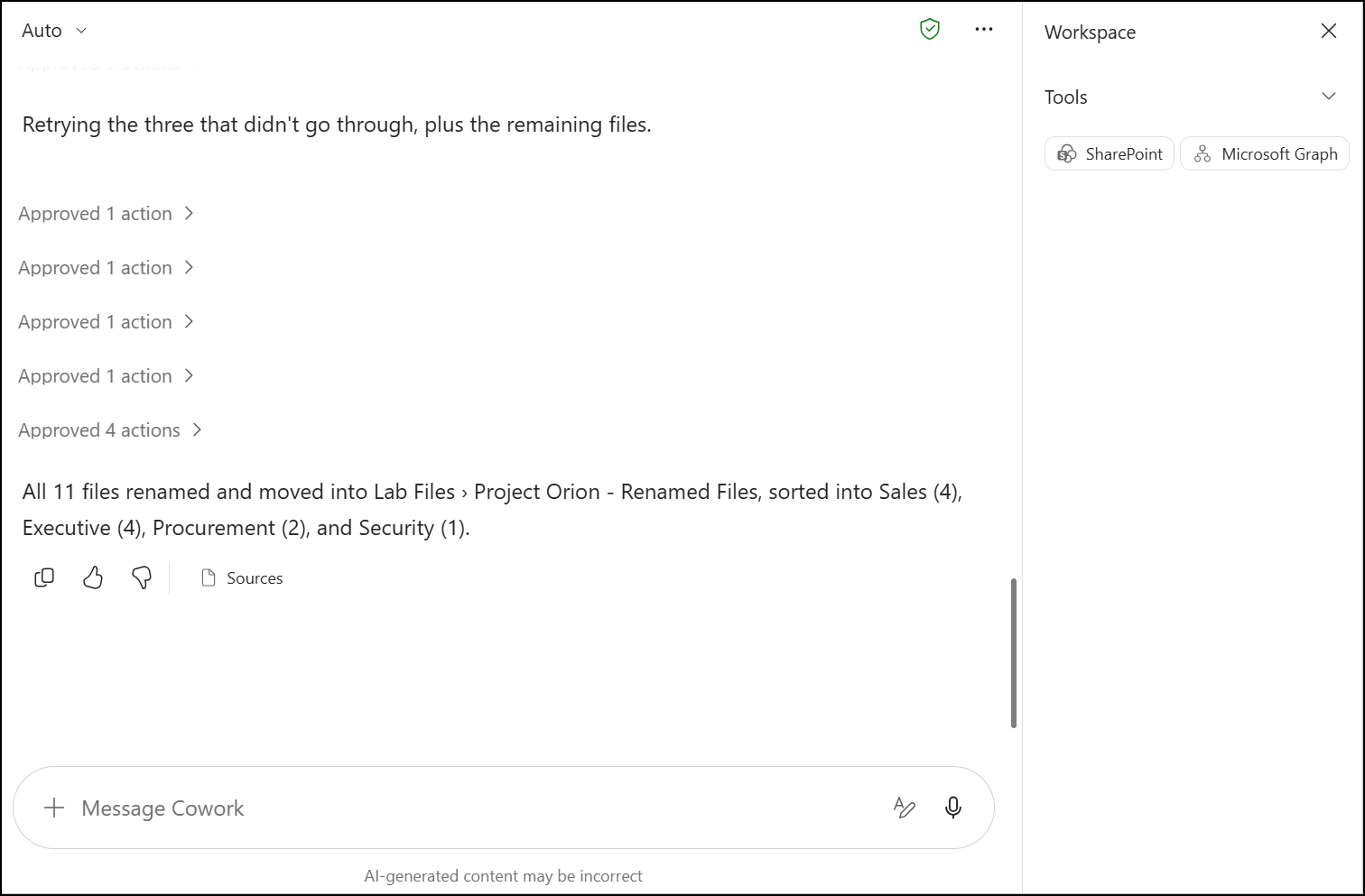
- Review Cowork's confirmation. It reports how many files were renamed and moved, and how many landed in each business function.
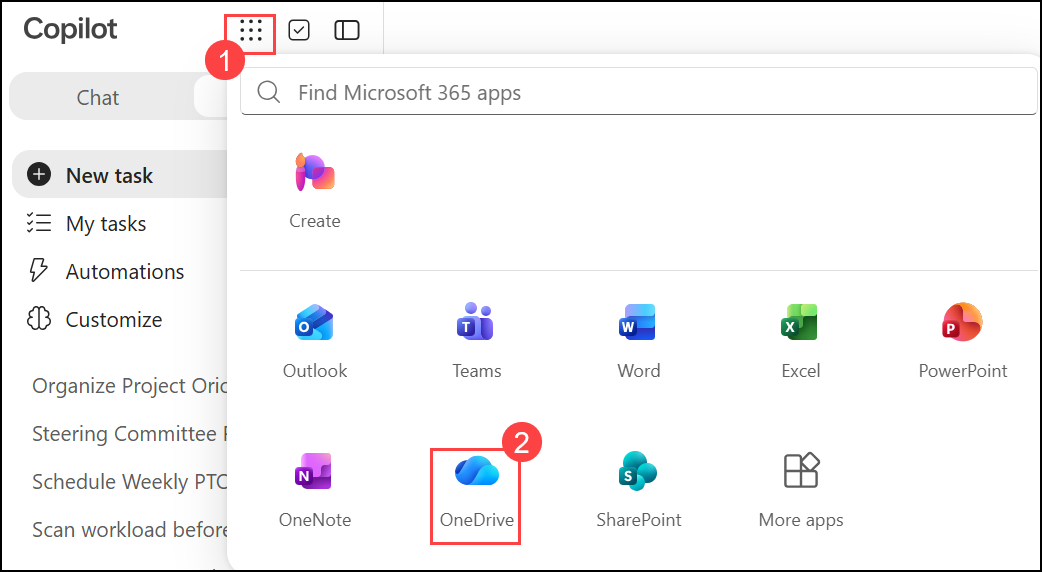
- Open the Microsoft 365 app launcher (1) and select OneDrive (2).
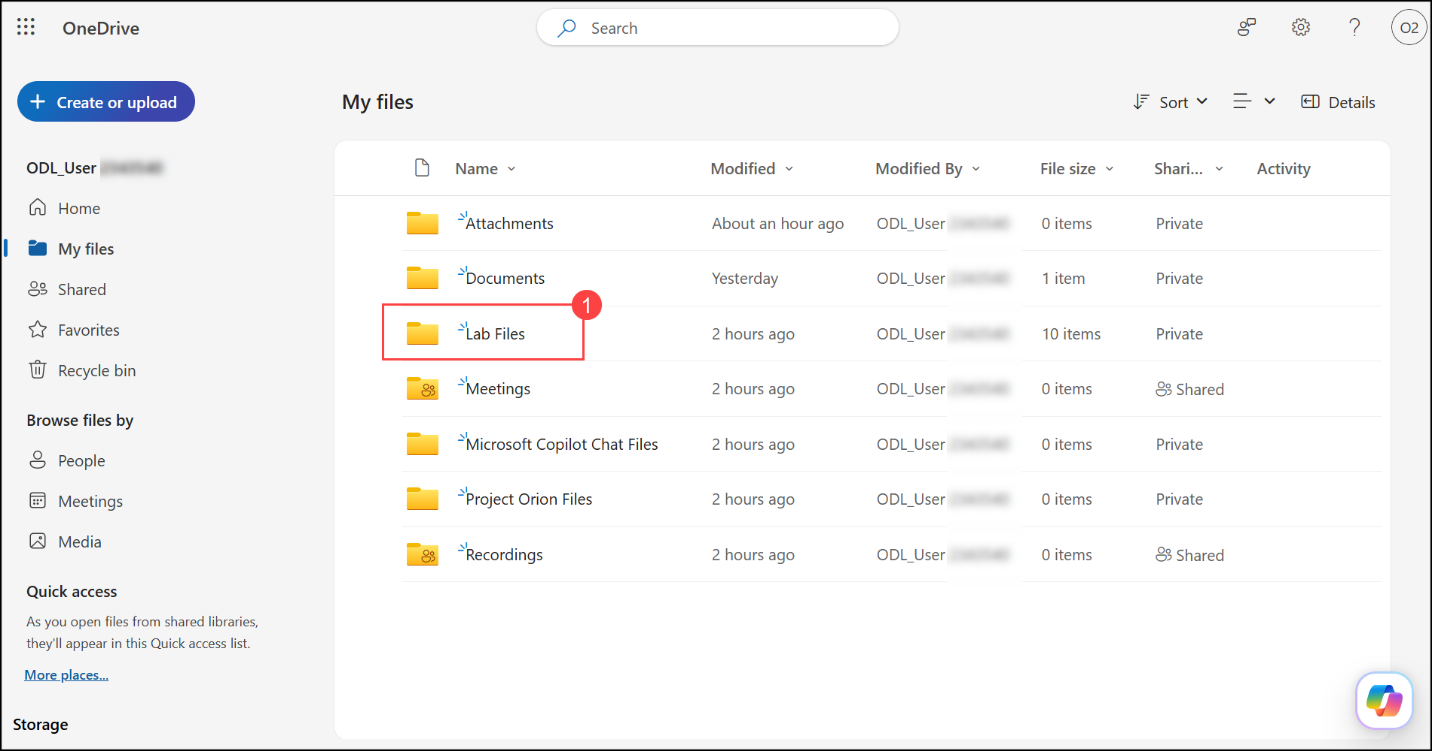
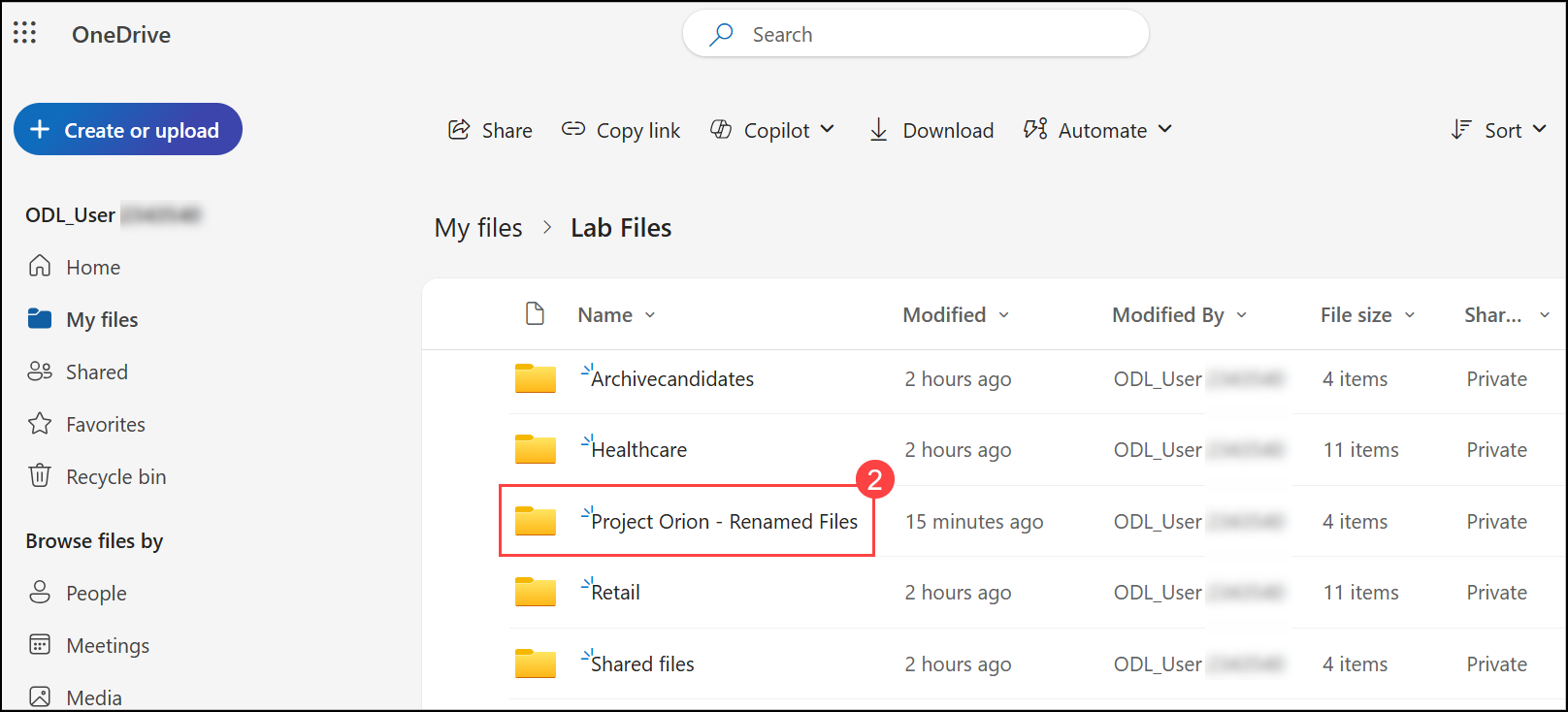
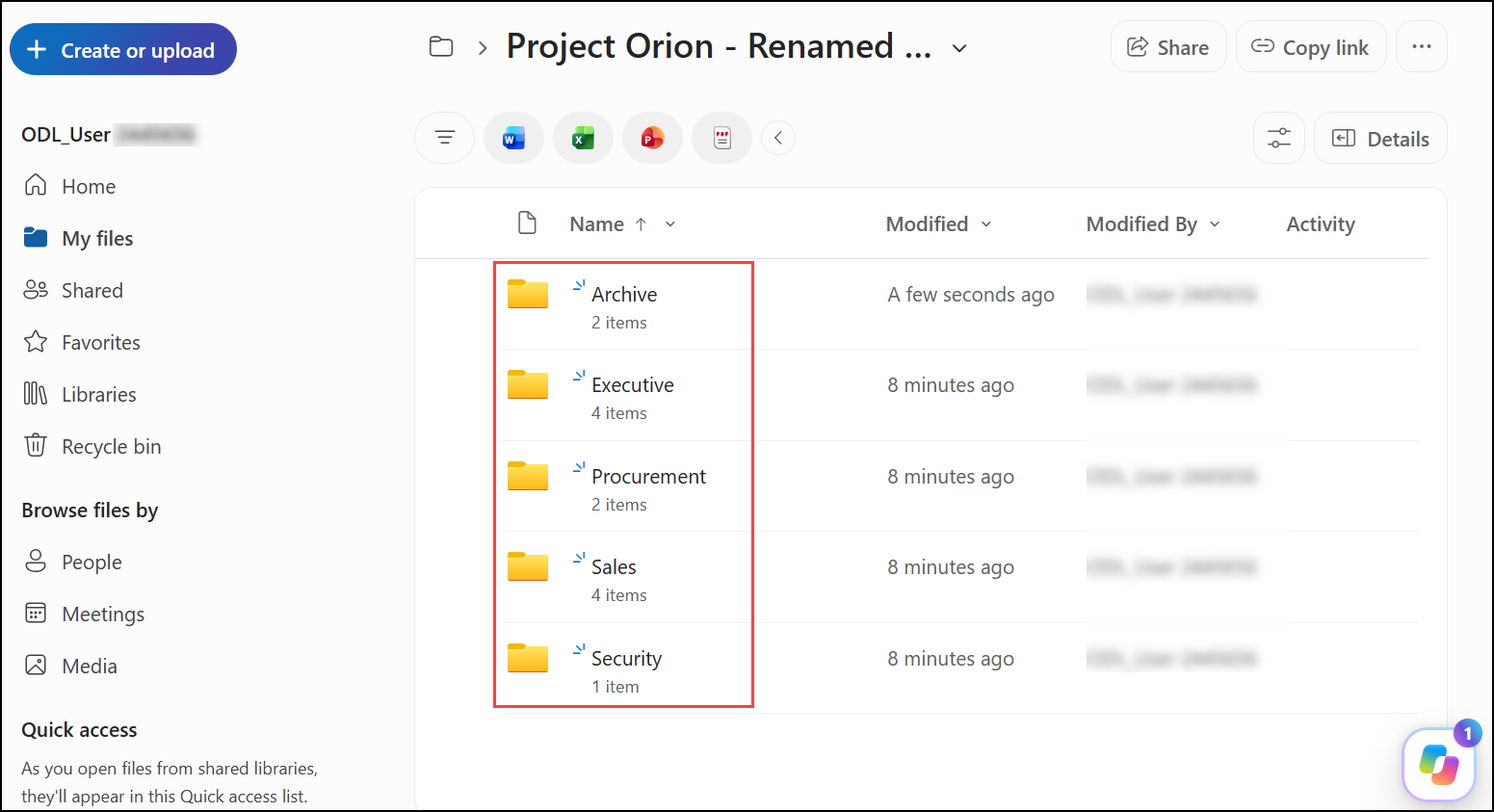
- Select Lab Files (1), then Project Orion - Renamed Files (2), and review the business-function folders (3): Executive, Procurement, Sales and Security. Open a folder to check the new file names.
Task 2: OneDrive governance audit
In this task, you ask Cowork to audit the Project Orion files for duplicates, stale content, sharing risks and ownership gaps. You then approve only the archive actions and leave everything else pending.
- Go back to your Cowork conversation from Task 1. Enter the following prompt (1) and click Send (2):
Using the file inventory you already built - do not re-scan or re-read any files - audit those Project Orion files for: duplicate files, files not modified in over 6 months, files shared with 'anyone' links, and files with no clear owner.

List each finding with a recommended action (archive, delete, restrict sharing) in a compact table. Take no action yet.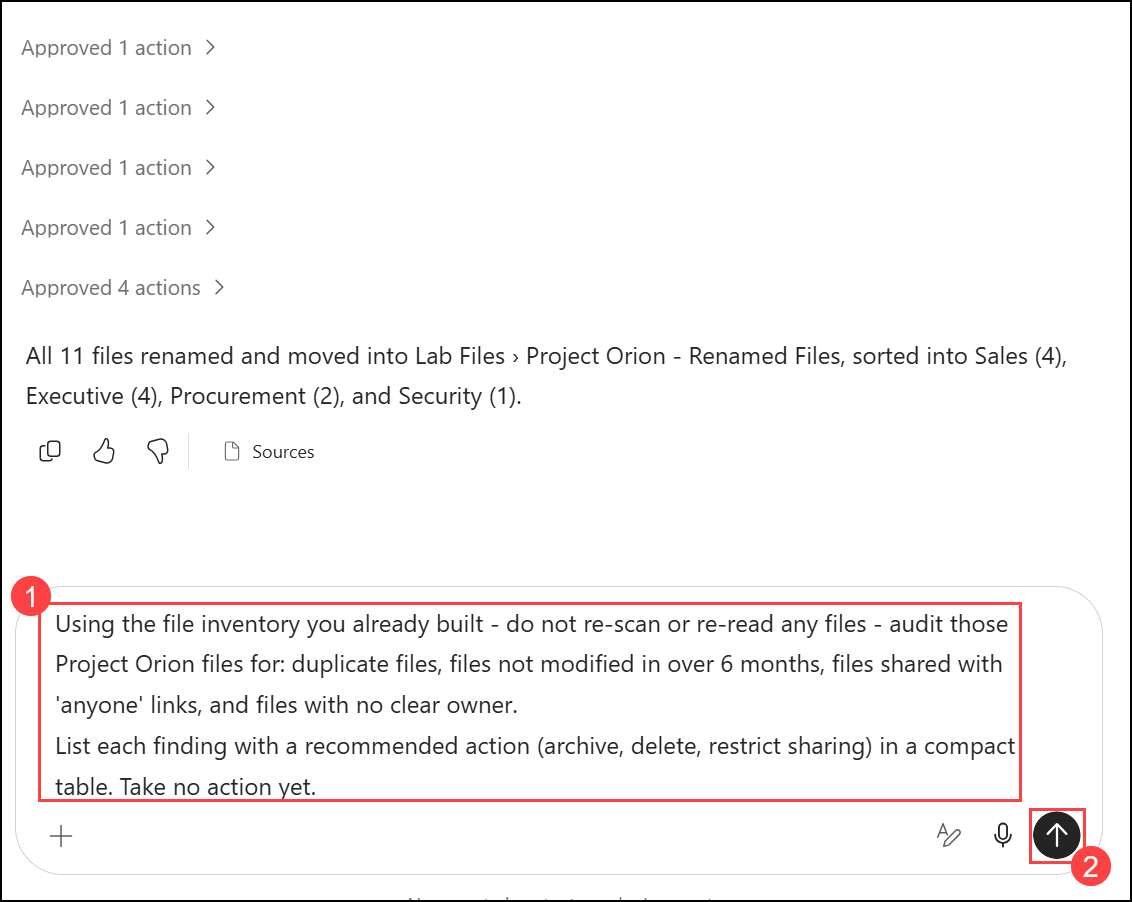
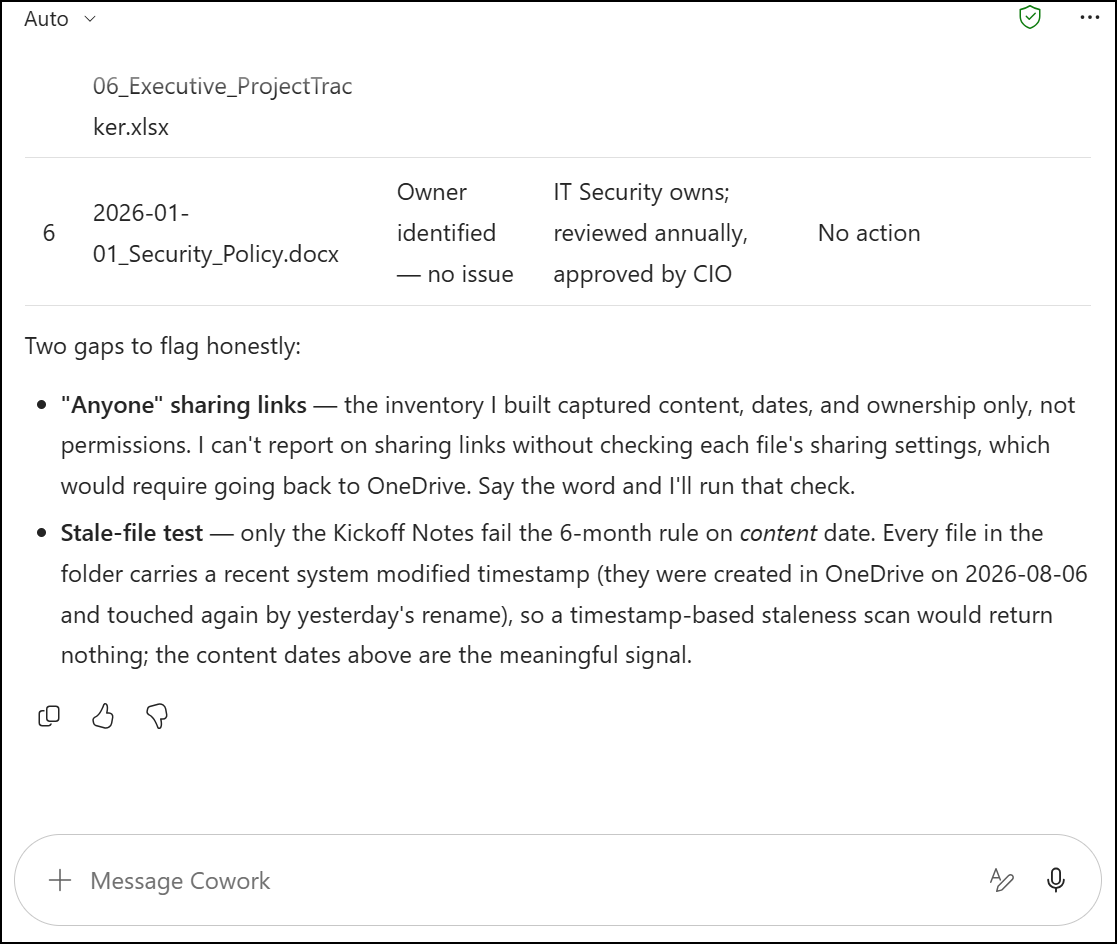
- Review the findings table and the recommended action for each file. Read the notes under the table too.
Note
Note: Cowork may flag gaps in its own audit. For example, it may say it can't check 'anyone' sharing links without re-reading each file's permissions, or that file timestamps are all recent (the rename just touched them), so it judges staleness by the dates inside the documents. This is Cowork being transparent about its evidence, not an error.
- Enter the following follow-up prompt (1) and click Send (2):
Approve only the archive actions for the superseded and stale documents. Move them into an "Archive" subfolder inside my "Project Orion - Renamed Files" folder. Leave everything else pending and skip the sharing check.

Reply with a one-line confirmation only.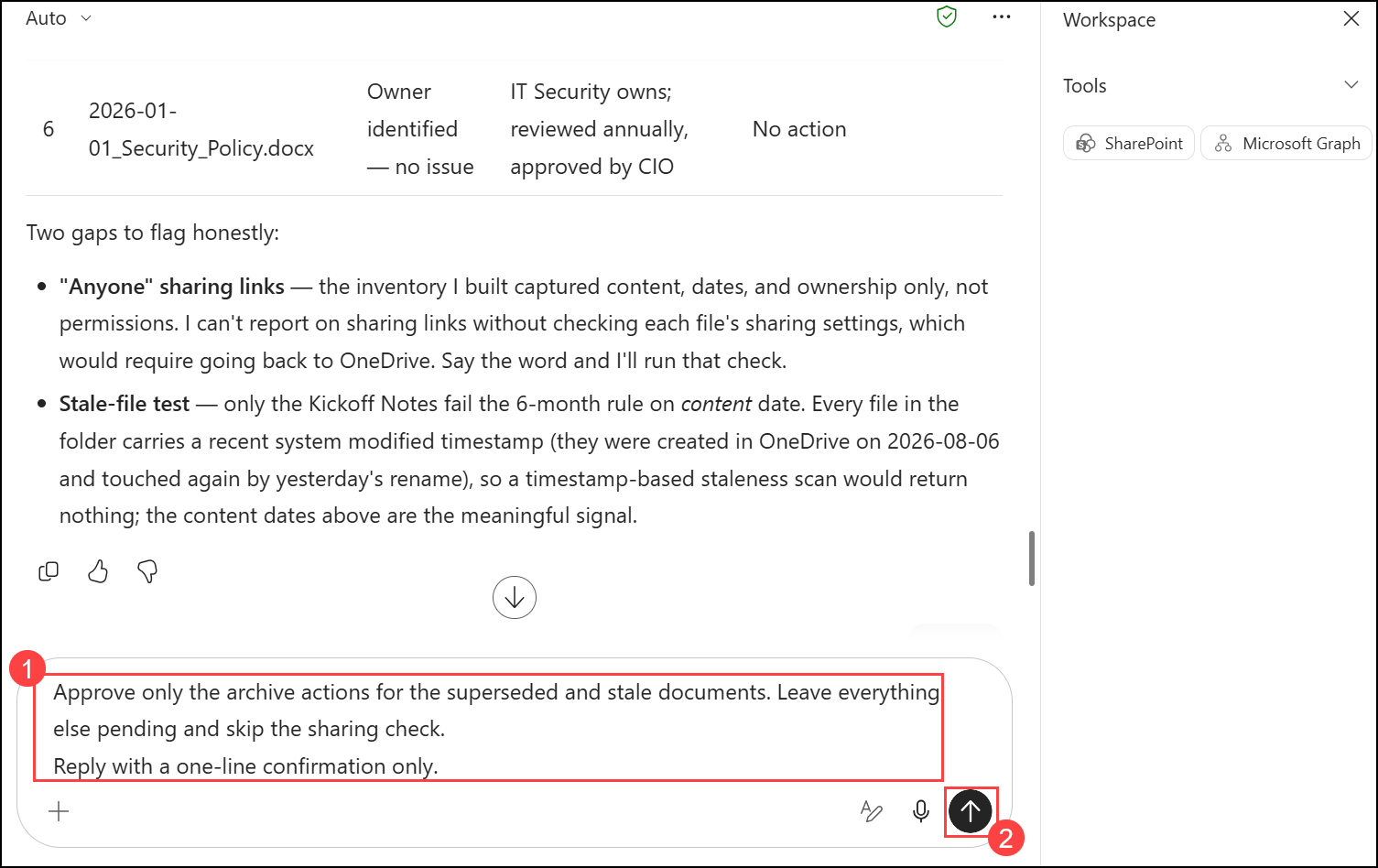
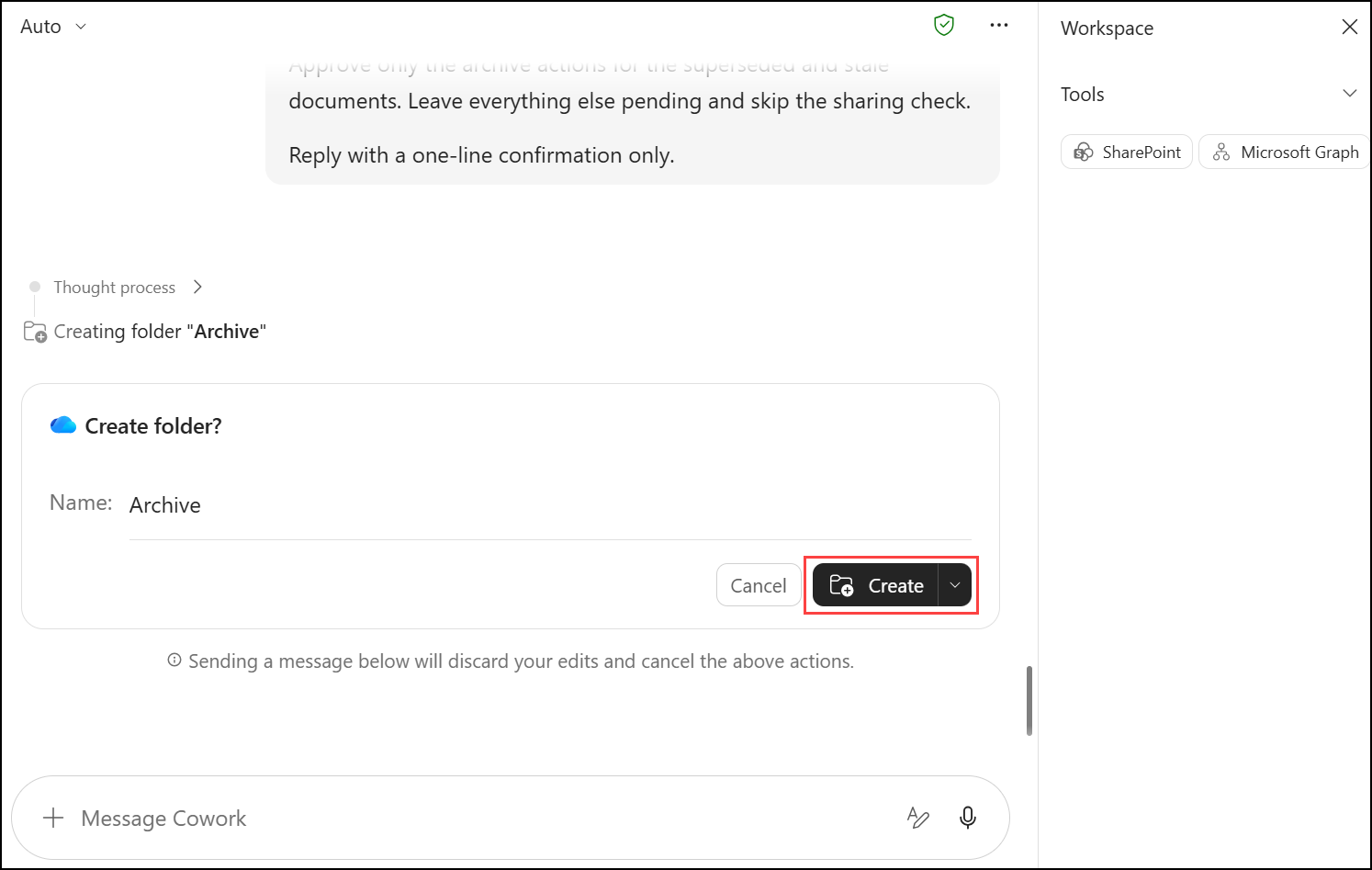
- On the Create folder? card, check that the name is Archive and click Create. Approve the move actions that follow.
- Review Cowork's confirmation: it lists the archived documents and confirms that all other findings are still pending.
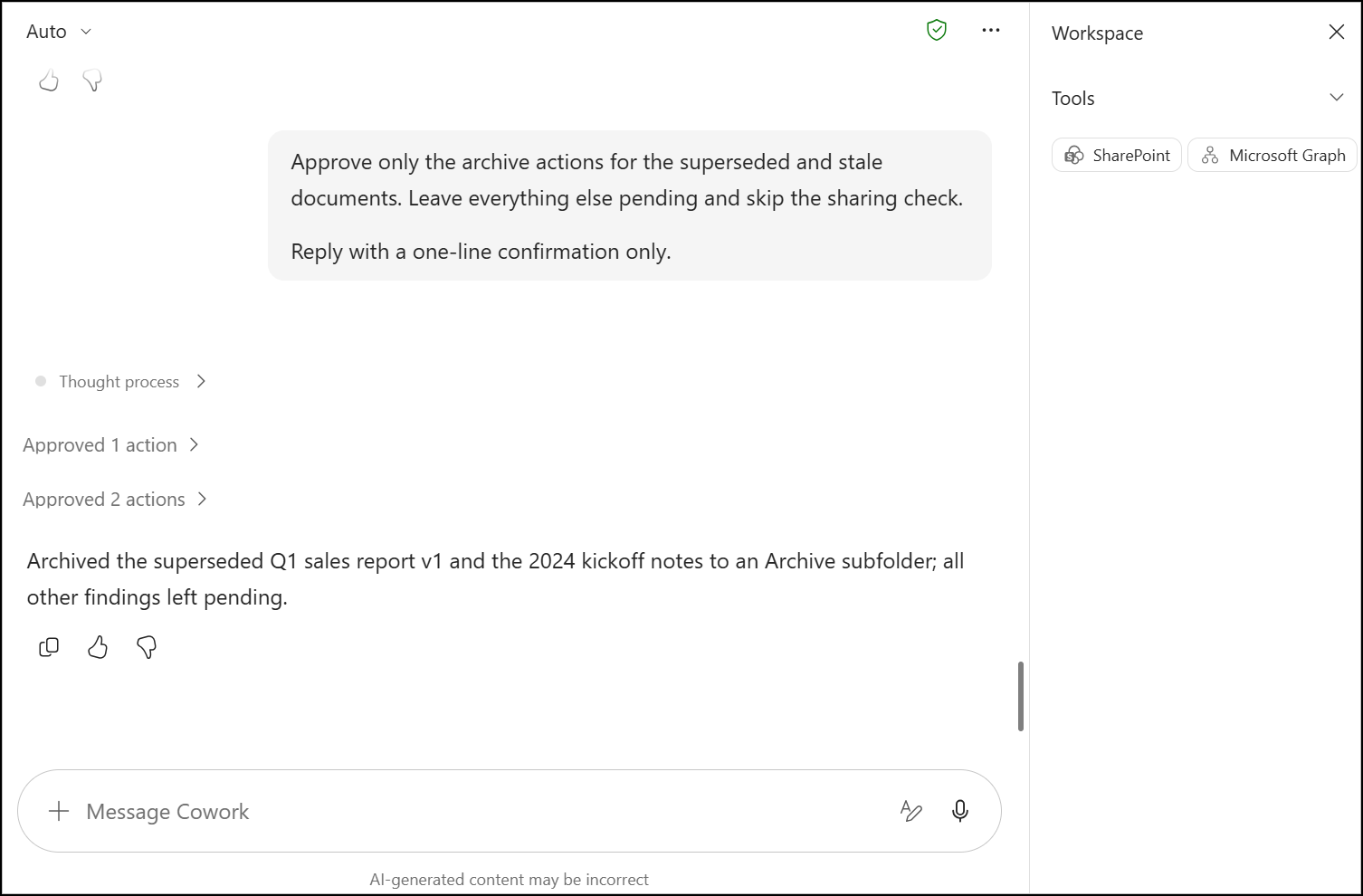
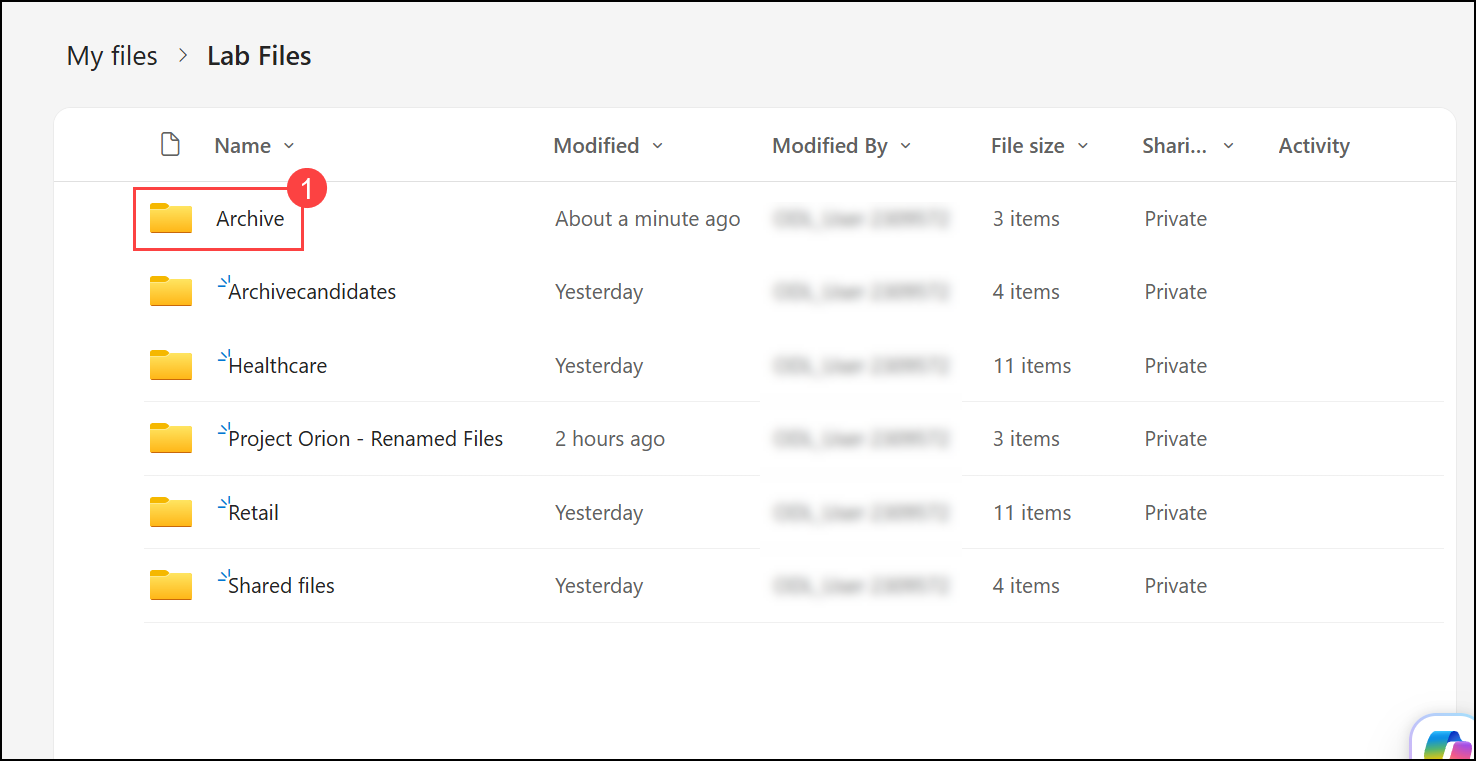
- Go back to OneDrive and verify that the Archive (1) folder exists and contains the archived documents.
Note
Note: Check inside Project Orion - Renamed Files first. If Cowork created the folder elsewhere, it is usually directly under Lab Files, as in the screenshot below.
- Go back to the Cowork conversation. Enter the following prompt (1) and click Send (2):
Which of these governance actions should an agent ever take WITHOUT human approval?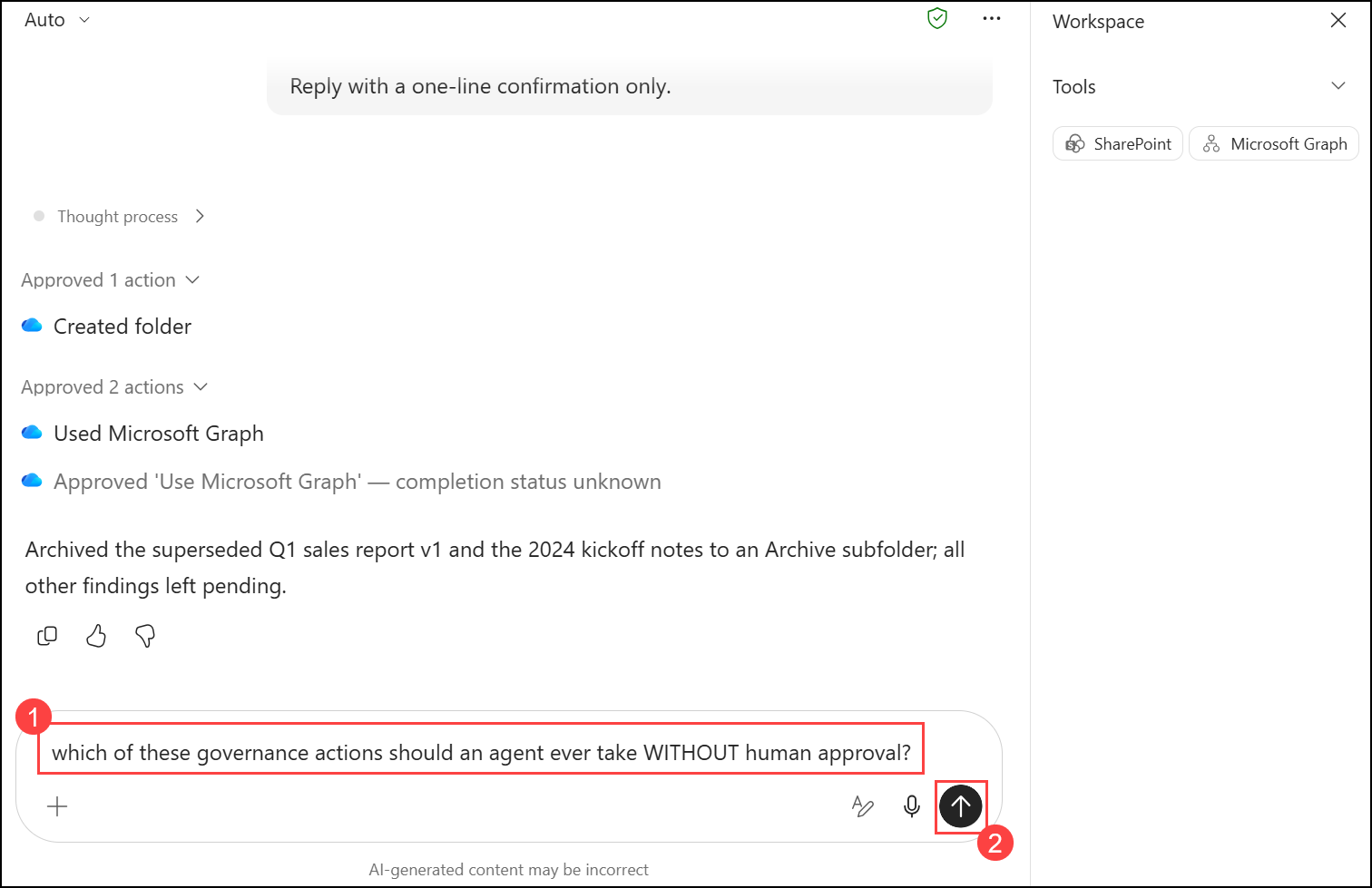
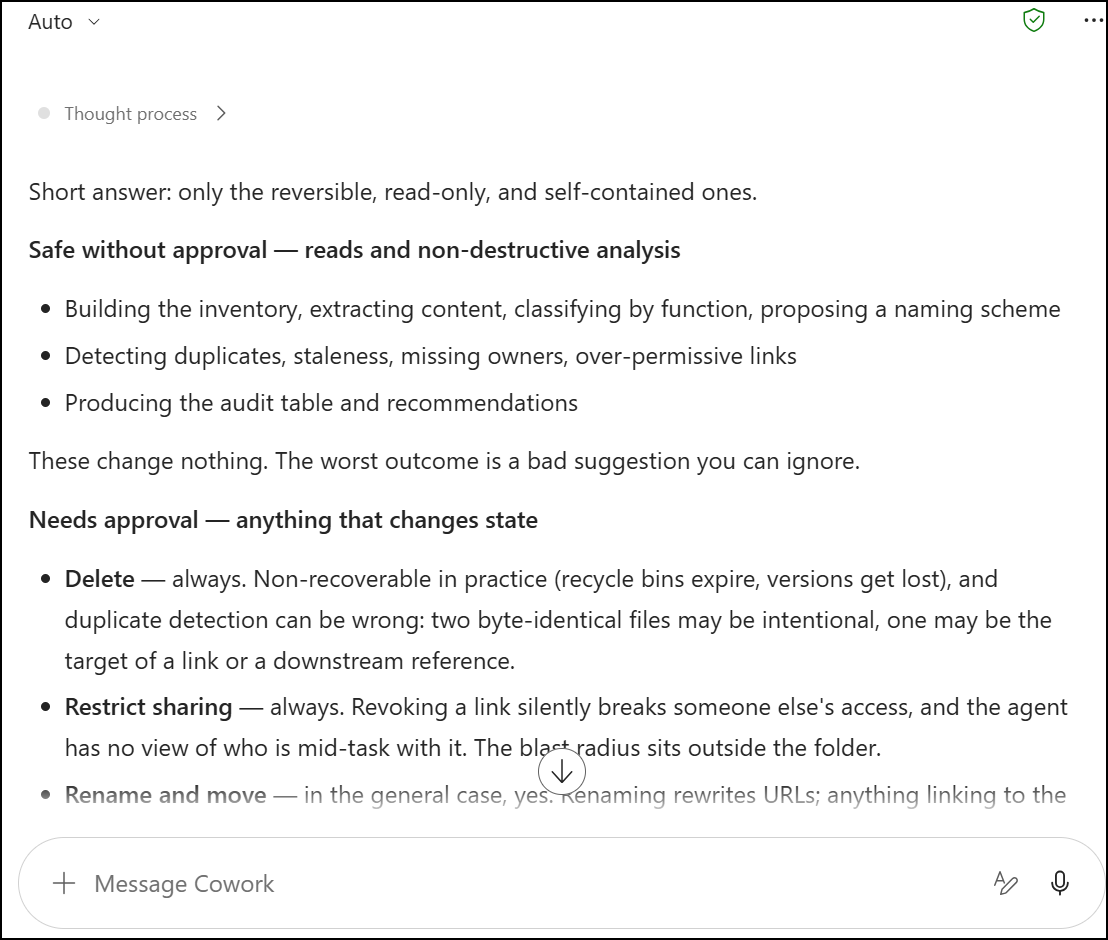
- Review the answer. Note which actions Cowork considers safe without approval (read-only, non-destructive analysis) and which always need a human (delete, restrict sharing, rename and move).
Task 3: AI-generated Excel tracking and Teams reporting
In this task, you ask Cowork to create an Excel governance tracker with one row per file, then post a short cleanup summary with a link to the workbook in Teams, all from a single instruction.
- In the same Cowork conversation, enter the following prompt (1) and click Send (2):
Using the inventory and audit results already in this session - do not re-scan any files - create 'Project Orion File Governance Tracker.xlsx' in my "Lab Files" folder with one row per file and these columns: name, type, business function, last modified, sharing status, action taken.

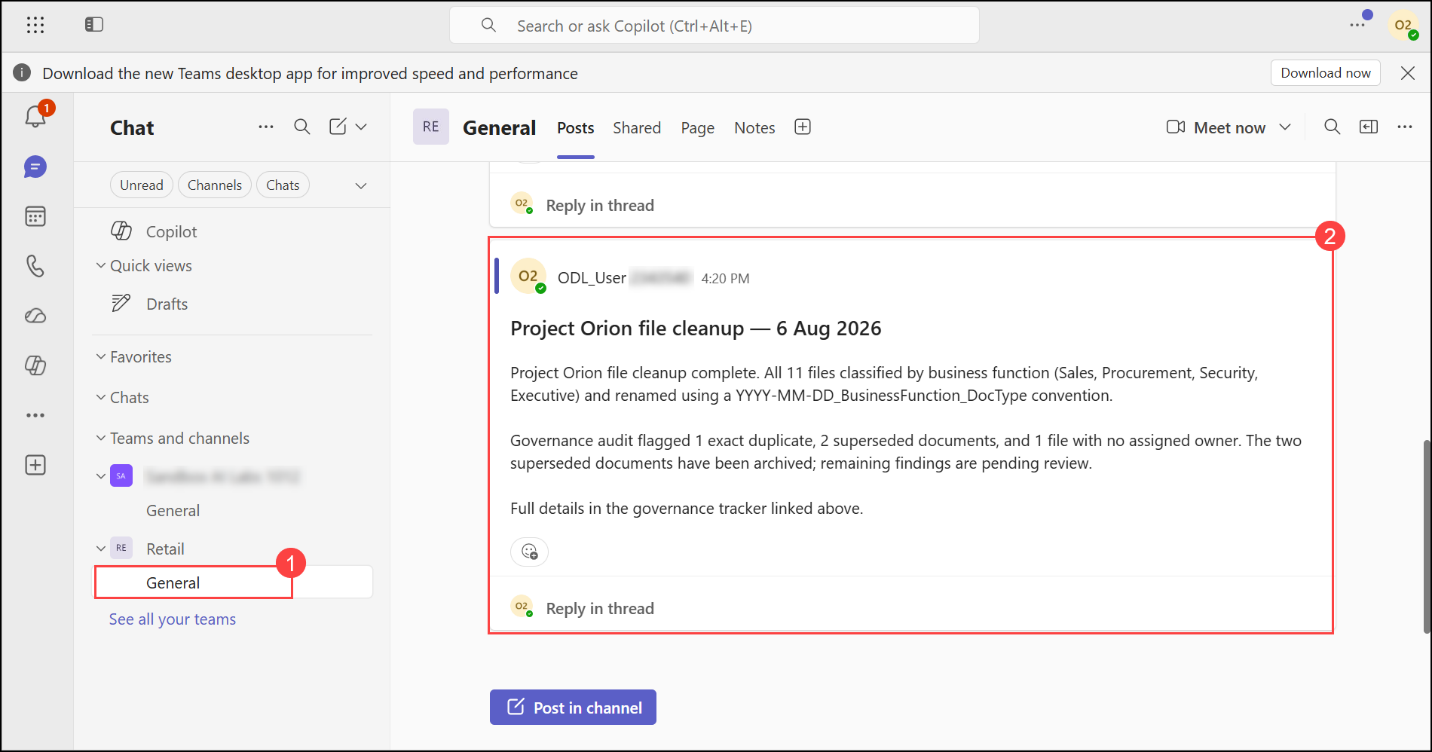
Then post a 3-line summary of today's cleanup to the General channel of my Teams team 'Retail' with a link to the workbook.

Reply with a one-line confirmation only.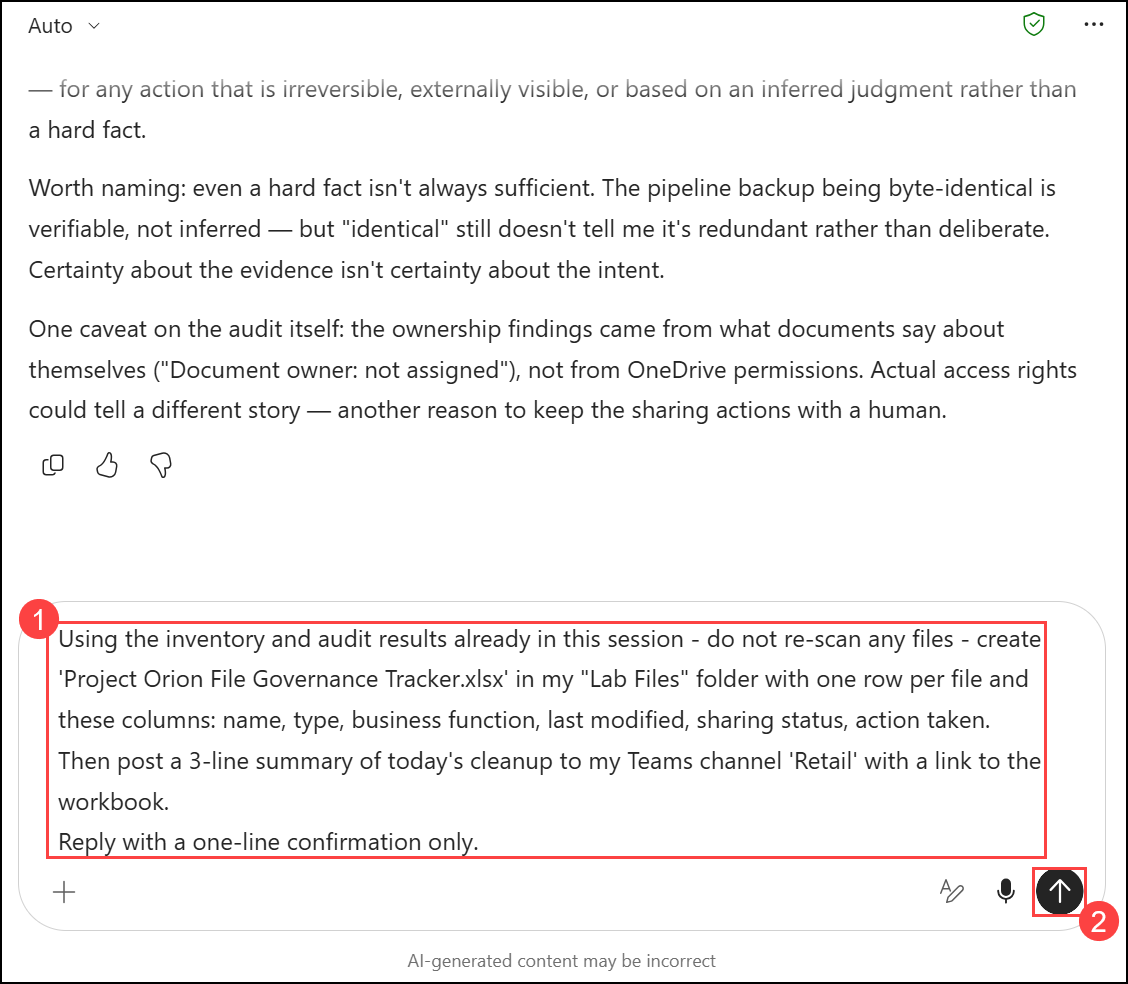
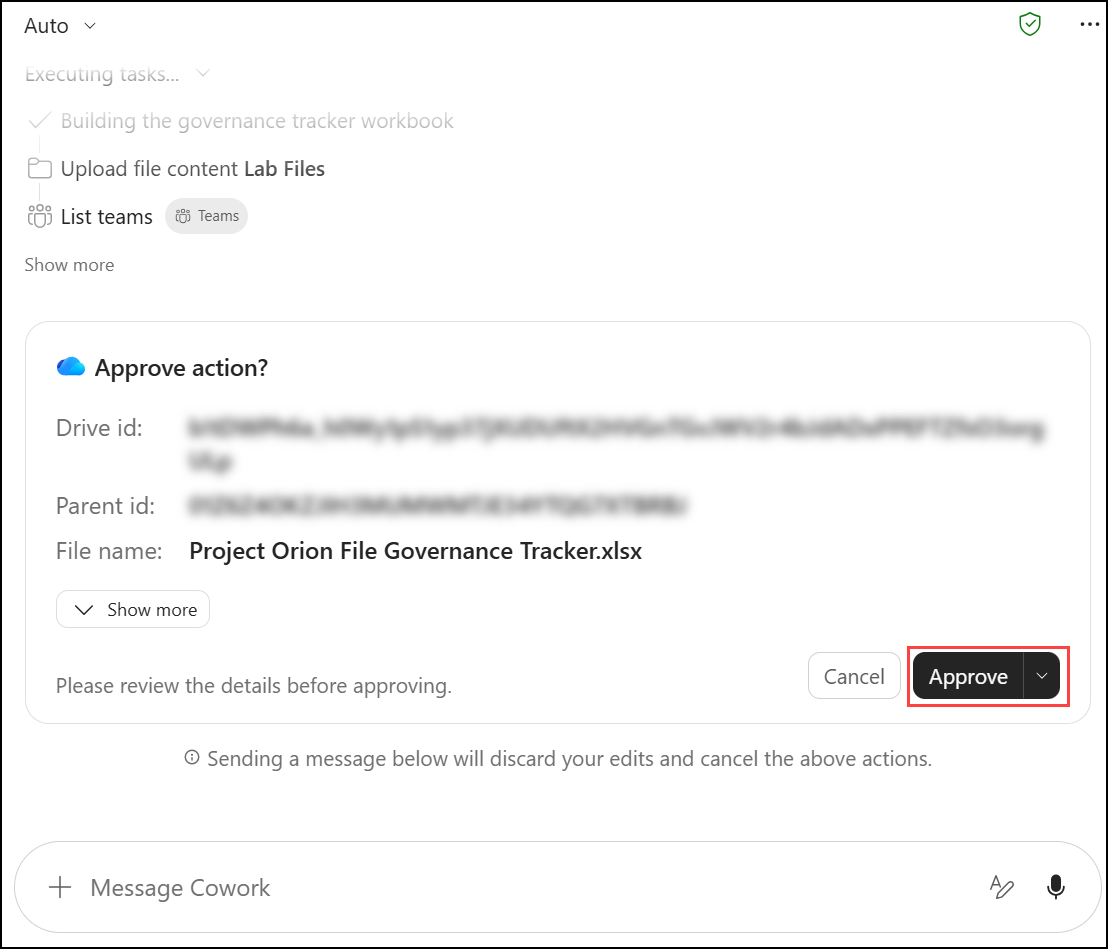
- On the Approve action? card for the workbook upload, check the File name and click Approve. Approve any other cards Cowork shows.
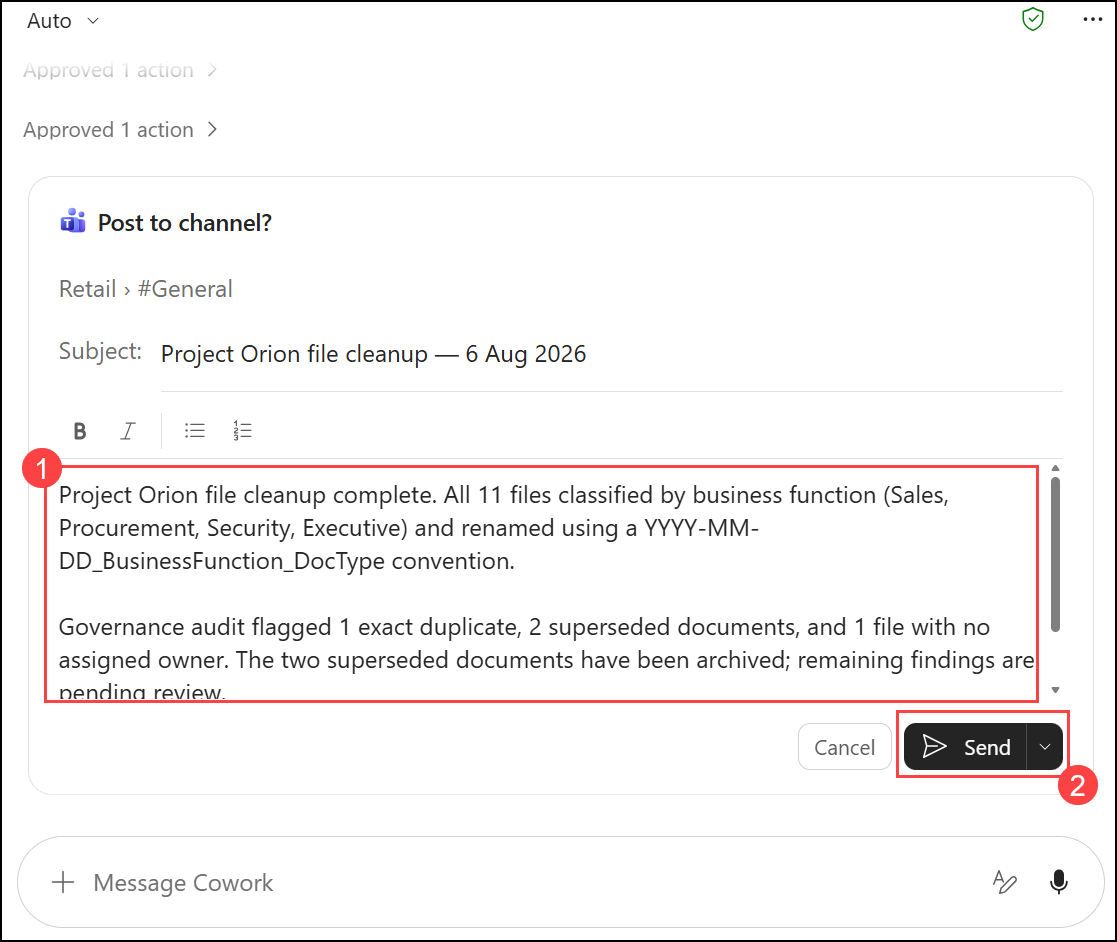
- On the Post to channel? card, check that the destination is Retail › #General, review the message and click Send.
Note
Note: If the message body is empty, type a 3-line summary yourself, using the numbers from your own audit. For example:
Project Orion file cleanup complete. All files classified by business function (Sales, Procurement, Security, Executive) and renamed using a YYYY-MM-DD_BusinessFunction_DocType convention.
The governance audit flagged duplicates, superseded documents and files with no assigned owner. The superseded documents have been archived; the remaining findings are pending review.
Full details are in the Project Orion File Governance Tracker.
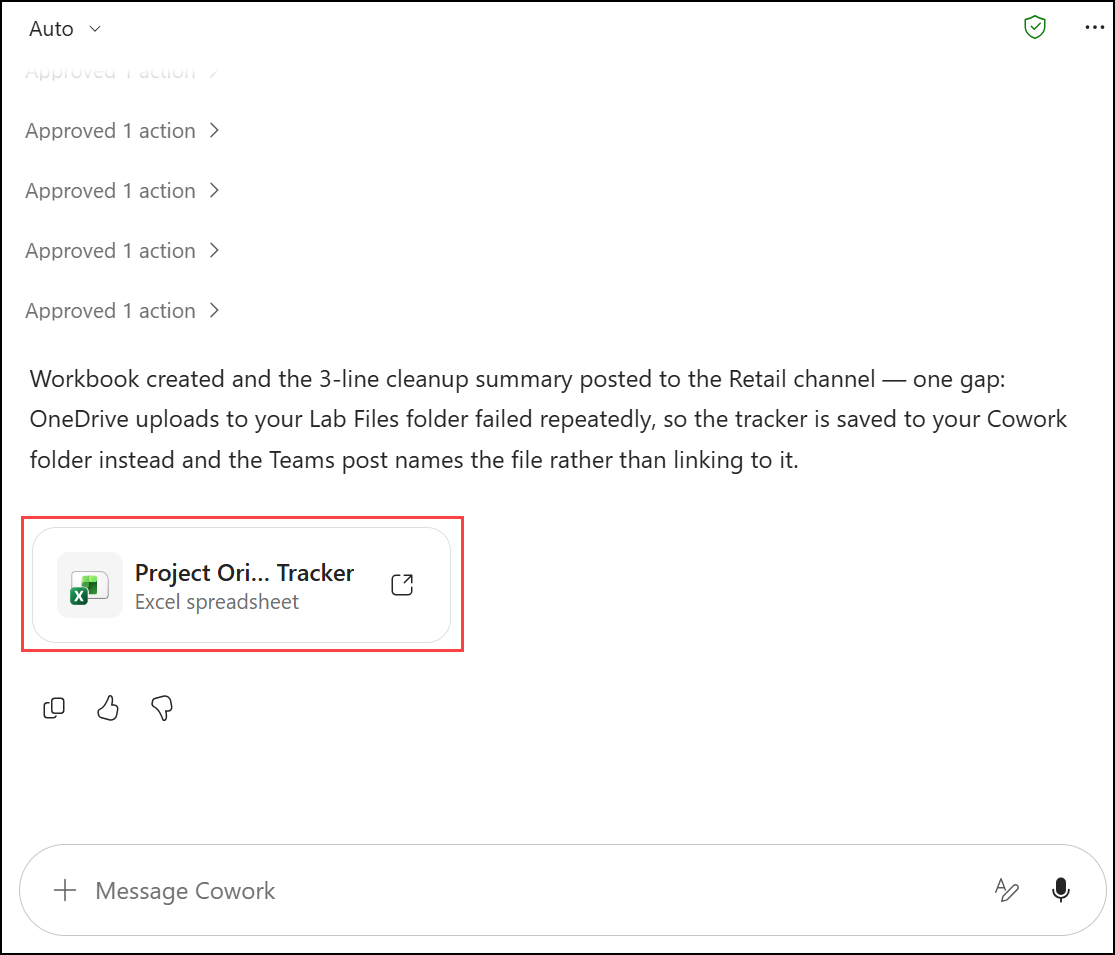
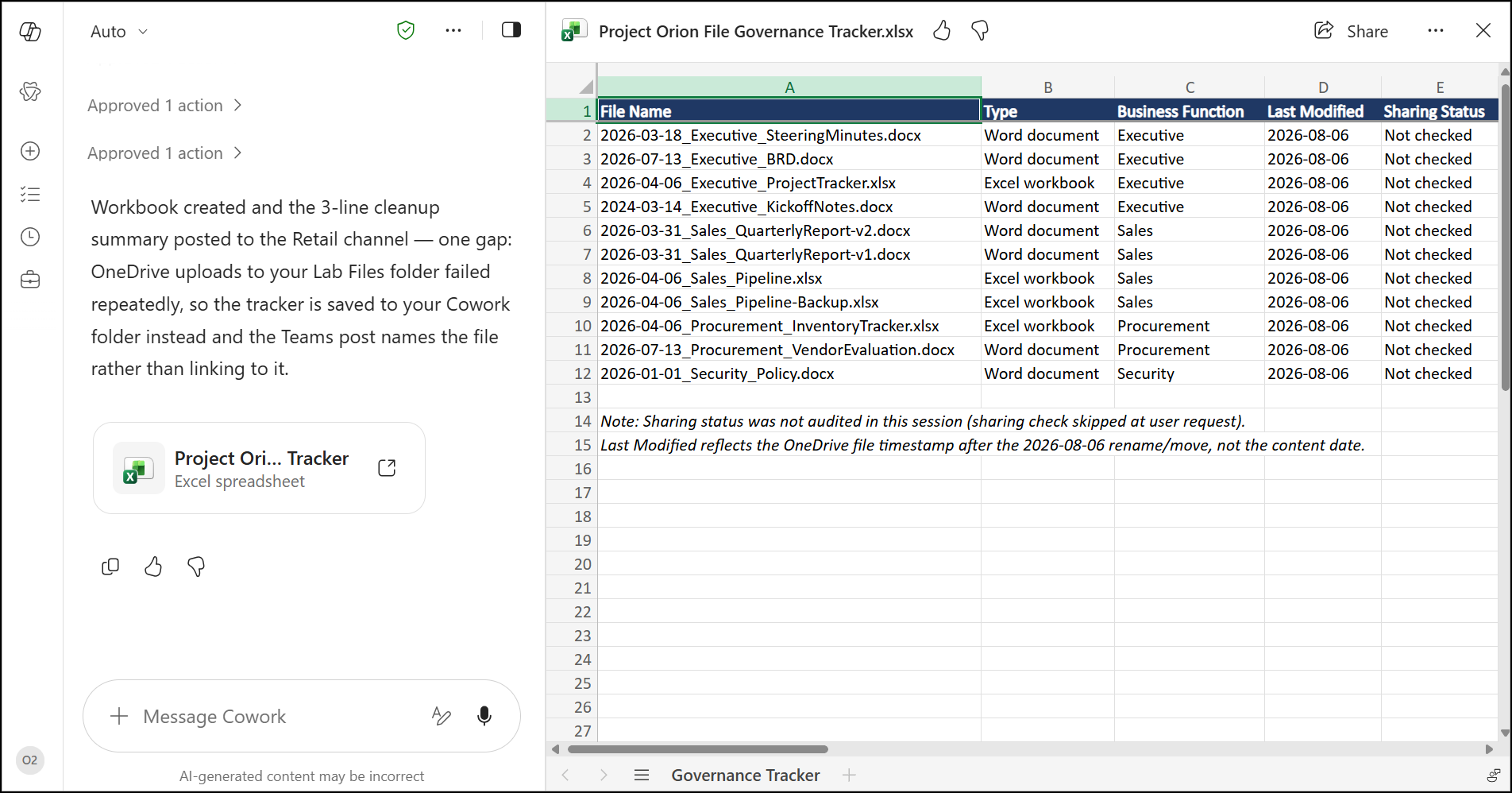
- Review Cowork's confirmation, then click the Project Orion File Governance Tracker card to open the workbook.
Note
Known issue: In some lab tenants the upload to Lab Files fails. Cowork then saves the tracker to your Cowork folder in OneDrive instead, and the Teams post names the file rather than linking to it. Cowork tells you when this happens.
- Review the workbook: one row per file with its name, type, business function, last modified date, sharing status and action taken.
- Open Microsoft Teams, select the General (1) channel of the Retail team, and verify that the governance summary (2) has been posted.
Review
In this lab, you:
- Classified and renamed enterprise files in one pass with an AI-generated
YYYY-MM-DD_BusinessFunction_DocTypeconvention, previewed the full old-name → new-name mapping and approved the batch rename into business-function subfolders - Ran a governance audit covering duplicates, stale content, sharing risks and ownership gaps, and approved only the archive actions while leaving the other recommendations pending
- Asked Cowork which governance actions an agent should take without human approval, and saw how it separates read-only analysis from actions that change files, folders, permissions or data
- Generated an Excel governance tracker with one row per file and posted a cleanup summary to a Microsoft Teams channel
- Used human-in-the-loop approval gates before every bulk file, folder and sharing operation